设置背景图像
您可以使用 Image 元素或 VisualElement.style.backgroundImage 属性向__ UI__(即用户界面,User Interface)让用户能够与您的应用程序进行交互。Unity 目前支持三种 UI 系统。更多信息
See in Glossary 添加视觉内容。两者之间如何选择取决于应用程序的特定要求。有关更多信息,请参阅图像与 VisualElement.style.backgroundImage。
使用图像资源设置背景图像
您可以使用导入或内置的图像资源来设置背景图像。设置背景图像时,必须选择支持的背景图像类型:
注意:
- 要将 SVG 图像用作背景图像,必须安装
com.unity.vectorgraphics包。 - 将图像导入项目时,请定义图像导入设置以获得最直观的结果。
您可以在 UI Builder 中、直接在 USS 中或在 C# 文件中设置背景图像。
USS 示例:
MyElement {
    background-image: url("path/to/imageFile.png");
}
C# 示例:
// Use the AssetDatabase method to load the texture.
myElement1.style.backgroundImage = AssetDatabase.LoadAssetAtPath<Texture2D>("path/to/imageFile.png");

// Use the AssetDatabase method to load the sprite.
myElement2.style.backgroundImage = new StyleBackground(AssetDatabase.LoadAssetAtPath<Sprite>("path/to/spriteAssetFile.png"));

// Load the texture from the project's Resources folder.
myElement3.style.backgroundImage = Resources.Load<Texture2D>("imageFile");

// Load the sprite from the project's Resources folder.
myElement4.style.backgroundImage = new StyleBackground(Resources.Load<Sprite>("spriteAssetFile"));

// Use the Unity Editor's default resources.
myElement5.style.backgroundImage = EditorGUIUtility.FindTexture("CloudConnect");
myElement6.style.backgroundImage = EditorGUIUtility.IconContent("FolderOpened Icon").image;
设置背景图像的缩放模式
背景图像的缩放模式定义了图像如何缩放以适应视觉元素。
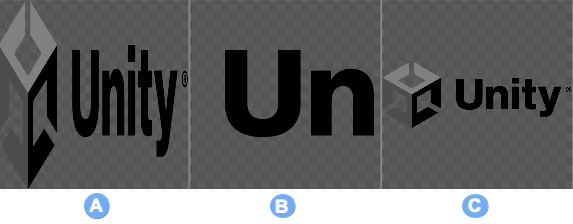
背景图像支持的缩放模式。
A:stretch-to-fill 会拉伸图像,使其填满视觉元素的整个区域。
B:scale-and-crop 会缩放图像以适配视觉元素。如果图像比视觉元素大,图像会被裁剪。
C:scale-to-fit 会缩放图像以适配视觉元素。它与拉伸到填充模式类似,但保留了图像的宽高比。
可以在 UI Builder 中、直接在 USS 中或在 C# 文件中设置缩放模式。
USS 示例:
MyElement {
    -unity-background-scale-mode: scale-and-crop;
}
C# 示例:
// Set the scale mode to scale-and-crop.
myElement.style.backgroundPositionX = BackgroundPropertyHelper.ConvertScaleModeToBackgroundPosition(ScaleMode::ScaleAndCrop);
myElement.style.backgroundPositionY = BackgroundPropertyHelper.ConvertScaleModeToBackgroundPosition(ScaleMode::ScaleAndCrop);
myElement.style.backgroundRepeat = BackgroundPropertyHelper.ConvertScaleModeToBackgroundRepeat(ScaleMode::ScaleAndCrop);
myElement.style.backgroundSize = BackgroundPropertyHelper.ConvertScaleModeToBackgroundSize(ScaleMode::ScaleAndCrop);
使用 UI 工具包对图像进行 9 宫格处理
通常,可以将 9 宫格技术应用于常规 2D 精灵。但是,使用 UI 工具包,可以将 9 宫格技术应用于纹理、渲染纹理和 SVG 矢量图像。
要应用 9 宫格,请进行以下设置:
- 切片值:切片值是图像的左、右、上和下切片的像素值。这些值相对于图像的轴心点。例如,如果轴心点位于图像中心,则左切片值是从图像左边缘到轴心点的像素数。
-
切片缩放:切片缩放是在应用 9 宫格技术后应用于图像的乘数。请注意,对于精灵,Unity 会根据精灵相对于面板
reference sprite pixels per unit value的pixels-per-unit值(默认为100)来调整-unity-slice-scale。例如,如果精灵的pixels-per-unit为16,则按16/100 = 0.16调整缩放。因此,如果将比例设置为2px,则最终比例为2px * 0.16px = 0.32px。对于纹理和矢量图像,Unity 不会对您设置的切片缩放值进行额外调整。
您可以使用 UI Builder 设置切片值和切片缩放,也可以直接在 USS 或 C# 文件中设置。对于精灵图像,还可以在精灵编辑器中设置值。
UI Builder:
使用背景 (Background) 部分中的切片 (Slice) 字段可设置切片值和切片缩放。
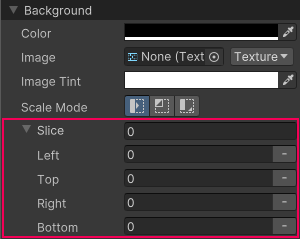
USS 示例:
MyElement {
    -unity-slice-left: 10px;
    -unity-slice-right: 10px;
    -unity-slice-top: 10px;
    -unity-slice-bottom: 10px;
    -unity-slice-scale: 2px;
}
C# 示例:
MyElement.style.unitySliceLeft = 10px;
MyElement.style.unitySliceRight = 10px;
MyElement.style.unitySliceTop = 10px;
MyElement.style.unitySliceBottom = 10px;
MyElement.style.unitySliceScale = 2px;
重要提示:
- 使用 USS 设置的切片值仅适用于关联视觉元素中的图像。这些值并不适用于在其他 UI 文档、其他视觉元素或场景中使用的同一图像。
- 未设置的切片值为零。例如,如果设置了 Top、Bottom 和 Right 切片属性,但将 Left 切片留空,那么 Left 切片就为零。
- USS 中设置的切片值会覆盖精灵编辑器中设置的切片值。