可播放项示例
PlayableGraph Visualizer
本页中的示例都使用 PlayableGraph Visualizer 来说明 Playables API 创建的树和节点。PlayableGraph Visualizer 是通过 GitHub 提供的工具。
注意:PlayableGraph Visualizer 是一个已停用的实验性包,可能无法用于您的 Unity 版本。
要使用 PlayableGraph Visualizer,请执行以下操作:
从 GitHub 代码仓库下载 PlayableGraph Visualizer。
通过选择窗口 (Window) > PlayableGraph Visualizer 打开该工具。
使用
GraphVisualizerClient.Show(PlayableGraph graph, string name)注册图形。
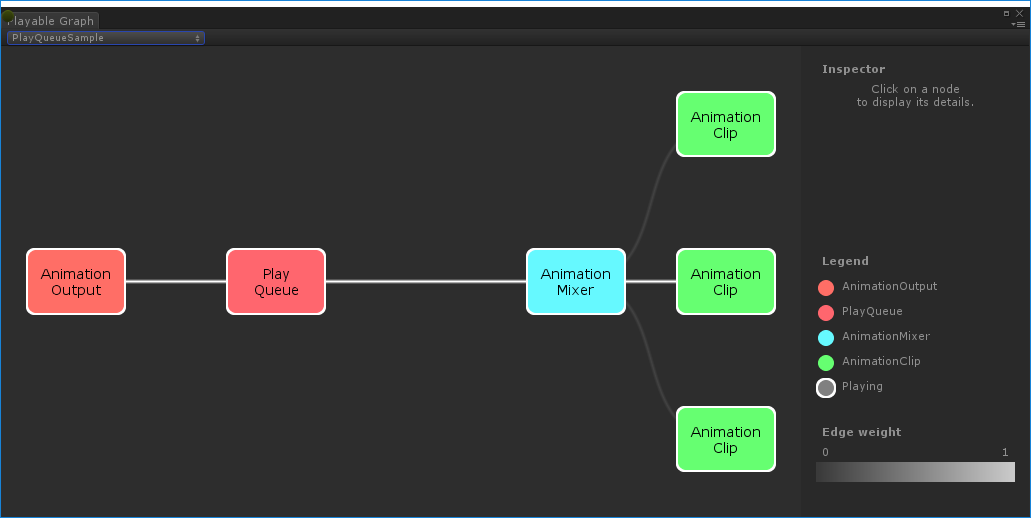
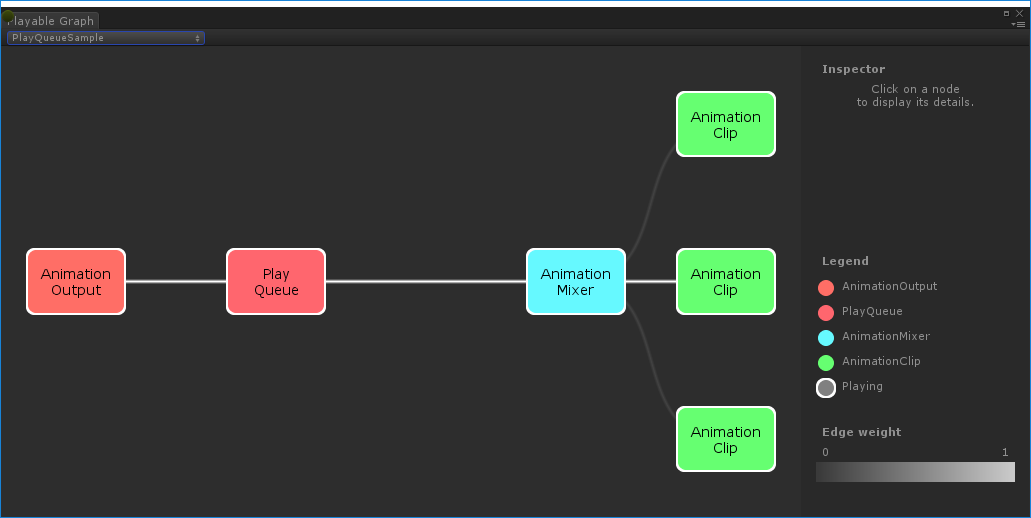
图中的可播放项 (Playable) 以彩色节点表示。线条颜色强度表示混合的权重。有关 PlayableGraph Visualizer 的更多信息,请参阅 GitHub。
播放游戏对象上的单个动画剪辑
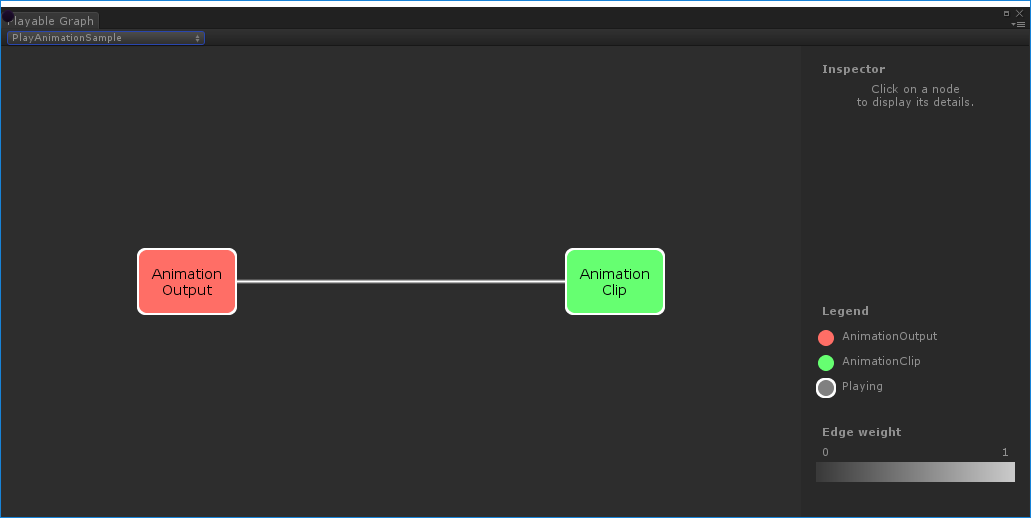
以下示例演示一个简单的 PlayableGraph,它有一个链接到单个可播放节点的可播放项输出。可播放节点将播放单个动画剪辑(剪辑)。AnimationClipPlayable 必须包裹动画剪辑,使其与 Playables API 兼容。
using UnityEngine;
using UnityEngine.Playables;
using UnityEngine.Animations;

[RequireComponent(typeof(Animator))]
public class PlayAnimationSample : MonoBehaviour
{
    public AnimationClip clip;
    PlayableGraph playableGraph;

    void Start()
    {
        playableGraph = PlayableGraph.Create();
        playableGraph.SetTimeUpdateMode(DirectorUpdateMode.GameTime);

        var playableOutput = AnimationPlayableOutput.Create(playableGraph, "Animation", GetComponent<Animator>());

        // Wrap the clip in a playable.
        var clipPlayable = AnimationClipPlayable.Create(playableGraph, clip);

        // Connect the Playable to an output.
        playableOutput.SetSourcePlayable(clipPlayable);

        // Plays the Graph.
        playableGraph.Play();
    }

    void OnDisable()
    {
        // Destroys all Playables and PlayableOutputs created by the graph.
        playableGraph.Destroy();
    }
}
使用 AnimationPlayableUtilities 来简化动画可播放项的创建和播放,如以下示例中所示:
using UnityEngine;
using UnityEngine.Playables;
using UnityEngine.Animations;

[RequireComponent(typeof(Animator))]
public class PlayAnimationUtilitiesSample : MonoBehaviour
{

    public AnimationClip clip;
    PlayableGraph playableGraph;

    void Start()
    {
        AnimationPlayableUtilities.PlayClip(GetComponent<Animator>(), clip, out playableGraph);
    }

    void OnDisable()
    {
        // Destroys all Playables and Outputs created by the graph.
        playableGraph.Destroy();
    }
}
创建动画混合树
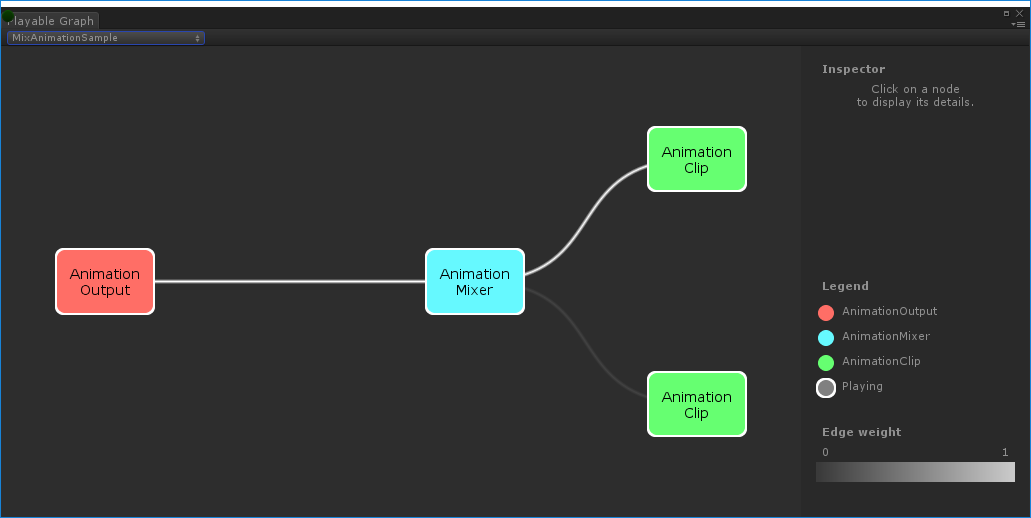
以下示例演示如何使用 AnimationMixerPlayable 来混合两个动画剪辑。在混合动画剪辑之前,它们必须由可播放项包裹。为此,AnimationClipPlayable(clipPlayable0 和 clipPlayable1)包裹每个 AnimationClip(clip0 和 clip1)。SetInputWeight() 方法动态调整每个可播放项的混合权重。
虽然在此示例中未显示 AnimationMixerPlayable,但也可使用它来混合可播放的混合器和其他可播放项。
using UnityEngine;
using UnityEngine.Playables;
using UnityEngine.Animations;

[RequireComponent(typeof(Animator))]
public class MixAnimationSample : MonoBehaviour
{

    public AnimationClip clip0;
    public AnimationClip clip1;
    public float weight;
    PlayableGraph playableGraph;
    AnimationMixerPlayable mixerPlayable;

    void Start()
    {
        // Creates the graph, the mixer and binds them to the Animator.
        playableGraph = PlayableGraph.Create();

        var playableOutput = AnimationPlayableOutput.Create(playableGraph, "Animation", GetComponent<Animator>());

        mixerPlayable = AnimationMixerPlayable.Create(playableGraph, 2);
        playableOutput.SetSourcePlayable(mixerPlayable);

        // Creates AnimationClipPlayable and connects them to the mixer.
        var clipPlayable0 = AnimationClipPlayable.Create(playableGraph, clip0);
        var clipPlayable1 = AnimationClipPlayable.Create(playableGraph, clip1);

        playableGraph.Connect(clipPlayable0, 0, mixerPlayable, 0);
        playableGraph.Connect(clipPlayable1, 0, mixerPlayable, 1);

        // Plays the Graph.
        playableGraph.Play();
    }

    void Update()
    {
        weight = Mathf.Clamp01(weight);
        mixerPlayable.SetInputWeight(0, 1.0f-weight);
        mixerPlayable.SetInputWeight(1, weight);
    }

    void OnDisable()
    {
        // Destroys all Playables and Outputs created by the graph.
        playableGraph.Destroy();
    }
}
PlayableGraph混合 AnimationClip 和 AnimatorController
以下示例演示如何使用 AnimationMixerPlayable 来混合 AnimationClip 与 AnimatorController。
在混合 AnimationClip 和 AnimatorController 之前,它们必须由可播放项包裹。为此,AnimationClipPlayable (clipPlayable) 包裹 AnimationClip(剪辑),而 AnimatorControllerPlayable (ctrlPlayable) 包裹 RuntimeAnimatorController(控制器)。SetInputWeight() 方法动态调整每个可播放项的混合权重。
using UnityEngine;
using UnityEngine.Playables;
using UnityEngine.Animations;

[RequireComponent(typeof(Animator))]
public class RuntimeControllerSample : MonoBehaviour
{
    public AnimationClip clip;
    public RuntimeAnimatorController controller;
    public float weight;

    PlayableGraph playableGraph;
    AnimationMixerPlayable mixerPlayable;

    void Start()
    {
        // Creates the graph, the mixer and binds them to the Animator.
        playableGraph = PlayableGraph.Create();

        var playableOutput = AnimationPlayableOutput.Create(playableGraph, "Animation", GetComponent<Animator>());
        mixerPlayable = AnimationMixerPlayable.Create(playableGraph, 2);
        playableOutput.SetSourcePlayable(mixerPlayable);

        // Creates AnimationClipPlayable and connects them to the mixer.
        var clipPlayable = AnimationClipPlayable.Create(playableGraph, clip);
        var ctrlPlayable = AnimatorControllerPlayable.Create(playableGraph, controller);

        playableGraph.Connect(clipPlayable, 0, mixerPlayable, 0);
        playableGraph.Connect(ctrlPlayable, 0, mixerPlayable, 1);

        // Plays the Graph.
        playableGraph.Play();
    }

    void Update()
    {
        weight = Mathf.Clamp01(weight);
        mixerPlayable.SetInputWeight(0, 1.0f-weight);
        mixerPlayable.SetInputWeight(1, weight);
    }

    void OnDisable()
    {
        // Destroys all Playables and Outputs created by the graph.
        playableGraph.Destroy();
    }
}
创建具有若干输出的 PlayableGraph
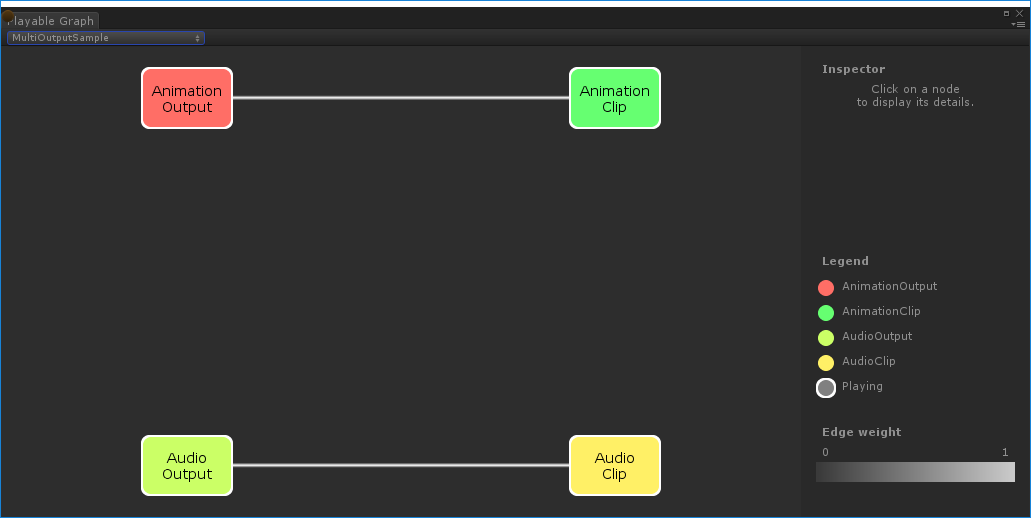
下方示例演示了如何使用以下两个不同的可播放项输出类型来创建 PlayableGraph:AudioPlayableOutput 和 AnimationPlayableOutput。一个 PlayableGraph 可以有许多不同类型的可播放项输出。
此示例还演示了如何通过连接到 AudioPlayableOutput 的 AudioClipPlayable 来播放 AudioClip。
using UnityEngine;
using UnityEngine.Animations;
using UnityEngine.Audio;
using UnityEngine.Playables;

[RequireComponent(typeof(Animator))]
[RequireComponent(typeof(AudioSource))]
public class MultiOutputSample : MonoBehaviour
{
    public AnimationClip animationClip;
    public AudioClip audioClip;
    PlayableGraph playableGraph;

    void Start()
    {
        playableGraph = PlayableGraph.Create();

        // Create the outputs.
        var animationOutput = AnimationPlayableOutput.Create(playableGraph, "Animation", GetComponent<Animator>());

        var audioOutput = AudioPlayableOutput.Create(playableGraph, "Audio", GetComponent<AudioSource>());

        // Create the playables.
        var animationClipPlayable = AnimationClipPlayable.Create(playableGraph, animationClip);
        var audioClipPlayable = AudioClipPlayable.Create(playableGraph, audioClip, true);

        // Connect the playables to an output.
        animationOutput.SetSourcePlayable(animationClipPlayable);
        audioOutput.SetSourcePlayable(audioClipPlayable);

        // Plays the Graph.
        playableGraph.Play();
    }

    void OnDisable()
    {
        // Destroys all Playables and Outputs created by the graph.
        playableGraph.Destroy();
    }
}
PlayableGraph控制树的播放状态
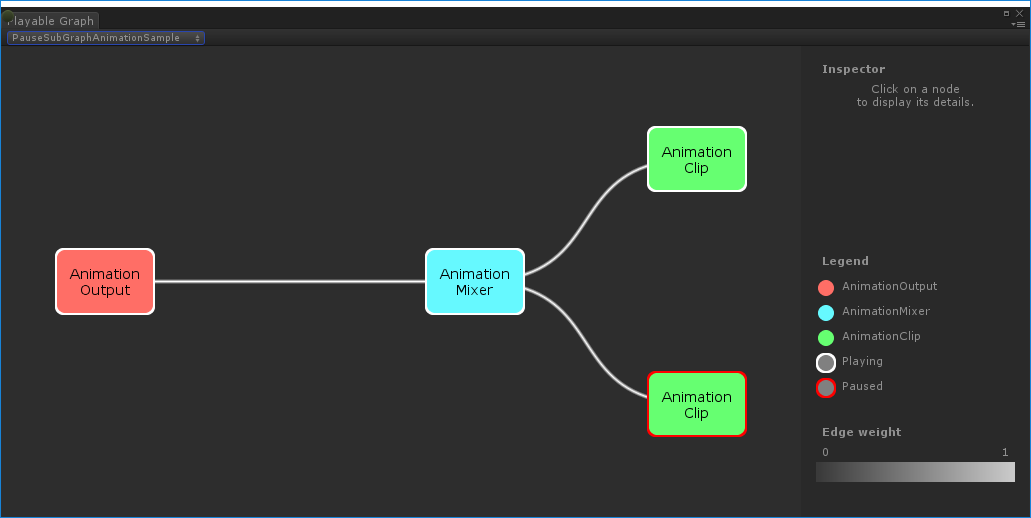
以下示例演示了如何控制 PlayableGraph 树上节点的播放状态。Pause() 和 Play() 方法控制着整个树、其分支之一或单个节点的播放状态。
设置节点的播放状态时,状态会传播到所有子节点(无论其播放状态如何)。例如,如果显式暂停了子节点,则将父节点设置为“播放”也会将其所有子节点设置为“播放”。
在此示例中,PlayableGraph 包含的一个混合器将混合两个动画剪辑。AnimationClipPlayable 包裹每个动画剪辑,而 Pause() 方法显式暂停第二个可播放项。第二个 AnimationClipPlayable 被显式暂停,因此其内部时间不会推进而会输出相同值。确切值取决于 AnimationClipPlayable 暂停时的具体时间。
using UnityEngine;
using UnityEngine.Playables;
using UnityEngine.Animations;

[RequireComponent(typeof(Animator))]
public class PauseSubGraphAnimationSample : MonoBehaviour
{
    public AnimationClip clip0;
    public AnimationClip clip1;

    PlayableGraph playableGraph;
    AnimationMixerPlayable mixerPlayable;

    void Start()
    {
        // Creates the graph, the mixer and binds them to the Animator.

        playableGraph = PlayableGraph.Create();

        var playableOutput = AnimationPlayableOutput.Create(playableGraph, "Animation", GetComponent<Animator>());

        mixerPlayable = AnimationMixerPlayable.Create(playableGraph, 2);
        playableOutput.SetSourcePlayable(mixerPlayable);

        // Creates AnimationClipPlayable and connects them to the mixer.

        var clipPlayable0 = AnimationClipPlayable.Create(playableGraph, clip0);
        var clipPlayable1 = AnimationClipPlayable.Create(playableGraph, clip1);

        playableGraph.Connect(clipPlayable0, 0, mixerPlayable, 0);
        playableGraph.Connect(clipPlayable1, 0, mixerPlayable, 1);
        mixerPlayable.SetInputWeight(0, 1.0f);
        mixerPlayable.SetInputWeight(1, 1.0f);
        clipPlayable1.Pause();

        // Plays the Graph.
        playableGraph.Play();
    }

    void OnDisable()
    {
        // Destroys all Playables and Outputs created by the graph.
        playableGraph.Destroy();
    }
}
控制树的时序
以下示例演示如何使用 Play() 方法来播放 PlayableGraph、如何使用 Pause() 方法来暂停可播放项以及如何使用 SetTime() 方法来通过变量手动设置可播放项的本地时间。
using UnityEngine;
using UnityEngine.Playables;
using UnityEngine.Animations;

[RequireComponent(typeof(Animator))]
public class PlayWithTimeControlSample : MonoBehaviour
{
    public AnimationClip clip;
    public float time;
    PlayableGraph playableGraph;
    AnimationClipPlayable playableClip;

    void Start()
    {
        playableGraph = PlayableGraph.Create();
        var playableOutput = AnimationPlayableOutput.Create(playableGraph, "Animation", GetComponent<Animator>());

        // Wrap the clip in a playable.
        playableClip = AnimationClipPlayable.Create(playableGraph, clip);

        // Connect the Playable to an output.
        playableOutput.SetSourcePlayable(playableClip);

        // Plays the Graph.
        playableGraph.Play();

        // Stops time from progressing automatically.
        playableClip.Pause();
    }

    void Update ()
    {
        // Control the time manually.
        playableClip.SetTime(time);
    }

    void OnDisable()
    {
        // Destroys all Playables and Outputs created by the graph.
        playableGraph.Destroy();
    }
}
创建 PlayableBehaviour
以下示例演示如何使用 PlayableBehaviour 公有类来创建自定义的可播放项。此示例还演示如何重载 PrepareFrame() 虚拟方法以控制 PlayableGraph 上的节点。自定义的可播放项可重载 PlayableBehaviour 类的任何其他虚拟方法。
在此示例中,受控节点是一系列动画剪辑 (clipsToPlay)。SetInputMethod() 将修改每个动画剪辑的混合权重,确保一次只播放一个剪辑,而 SetTime() 方法将调整本地时间,以便在激活动画剪辑时开始播放。
using UnityEngine;
using UnityEngine.Animations;
using UnityEngine.Playables;

public class PlayQueuePlayable : PlayableBehaviour
{
    private int m_CurrentClipIndex = -1;
    private float m_TimeToNextClip;
    private Playable mixer;

    public void Initialize(AnimationClip[] clipsToPlay, Playable owner, PlayableGraph graph)
    {
        owner.SetInputCount(1);
        mixer = AnimationMixerPlayable.Create(graph, clipsToPlay.Length);
        graph.Connect(mixer, 0, owner, 0);
        owner.SetInputWeight(0, 1);

        for (int clipIndex = 0 ; clipIndex < mixer.GetInputCount() ; ++clipIndex)
        {
            graph.Connect(AnimationClipPlayable.Create(graph, clipsToPlay[clipIndex]), 0, mixer, clipIndex);
            mixer.SetInputWeight(clipIndex, 1.0f);
        }
    }

    override public void PrepareFrame(Playable owner, FrameData info)
    {
        if (mixer.GetInputCount() == 0)
            return;

        // Advance to next clip if necessary.
        m_TimeToNextClip -= (float)info.deltaTime;

        if (m_TimeToNextClip <= 0.0f)
        {
            m_CurrentClipIndex++;
            if (m_CurrentClipIndex >= mixer.GetInputCount())
                m_CurrentClipIndex = 0;
            var currentClip = (AnimationClipPlayable)mixer.GetInput(m_CurrentClipIndex);

            // Reset the time so that the next clip starts at the correct position.
            currentClip.SetTime(0);

            m_TimeToNextClip = currentClip.GetAnimationClip().length;
        }

        // Adjust the weight of the inputs.
        for (int clipIndex = 0 ; clipIndex < mixer.GetInputCount(); ++clipIndex)
        {
            if (clipIndex == m_CurrentClipIndex)
                mixer.SetInputWeight(clipIndex, 1.0f);
            else
                mixer.SetInputWeight(clipIndex, 0.0f);
        }
    }
}

[RequireComponent(typeof (Animator))]
public class PlayQueueSample : MonoBehaviour
{
    public AnimationClip[] clipsToPlay;
    PlayableGraph playableGraph;

    void Start()
    {
        playableGraph = PlayableGraph.Create();
        var playQueuePlayable = ScriptPlayable<PlayQueuePlayable>.Create(playableGraph);
        var playQueue = playQueuePlayable.GetBehaviour();

        playQueue.Initialize(clipsToPlay, playQueuePlayable, playableGraph);

        var playableOutput = AnimationPlayableOutput.Create(playableGraph, "Animation", GetComponent<Animator>());

        playableOutput.SetSourcePlayable(playQueuePlayable);
        playableOutput.SetSourceInputPort(0);
        playableGraph.Play();
    }

    void OnDisable()
    {
        // Destroys all Playables and Outputs created by the graph.
        playableGraph.Destroy();
    }
}