UI 工具包入门
要使用__ UI__(即用户界面,User Interface)让用户能够与您的应用程序进行交互。Unity 目前支持三种 UI 系统。更多信息
See in Glossary 工具包创建第一个 UI?请从使用此基础 UI 工具包工作流程示例开始。
注意:出于演示目的,本指南介绍如何为编辑器 UI 添加 UI 控件。但是,有关向 UI 文档添加 UI 控件的说明也适用于运行时 UI。有关更多信息,请参阅运行时 UI 入门。
如果经常执行特定任务,可以使用 UI 工具包为其创建专用 UI。例如,可以创建自定义编辑器窗口。该示例演示了如何使用 UI Builder、UXML 和 C# 脚本创建自定义编辑器窗口,并将 UI 控件添加到自定义编辑器窗口中。
可以在此 GitHub 代码仓库中找到此示例创建的完整文件。
创建自定义编辑器窗口
使用两个标签创建自定义编辑器窗口。
- 使用任何模板在 Unity 编辑器中创建项目。
- 在项目 (Project) 窗口中,右键点击
Assets文件夹,然后选择创建 (Create) > UI 工具包 (UI Toolkit) > 编辑器窗口 (Editor Window). - 在 UI 工具包编辑器窗口创建工具 (UI Toolkit Editor Window Creator) 中,在 C# 框中输入
SimpleCustomEditor。 - 保持选中 UXML 复选框并清除 USS 复选框。
- 选择确认 (Confirm)。
- 要打开编辑器窗口,请选择窗口 (Window) > UI 工具包 (UI Toolkit) > SimpleCustomEditor。
您可以在 Assets/Editor 文件夹中找到其源文件。
向窗口添加 UI 控件
您可以通过以下方式向窗口添加 UI 控件:
您可以单独使用其中任何方法,也可以组合使用。以下示例结合这些方法创建了三组标签、按钮和开关。
使用 UI Builder 添加 UI 控件
要将 UI 控件直观添加到窗口,请使用 UI Builder。除了默认标签之外,以下步骤还会在自定义编辑器窗口中添加一个按钮和一个开关。
- 在
Editor文件夹中,双击SimpleCustomEditor.uxml以打开 UI Builder。 - 在 UI Builder 中,将按钮 (Button) 和开关 (Toggle) 从库 (Library) > 控件 (Controls) 拖入层级视图 (Hierarchy) 或视口 (Viewport) 中的窗口预览中。
- 在层级试图 (Hierarchy) 窗口中,选择标签 (Label)。
- 在检视面板 (Inspector) 窗口中,在文本 (Text) 字段中将默认文本更改为
These controls were created in UI Builder。 - 在层级试图 (Hierarchy) 窗口中,选择按钮 (Button)。
- 在检视面板 (Inspector) 窗口中,在文本 (Text) 字段中输入
This is button1。 - 在名称 (Name) 字段中输入
button1。 - 在层级试图 (Hierarchy) 窗口中,选择开关 (Toggle)。
- 在检视面板 (Inspector) 窗口中,在标签 (Label) 字段中输入
Number?。 - 在名称 (Name) 字段中输入
toggle1。 - 保存并关闭 UI Builder 窗口。
- 关闭自定义编辑器窗口(如果尚未这样做)。
- 在项目 (Project) 窗口中,选择
SimpleCustomEditor.cs并确保视觉树资产 (Visual Tree Asset) 在检视面板 (Inspector) 窗口中设置为SimpleCustomEditor (Visual Tree Asset)。 - 选择窗口 (Window) > UI 工具包 (UI Toolkit) > SimpleCustomEditor 可重新打开自定义编辑器窗口,以查看刚才添加的按钮和开关。
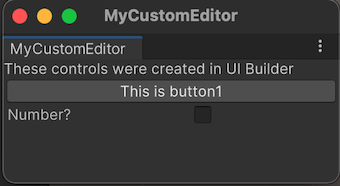
使用 UXML 添加 UI 控件
如果希望在文本文件中定义 UI,可以编辑 UXML 来添加 UI 控件。以下步骤可将另一组标签、按钮和开关添加到窗口中。
- 在
Editor文件夹中,选择资产 (Assets) > 创建 (Create) > UI 工具包 (UI Toolkit) > UI 文档 (UI Document) 以创建一个名为SimpleCustomEditor_UXML.uxml的 UXML 文件。 - 选择项目 (Project) 窗口中
SimpleCustomEditor_UXML.uxml上的箭头。 - 双击
inlineStyle可在文本编辑器中打开SimpleCustomEditor_UXML.uxml。 - 将
SimpleCustomEditor_uxml.uxml的内容替换为以下内容:
   <ui:UXML xmlns:ui="UnityEngine.UIElements" xmlns:uie="UnityEditor.UIElements" xsi="http://www.w3.org/2001/XMLSchema-instance" engine="UnityEngine.UIElements" editor="UnityEditor.UIElements" noNamespaceSchemaLocation="../../UIElementsSchema/UIElements.xsd" editor-extension-mode="False">
       <ui:Label text="These controls were created with UXML." />
       <ui:Button text="This is button2" name="button2"/>
       <ui:Toggle label="Number?" name="toggle2"/>
   </ui:UXML>
打开
SimpleCustomEditor.cs。-
通过向
CreateGUI方法添加以下内容来导入手动创建的 UXML 文件:// Import UXML created manually. var visualTree = AssetDatabase.LoadAssetAtPath<VisualTreeAsset>("Assets/Editor/SimpleCustomEditor_uxml.uxml"); VisualElement labelFromUXML_uxml = visualTree.Instantiate(); root.Add(labelFromUXML_uxml); 保存更改。
选择窗口 (Window) > UI 工具包 (UI Toolkit) > SimpleCustomEditor。这将打开自定义编辑器窗口,其中包含三个标签、两个按钮和两个开关。
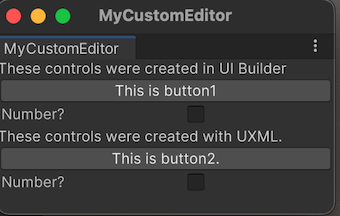
使用 C# 脚本添加 UI 控件
如果喜欢编码,可使用 C# 脚本将 UI 控件添加到窗口。以下步骤可将另一组标签、按钮和开关添加到窗口中。
打开
SimpleCustomEditor.cs。-
Unity 对标签、按钮和开关等基本 UI 控件使用
UnityEngine.UIElements。要使用 UI 控件,必须添加以下声明(如果此声明尚未存在)。using UnityEngine.UIElements; 将现有标签的文本从
"Hello World! From C#"更改为"These controls were created using C# code."。-
EditorWindow 类有一个名为
rootVisualElement的属性。要将 UI 控件添加到窗口,请首先使用一些属性实例化元素类,然后使用rootVisualElement的Add方法。完成的
CreateGUI()方法如下所示:public void CreateGUI() { // Each editor window contains a root VisualElement object VisualElement root = rootVisualElement; // VisualElements objects can contain other VisualElements following a tree hierarchy. Label label = new Label("These controls were created using C# code."); root.Add(label); Button button = new Button(); button.name = "button3"; button.text = "This is button3."; root.Add(button); Toggle toggle = new Toggle(); toggle.name = "toggle3"; toggle.label = "Number?"; root.Add(toggle); // Instantiate UXML created automatically which is set as the default VisualTreeAsset. root.Add(m_UXMLTree.Instantiate()); // Import UXML created manually. var visualTree = AssetDatabase.LoadAssetAtPath<VisualTreeAsset>("Assets/Editor/SimpleCustomEditor_uxml.uxml"); VisualElement labelFromUXML_uxml = visualTree.Instantiate(); root.Add(labelFromUXML_uxml); } 选择窗口 (Window) > UI 工具包 (UI Toolkit) > SimpleCustomEditor 以打开自定义编辑器窗口,以查看三个标签、三个按钮和三个开关。
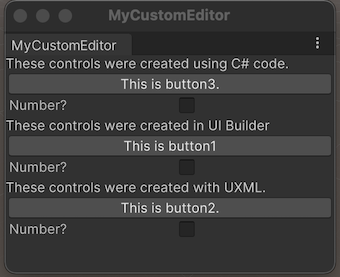
定义 UI 控件的行为
您可以为 UI 控件设置事件处理程序,以便在单击按钮并选择或清除开关时,UI 控件会执行一些任务。
在此示例中,设置以下事件处理程序:
- 单击按钮时,编辑器控制台会显示一条消息。
- 选择开关后,控制台会显示按钮的点击次数。
完成的 SimpleCustomEditor.cs 如下所示:
using UnityEditor;
using UnityEngine;
using UnityEngine.UIElements;

public class SimpleCustomEditor : EditorWindow
{
    [SerializeField]
    private VisualTreeAsset m_VisualTreeAsset = default;

    [MenuItem("Window/UI Toolkit/SimpleCustomEditor")]
    public static void ShowExample()
    {
        SimpleCustomEditor wnd = GetWindow<SimpleCustomEditor>();
        wnd.titleContent = new GUIContent("SimpleCustomEditor");
    }

    private int m_ClickCount = 0;

    private const string m_ButtonPrefix = "button";

    public void CreateGUI()
    {
        // Each editor window contains a root VisualElement object
        VisualElement root = rootVisualElement;

        // VisualElements objects can contain other VisualElement following a tree hierarchy.
        Label label = new Label("These controls were created using C# code.");
        root.Add(label);

        Button button = new Button();
        button.name = "button3";
        button.text = "This is button3.";
        root.Add(button);

        Toggle toggle = new Toggle();
        toggle.name = "toggle3";
        toggle.label = "Number?";
        root.Add(toggle);

        // Instantiate UXML created automatically which is set as the default VisualTreeAsset.
        root.Add(m_VisualTreeAsset.Instantiate());

        // Import UXML created manually.
        var visualTree = AssetDatabase.LoadAssetAtPath<VisualTreeAsset>("Assets/Editor/SimpleCustomEditor_uxml.uxml");
        VisualElement labelFromUXML = visualTree.Instantiate();
        root.Add(labelFromUXML);

        //Call the event handler
        SetupButtonHandler();
    }

    //Functions as the event handlers for your button click and number counts
    private void SetupButtonHandler()
    {
        VisualElement root = rootVisualElement;

        var buttons = root.Query<Button>();
        buttons.ForEach(RegisterHandler);
    }

    private void RegisterHandler(Button button)
    {
        button.RegisterCallback<ClickEvent>(PrintClickMessage);
    }

    private void PrintClickMessage(ClickEvent evt)
    {
        VisualElement root = rootVisualElement;

        ++m_ClickCount;

        //Because of the names we gave the buttons and toggles, we can use the
        //button name to find the toggle name.
        Button button = evt.currentTarget as Button;
        string buttonNumber = button.name.Substring(m_ButtonPrefix.Length);
        string toggleName = "toggle" + buttonNumber;
        Toggle toggle = root.Q<Toggle>(toggleName);

        Debug.Log("Button was clicked!" +
            (toggle.value ? " Count: " + m_ClickCount : ""));
    }
}
测试示例
- 从菜单中选择窗口 (Window) > UI 工具包 (UI Toolkit) > SimpleCustomEditor。