创建拖放式 UI 以便在 Editor 窗口之间拖动
版本:2021.3+
此示例演示了如何使用__ UI__(即用户界面,User Interface)让用户能够与您的应用程序进行交互。Unity 目前支持三种 UI 系统。更多信息
See in Glossary 工具包的拖动事件以及 UnityEditor.DragAndDrop 类在窗口之间启用拖放 UI。
示例概述
此示例创建了两个自定义 Editor 窗口。可将资源从 Project 窗口拖入 Editor 窗口。还可以将同一资源从一个窗口拖动到另一个窗口。
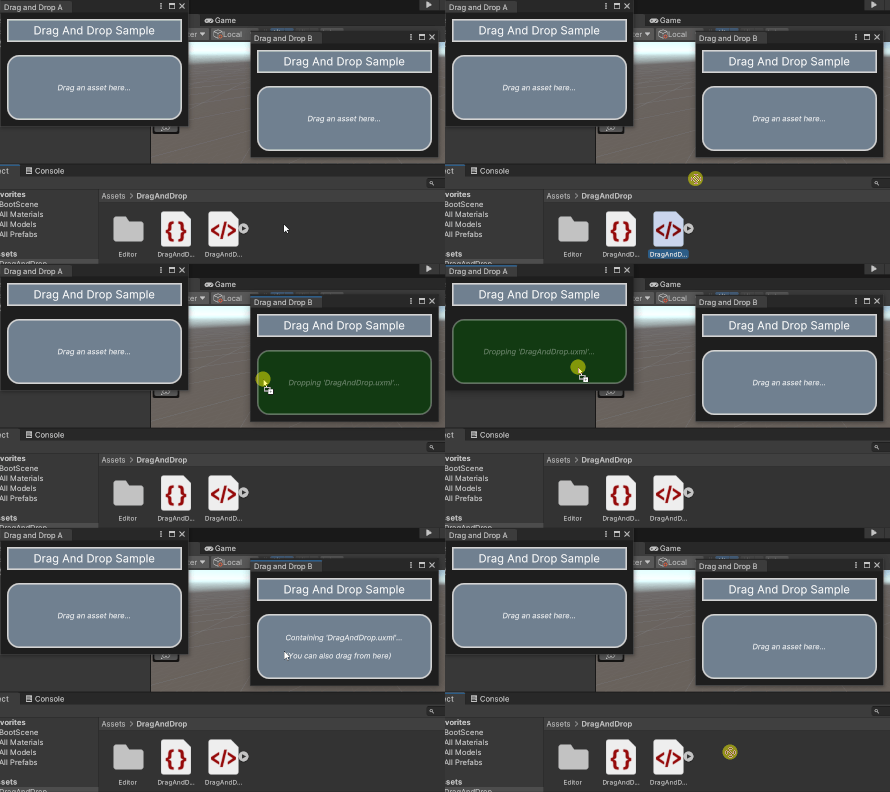
您可以在此 GitHub 代码仓库中找到此示例创建的完整文件
先决条件
本指南适用于熟悉 Unity 编辑器、UI 工具包和 C# 脚本的开发者。在开始之前,请熟悉以下内容:
定义 Editor 窗口的内容
在具有内置视觉元素的 UXML 文件中定义每个 Editor 窗口的内容。每个 Editor 窗口都包含背景、标题、放置区域和文本。为 USS 文件中的视觉元素设置样式。
使用任何模板创建 Unity 项目。
创建名为
drag-and-drop-across-window的文件夹来存储所有文件。-
创建名为
DragAndDrop.uxml的 UI 文档,其中包含以下内容:<ui:UXML xmlns:ui="UnityEngine.UIElements" xmlns:uie="UnityEditor.UIElements" xsi="http://www.w3.org/2001/XMLSchema-instance" engine="UnityEngine.UIElements" editor="UnityEditor.UIElements" noNamespaceSchemaLocation="../../UIElementsSchema/UIElements.xsd" editor-extension-mode="False"> <ui:VisualElement class="background"> <ui:VisualElement class="header"> <ui:Label text="Drag And Drop Sample" display-tooltip-when-elided="true" class="header__label" /> </ui:VisualElement> <ui:VisualElement class="drop-area"> <ui:Label text="Drag an asset here..." display-tooltip-when-elided="true" class="drop-area__label" /> </ui:VisualElement> </ui:VisualElement> </ui:UXML> -
创建名为
DragAndDrop.uss的样式表,其中包含以下内容:.background { flex-grow: 1; background-color: rgba(30, 30, 30, 255); } .header { align-items: center; margin-left: 10px; margin-right: 10px; margin-top: 10px; margin-bottom: 10px; padding-left: 5px; padding-right: 5px; padding-top: 5px; padding-bottom: 5px; background-color: rgba(112, 128, 144, 255); border-left-color: rgba(211, 211, 211, 255); border-right-color: rgba(211, 211, 211, 255); border-top-color: rgba(211, 211, 211, 255); border-bottom-color: rgba(211, 211, 211, 255); border-left-width: 2px; border-right-width: 2px; border-top-width: 2px; border-bottom-width: 2px; } .header__label { font-size: 18px; color: rgba(255, 255, 255, 255); } .drop-area { flex-grow: 1; align-items: center; justify-content: center; margin-left: 10px; margin-right: 10px; margin-top: 10px; margin-bottom: 10px; padding-left: 5px; padding-right: 5px; padding-top: 5px; padding-bottom: 5px; background-color: rgba(112, 128, 144, 255); border-left-color: rgba(211, 211, 211, 255); border-right-color: rgba(211, 211, 211, 255); border-top-color: rgba(211, 211, 211, 255); border-bottom-color: rgba(211, 211, 211, 255); border-left-width: 2px; border-right-width: 2px; border-top-width: 2px; border-bottom-width: 2px; border-top-left-radius: 20px; border-bottom-left-radius: 20px; border-top-right-radius: 20px; border-bottom-right-radius: 20px; } .drop-area--dropping { opacity: 0.4; background-color: rgba(0, 100, 0, 255); } .drop-area__label { -unity-font-style: italic; color: rgba(255, 255, 255, 255); } 双击
DragAndDrop.xml可在 UI Builder 中将其打开。将
DragAndDrop.uss添加为现有 USS。
创建操控器以存储事件回调
操控器是一个注册和取消注册与输入相关的事件回调的对象。在 C# 脚本中创建一个自定义操控器,为 Editor 窗口注册指针事件和拖动事件。
在
drag-and-drop-across-window文件夹中,创建一个名为Editor的文件夹。-
在
Editor文件夹中,创建一个名为DragAndDropManipulator.cs并包含以下内容的 C# 文件:using UnityEngine; using UnityEditor; using UnityEngine.UIElements; namespace Samples.Editor.General { // The DragAndDropManipulator class is a private class within DragAndDropWindow. public partial class DragAndDropWindow { // DragAndDropManipulator is a manipulator that stores pointer-related callbacks, so it inherits from // PointerManipulator. class DragAndDropManipulator : PointerManipulator { // The Label in the window that shows the stored asset, if any. Label dropLabel; // The stored asset object, if any. Object droppedObject = null; // The path of the stored asset, or the empty string if there isn't one. string assetPath = string.Empty; public DragAndDropManipulator(VisualElement root) { // The target of the manipulator, the object to which to register all callbacks, is the drop area. target = root.Q<VisualElement>(className: "drop-area"); dropLabel = root.Q<Label>(className: "drop-area__label"); } protected override void RegisterCallbacksOnTarget() { // Register a callback when the user presses the pointer down. target.RegisterCallback<PointerDownEvent>(OnPointerDown); // Register callbacks for various stages in the drag process. target.RegisterCallback<DragEnterEvent>(OnDragEnter); target.RegisterCallback<DragLeaveEvent>(OnDragLeave); target.RegisterCallback<DragUpdatedEvent>(OnDragUpdate); target.RegisterCallback<DragPerformEvent>(OnDragPerform); } protected override void UnregisterCallbacksFromTarget() { // Unregister all callbacks that you registered in RegisterCallbacksOnTarget(). target.UnregisterCallback<PointerDownEvent>(OnPointerDown); target.UnregisterCallback<DragEnterEvent>(OnDragEnter); target.UnregisterCallback<DragLeaveEvent>(OnDragLeave); target.UnregisterCallback<DragUpdatedEvent>(OnDragUpdate); target.UnregisterCallback<DragPerformEvent>(OnDragPerform); } // This method runs when a user presses a pointer down on the drop area. void OnPointerDown(PointerDownEvent _) { // Only do something if the window currently has a reference to an asset object. if (droppedObject != null) { // Clear existing data in DragAndDrop class. DragAndDrop.PrepareStartDrag(); // Store reference to object and path to object in DragAndDrop static fields. DragAndDrop.objectReferences = new[] { droppedObject }; if (assetPath != string.Empty) { DragAndDrop.paths = new[] { assetPath }; } else { DragAndDrop.paths = new string[] { }; } // Start a drag. DragAndDrop.StartDrag(string.Empty); } } // This method runs if a user brings the pointer over the target while a drag is in progress. void OnDragEnter(DragEnterEvent _) { // Get the name of the object the user is dragging. var draggedName = string.Empty; if (DragAndDrop.paths.Length > 0) { assetPath = DragAndDrop.paths[0]; var splitPath = assetPath.Split('/'); draggedName = splitPath[splitPath.Length - 1]; } else if (DragAndDrop.objectReferences.Length > 0) { draggedName = DragAndDrop.objectReferences[0].name; } // Change the appearance of the drop area if the user drags something over the drop area and holds it // there. dropLabel.text = $"Dropping '{draggedName}'..."; target.AddToClassList("drop-area--dropping"); } // This method runs if a user makes the pointer leave the bounds of the target while a drag is in progress. void OnDragLeave(DragLeaveEvent _) { assetPath = string.Empty; droppedObject = null; dropLabel.text = "Drag an asset here..."; target.RemoveFromClassList("drop-area--dropping"); } // This method runs every frame while a drag is in progress. void OnDragUpdate(DragUpdatedEvent _) { DragAndDrop.visualMode = DragAndDropVisualMode.Generic; } // This method runs when a user drops a dragged object onto the target. void OnDragPerform(DragPerformEvent _) { // Set droppedObject and draggedName fields to refer to dragged object. droppedObject = DragAndDrop.objectReferences[0]; string draggedName; if (assetPath != string.Empty) { var splitPath = assetPath.Split('/'); draggedName = splitPath[splitPath.Length - 1]; } else { draggedName = droppedObject.name; } // Visually update target to indicate that it now stores an asset. dropLabel.text = $"Containing '{draggedName}'...\n\n" * $"(You can also drag from here)"; target.RemoveFromClassList("drop-area--dropping"); } } } }
创建 Editor 窗口并实例化操控器
在 C# 脚本中创建两个自定义 Editor 窗口,并为每个 Editor 窗口实例化一个操控器。
-
创建名为
DragAndDropWindow.cs的 C# 文件,其中包含以下内容:using UnityEditor; using UnityEngine; using UnityEngine.UIElements; namespace Samples.Editor.General { public partial class DragAndDropWindow : EditorWindow { // This is the visual tree that contains the UI structure of the window. [SerializeField] VisualTreeAsset uxmlAsset; // This manipulator contains all of the event logic for this window. DragAndDropManipulator manipulator; // This is the minimum size of both windows. readonly static Vector2 windowMinSize = new(300, 180); // These are the starting positions of the windows. readonly static Vector2 windowAPosition = new(50, 50); readonly static Vector2 windowBPosition = new(450, 100); // These are the titles of the windows. const string windowATitle = "Drag and Drop A"; const string windowBTitle = "Drag and Drop B"; // This method opens two DragAndDropWindows when a user selects the specified menu item. [MenuItem("Window/UI Toolkit/Drag And Drop (Editor)")] public static void OpenDragAndDropWindows() { // Create the windows. var windowA = CreateInstance<DragAndDropWindow>(); var windowB = CreateInstance<DragAndDropWindow>(); // Define the attributes of the windows and display them. windowA.minSize = windowMinSize; windowB.minSize = windowMinSize; windowA.Show(); windowB.Show(); windowA.titleContent = new(windowATitle); windowB.titleContent = new(windowBTitle); windowA.position = new(windowAPosition, windowMinSize); windowB.position = new(windowBPosition, windowMinSize); } void OnEnable() { if (uxmlAsset != null) { uxmlAsset.CloneTree(rootVisualElement); } // Instantiate manipulator. manipulator = new(rootVisualElement); } void OnDisable() { // The RemoveManipulator() method calls the Manipulator's UnregisterCallbacksFromTarget() method. manipulator.target.RemoveManipulator(manipulator); } } } 在项目 (Project) 窗口中,选择
DragAndDropWindow.cs,然后将DragAndDrop.uxml拖动到检视面板 (Inspector) 中的 UXml 资源 (Uxml Asset) 处。从菜单中选择窗口 (Window) > UI 工具箱 (UI Toolkit) > 拖放(编辑器)(Drag and Drop (Editor))。打开两个拖放 (Drag and Drop) 窗口。可将资源从项目 (Project) 窗口拖动到这些窗口中的放置区域。还可以将同一资源从一个窗口拖动到另一个窗口。