相对定位和绝对定位
本示例演示了相对定位和绝对定位之间的区别。本示例还演示了如何使用 C# 和 UXML/USS 来添加和设置__ UI__(即用户界面,User Interface)让用户能够与您的应用程序进行交互。Unity 目前支持三种 UI 系统。更多信息
See in Glossary 控件的样式。
示例概述
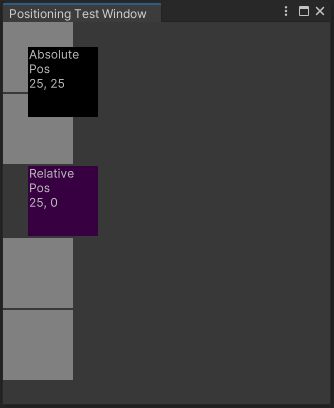
该示例使用自动布局系统向编辑器和运行时 UI 添加方框。一个方框演示 25 px 的相对偏移,而另一个方框演示 25 px, 25 px 的绝对位置。
该示例使用 C# 脚本构建编辑器 UI,并使用 UXML 和 CSS 构建运行时 UI。
可以在此 GitHub 代码仓库中找到此示例创建的完整文件。
先决条件
本指南适用于熟悉 Unity 编辑器、UI 工具包和 C# 脚本的开发者。在开始之前,请熟悉以下内容:
为编辑器 UI 创建示例
创建一个自定义编辑器窗口,并使用 C# 脚本添加所有方框:四个灰色背景方框用于比较;一个黑色背景方框使用绝对位置放置;一个紫色背景方框使用相对位置放置。
使用任何模板创建 Unity 项目。
在项目 (Project) 窗口中右键单击,然后选择创建 (Create) > UI 工具包 (UI Toolkit) > 编辑器窗口 (Editor Window)。
在 UI 工具包编辑器窗口创建工具 (UI Toolkit Editor Window Creator) 窗口的 C# 框中输入
PositioningTestWindow。清除 UXML 和 USS 复选框。
选择确认 (Confirm)。这会创建一个名为
PositioningTestWindow.cs的 C# 文件。-
将
PositioningTestWindow.cs替换为以下内容:using UnityEditor; using UnityEngine; using UnityEngine.UIElements; public class PositioningTestWindow : EditorWindow { [MenuItem("Window/UI Toolkit/Positioning Test Window")] public static void ShowExample() { var wnd = GetWindow<PositioningTestWindow>(); wnd.titleContent = new GUIContent("Positioning Test Window"); } public void CreateGUI() { for (int i = 0; i < 2; i++) { var temp = new VisualElement(); temp.style.width = 70; temp.style.height = 70; temp.style.marginBottom = 2; temp.style.backgroundColor = Color.gray; this.rootVisualElement.Add(temp); } // Relative positioning var relative = new Label("Relative\nPos\n25, 0"); relative.style.width = 70; relative.style.height = 70; relative.style.left = 25; relative.style.marginBottom = 2; relative.style.backgroundColor = new Color(0.2165094f, 0, 0.254717f); this.rootVisualElement.Add(relative); for (int i = 0; i < 2; i++) { var temp = new VisualElement(); temp.style.width = 70; temp.style.height = 70; temp.style.marginBottom = 2; temp.style.backgroundColor = Color.gray; this.rootVisualElement.Add(temp); } // Absolute positioning var absolutePositionElement = new Label("Absolute\nPos\n25, 25"); absolutePositionElement.style.position = Position.Absolute; absolutePositionElement.style.top = 25; absolutePositionElement.style.left = 25; absolutePositionElement.style.width = 70; absolutePositionElement.style.height = 70; absolutePositionElement.style.backgroundColor = Color.black; this.rootVisualElement.Add(absolutePositionElement); } } 要查看示例,从菜单中选择窗口 (Window) > UI 工具包 (UI Toolkit) > 定位测试窗口 (Positioning Test Window)。
为运行时 UI 创建示例
-
创建名为
PositioningTest.uss的 USS 文件,其中包含以下内容:.box { height: 70px; width: 70px; margin-bottom: 2px; background-color: gray; } #relative{ width: 70px; height: 70px; background-color: purple; left: 25px; margin-bottom: 2px; position:relative; } #absolutePositionElement{ left: 25px; top: 25px; width: 70px; height: 70px; background-color: black; position: absolute; } -
创建一个名为
PositioningTest.uxml的 UXML 文档,其中包含以下内容:<ui:UXML xmlns:ui="UnityEngine.UIElements" xmlns:uie="UnityEditor.UIElements" xsi="http://www.w3.org/2001/XMLSchema-instance" engine="UnityEngine.UIElements" editor="UnityEditor.UIElements" noNamespaceSchemaLocation="../UIElementsSchema/UIElements.xsd" editor-extension-mode="False"> <Style src="PositioningTest.uss"/> <ui:VisualElement class="box"/> <ui:VisualElement class="box"/> <ui:Label text="Relative\nPos\n25, 0" name="relative" /> <ui:VisualElement class="box"/> <ui:VisualElement class="box"/> <ui:Label text="Absolute\nPos\n25, 25" name="absolutePositionElement" /> </ui:UXML> -
创建名为
PositioningTestRuntime.cs的 C# 脚本,其中包含以下内容:using UnityEngine; using UnityEngine.UIElements; public class PostionTestRuntime : MonoBehaviour { void OnEnable() { GetComponent<UIDocument>(); } } 右键单击层级视图 (Hierarchy) 窗口,然后选择UI 工具包 (UI Toolkit) > UI 文档 (UI Document)。
在 UI 文档 (UI Document) 的检视面板 (Inspector) 窗口中,选择 UI 文档 (UI Document) > 源资产 (Source Asset) > 定位测试 (PositioningTest)。
在 UI 文档 (UI Document) 的检视面板 (Inspector) 窗口中,选择添加组件 (Add Component) > 定位测试运行时 (Positioning Test Runtime)。
进入运行模式并根据需要调整分辨率以查看结果。