使用网格 API 创建径向进度指示器
版本:2023.2+
此示例演示如何使用网格 API 将视觉内容绘制到视觉元素上。
注意:网格 API 是高级用户的工具。在 2022.1 及更高版本中,如果只想生成简单几何体,请改用矢量 API。有关更多信息,请参阅使用矢量 API 创建径向进度指示器。
示例概述
此示例创建一个显示进度的自定义控件,作为加载栏的替代项。进度指示器在显示百分比的标签周围以部分填充的圆环显示进度值。它支持 0 到 100 之间的值,用于确定环的填充量。
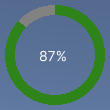
可以在此 GitHub 代码仓库中找到此示例创建的完整文件。
先决条件
本指南适用于熟悉 Unity 编辑器、UI 工具包和 C# 脚本的开发者。在开始之前,请熟悉以下内容:
创建径向进度指示器及其自定义网格
创建一个 C# 脚本来定义 RadialProgress 类,并将控件公开给 UXML 和__ UI__(即用户界面,User Interface)让用户能够与您的应用程序进行交互。Unity 目前支持三种 UI 系统。更多信息
See in Glossary Builder。
- 使用任何模板创建 Unity 项目。
- 创建名为
radial-progress的文件夹来存储文件。 - 在
radial-progress文件夹中,创建一个名为RadialProgress.cs的 C# 脚本,其中包含以下内容:
using Unity.Collections;
using UnityEngine;
using UnityEngine.UIElements;

namespace MyUILibrary
{
    /// <summary>
    /// An element that displays progress inside a partially filled circle
    /// </summary>
    [UxmlElement]
    public partial class RadialProgress : VisualElement
    {
        // These are USS class names for the control overall and the label.
        public static readonly string ussClassName = "radial-progress";
        public static readonly string ussLabelClassName = "radial-progress__label";

        // These objects allow C# code to access custom USS properties.
        static CustomStyleProperty<Color> s_TrackColor = new CustomStyleProperty<Color>("--track-color");
        static CustomStyleProperty<Color> s_ProgressColor = new CustomStyleProperty<Color>("--progress-color");

        // These are the meshes this control uses.
        EllipseMesh m_TrackMesh;
        EllipseMesh m_ProgressMesh;

        // This is the label that displays the percentage.
        Label m_Label;

        // This is the number of outer vertices to generate the circle.
        const int k_NumSteps = 200;

        // This is the number that the Label displays as a percentage.
        float m_Progress;

        /// <summary>
        /// A value between 0 and 100
        /// </summary>
        [UxmlAttribute]
        public float progress
        {
            // The progress property is exposed in C#.
            get => m_Progress;
            set
            {
                // Whenever the progress property changes, MarkDirtyRepaint() is named. This causes a call to the
                // generateVisualContents callback.
                m_Progress = value;
                m_Label.text = Mathf.Clamp(Mathf.Round(value), 0, 100) + "%";
                MarkDirtyRepaint();
            }
        }

        // This default constructor is RadialProgress's only constructor.
        public RadialProgress()
        {
            // Create a Label, add a USS class name, and add it to this visual tree.
            m_Label = new Label();
            m_Label.AddToClassList(ussLabelClassName);
            Add(m_Label);

            // Create meshes for the track and the progress.
            m_ProgressMesh = new EllipseMesh(k_NumSteps);
            m_TrackMesh = new EllipseMesh(k_NumSteps);

            // Add the USS class name for the overall control.
            AddToClassList(ussClassName);

            // Register a callback after custom style resolution.
            RegisterCallback<CustomStyleResolvedEvent>(evt => CustomStylesResolved(evt));

            // Register a callback to generate the visual content of the control.
            generateVisualContent += context => GenerateVisualContent(context);

            progress = 0.0f;
        }

        static void CustomStylesResolved(CustomStyleResolvedEvent evt)
        {
            RadialProgress element = (RadialProgress)evt.currentTarget;
            element.UpdateCustomStyles();
        }

        // After the custom colors are resolved, this method uses them to color the meshes and (if necessary) repaint
        // the control.
        void UpdateCustomStyles()
        {
            if (customStyle.TryGetValue(s_ProgressColor, out var progressColor))
            {
                m_ProgressMesh.color = progressColor;
            }

            if (customStyle.TryGetValue(s_TrackColor, out var trackColor))
            {
                m_TrackMesh.color = trackColor;
            }

            if (m_ProgressMesh.isDirty || m_TrackMesh.isDirty)
                MarkDirtyRepaint();
        }

        // The GenerateVisualContent() callback method calls DrawMeshes().
        static void GenerateVisualContent(MeshGenerationContext context)
        {
            RadialProgress element = (RadialProgress)context.visualElement;
            element.DrawMeshes(context);
        }

        // DrawMeshes() uses the EllipseMesh utility class to generate an array of vertices and indices, for both the
        // "track" ring (in grey) and the progress ring (in green). It then passes the geometry to the MeshWriteData
        // object, as returned by the MeshGenerationContext.Allocate() method. For the "progress", only a slice of
        // the index arrays is used to progressively reveal parts of the mesh.
        void DrawMeshes(MeshGenerationContext context)
        {
            float halfWidth = contentRect.width * 0.5f;
            float halfHeight = contentRect.height * 0.5f;

            if (halfWidth < 2.0f || halfHeight < 2.0f)
                return;

            m_ProgressMesh.width = halfWidth;
            m_ProgressMesh.height = halfHeight;
            m_ProgressMesh.borderSize = 10;
            m_ProgressMesh.UpdateMesh();

            m_TrackMesh.width = halfWidth;
            m_TrackMesh.height = halfHeight;
            m_TrackMesh.borderSize = 10;
            m_TrackMesh.UpdateMesh();

            // Draw track mesh first
            var trackMeshWriteData = context.Allocate(m_TrackMesh.vertices.Length, m_TrackMesh.indices.Length);
            trackMeshWriteData.SetAllVertices(m_TrackMesh.vertices);
            trackMeshWriteData.SetAllIndices(m_TrackMesh.indices);

            // Keep progress between 0 and 100
            float clampedProgress = Mathf.Clamp(m_Progress, 0.0f, 100.0f);

            // Determine how many triangle are used to depending on progress, to achieve a partially filled circle
            int sliceSize = Mathf.FloorToInt((k_NumSteps * clampedProgress) / 100.0f);

            if (sliceSize == 0)
                return;

            // Every step is 6 indices in the corresponding array
            sliceSize *= 6;

            var progressMeshWriteData = context.Allocate(m_ProgressMesh.vertices.Length, sliceSize);
            progressMeshWriteData.SetAllVertices(m_ProgressMesh.vertices);

            var tempIndicesArray = new NativeArray<ushort>(m_ProgressMesh.indices, Allocator.Temp);
            progressMeshWriteData.SetAllIndices(tempIndicesArray.Slice(0, sliceSize));
            tempIndicesArray.Dispose();
        }

    }
}
创建自定义网格
创建名为 EllipseMesh.cs 的 C# 脚本,其中包含以下内容:
using UnityEngine;
using UnityEngine.UIElements;

namespace MyUILibrary
{
    public class EllipseMesh
    {
        int m_NumSteps;
        float m_Width;
        float m_Height;
        Color m_Color;
        float m_BorderSize;
        bool m_IsDirty;
        public Vertex[] vertices { get; private set; }
        public ushort[] indices { get; private set; }

        public EllipseMesh(int numSteps)
        {
            m_NumSteps = numSteps;
            m_IsDirty = true;
        }

        public void UpdateMesh()
        {
            if (!m_IsDirty)
                return;

            int numVertices = numSteps * 2;
            int numIndices = numVertices * 6;

            if (vertices == null || vertices.Length != numVertices)
                vertices = new Vertex[numVertices];

            if (indices == null || indices.Length != numIndices)
                indices = new ushort[numIndices];

            float stepSize = 360.0f / (float)numSteps;
            float angle = -180.0f;

            for (int i = 0; i < numSteps; ++i)
            {
                angle -= stepSize;
                float radians = Mathf.Deg2Rad * angle;

                float outerX = Mathf.Sin(radians) * width;
                float outerY = Mathf.Cos(radians) * height;
                Vertex outerVertex = new Vertex();
                outerVertex.position = new Vector3(width + outerX, height + outerY, Vertex.nearZ);
                outerVertex.tint = color;
                vertices[i * 2] = outerVertex;

                float innerX = Mathf.Sin(radians) * (width - borderSize);
                float innerY = Mathf.Cos(radians) * (height - borderSize);
                Vertex innerVertex = new Vertex();
                innerVertex.position = new Vector3(width + innerX, height + innerY, Vertex.nearZ);
                innerVertex.tint = color;
                vertices[i * 2 + 1] = innerVertex;

                indices[i * 6] = (ushort)((i == 0) ? vertices.Length - 2 : (i - 1) * 2); // previous outer vertex
                indices[i * 6 + 1] = (ushort)(i * 2); // current outer vertex
                indices[i * 6 + 2] = (ushort)(i * 2 + 1); // current inner vertex

                indices[i * 6 + 3] = (ushort)((i == 0) ? vertices.Length - 2 : (i - 1) * 2); // previous outer vertex
                indices[i * 6 + 4] = (ushort)(i * 2 + 1); // current inner vertex
                indices[i * 6 + 5] = (ushort)((i == 0) ? vertices.Length - 1 : (i - 1) * 2 + 1); // previous inner vertex
            }

            m_IsDirty = false;
        }

        public bool isDirty => m_IsDirty;

        void CompareAndWrite(ref float field, float newValue)
        {
            if (Mathf.Abs(field - newValue) > float.Epsilon)
            {
                m_IsDirty = true;
                field = newValue;
            }
        }

        public int numSteps
        {
            get => m_NumSteps;
            set
            {
                m_IsDirty = value != m_NumSteps;
                m_NumSteps = value;
            }
        }

        public float width
        {
            get => m_Width;
            set => CompareAndWrite(ref m_Width, value);
        }

        public float height
        {
            get => m_Height;
            set => CompareAndWrite(ref m_Height, value);
        }

        public Color color
        {
            get => m_Color;
            set
            {
                m_IsDirty = value != m_Color;
                m_Color = value;
            }
        }

        public float borderSize
        {
            get => m_BorderSize;
            set => CompareAndWrite(ref m_BorderSize, value);
        }

    }
}
设置自定义控件的样式
创建名为 RadialProgress.uss 的 USS 文件,其中包含以下内容:
.radial-progress {
        min-width: 26px;
        min-height: 20px;
        --track-color: rgb(130, 130, 130);
        --progress-color: rgb(46, 132, 24);
        --percentage-color: white;
        margin-left: 5px;
        margin-right: 5px;
        margin-top: 5px;
        margin-bottom: 5px;
        flex-direction: row;
        justify-content: center;
        width: 100px;
        height: 100px;
    }

    .radial-progress__label {
        -unity-text-align: middle-left;
        color: var(--percentage-color);
    }
在 UI 文档中使用自定义控件并进行测试
使用 UI Builder 添加控件,并应用 USS 样式表。使用不同的 Progress 值测试控件。
- 创建名为
RadialProgressExample.uxml的 UI 文档。 - 双击
RadialProgressExample.uxml可在 UI Builder 中将其打开。 - 在库 (Library) 窗口中,选择项目 (Project) > 自定义控件 (Custom Controls) > MyUILibrary。
- 将 RadialProgress 拖动到层级视图 (Hierarchy) 窗口。
- 在 UI Builder 的样式表 (StyleSheets) 部分中,添加
RadialProgress.uss作为现有 USS。 - 在层级视图 (Hierarchy) 窗口中,选择 RadialProgress。
- 在检视面板 (Inspector) 窗口中,在名称 (Name) 框中输入
radial-progress。 - 在检视面板 (Inspector) 窗口中,在进度 (Progress) 框中输入不同的值。视口 (Viewport) 中的百分比会发生变化,绿色进度环会调整大小。
创建用动态值更新进度的逻辑
创建一个 C# MonoBehaviour 脚本,通过动态值更新控件的 Progress 属性,以用于演示。在 radial-progress 文件夹中,创建一个名为 RadialProgressComponent.cs 的 C# MonoBehaviour,其中包含以下内容:
using MyUILibrary;
using UnityEngine;
using UnityEngine.UIElements;

[RequireComponent(typeof(UIDocument))]
public class RadialProgressComponent : MonoBehaviour
{
    RadialProgress m_RadialProgress;

    void Start()
    {
        var root = GetComponent<UIDocument>().rootVisualElement;

       m_RadialProgress = new RadialProgress() {
            style = {
                position = Position.Absolute,
                left = 20, top = 20, width = 200, height = 200
            }
        };

        root.Add(m_RadialProgress);
    }

    void Update()
    {
        m_RadialProgress.progress = ((Mathf.Sin(Time.time) + 1.0f) / 2.0f) * 60.0f + 10.0f;
    }
}
在运行时测试进度指示器
- 在 Unity 中,选择游戏对象 (GameObject) > UI 工具包 (UI Toolkit) > UI 文档 (UI Document)。
- 在层级视图 (Hierarchy) 窗口中选择 UIDocument。
- 将 RadialProgressComponent.cs 添加为 UIDocument 游戏对象的组件。
- 进入运行模式。进度指示器将显示在场景中,且进度环和值会动态变化。