使用 ListView 绑定到列表
版本:2021.3+
ListView 控件是创建列表的最有效方法。要使用 ListView 绑定到列表,请将 ListView 的绑定路径设置为包含列表的属性的名称。
此示例演示了如何使用 ListView 绑定到列表。
示例概述
此示例创建了开关列表,并将该列表绑定到底层的 GameSwitch 对象列表。
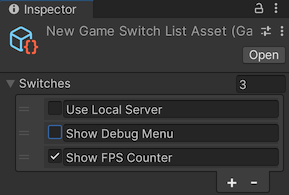
您可以在此 GitHub 代码仓库中找到此示例创建的完整文件。
先决条件
本指南适用于熟悉 Unity 编辑器、UI 工具包和 C# 脚本的开发者。在开始之前,请熟悉以下内容:
创建具有列表的对象
创建一个 GameSwitch 对象和一个序列化对象,该对象将 GameSwitch 对象列表作为属性。
使用任何模板创建 Unity 项目。
在项目 (Project) 窗口中,创建一个名为
bind-to-list的文件夹来存储所有文件。-
创建一个名为
GameSwitch.cs的 C# 脚本,并将其内容替换为以下内容:using System; [Serializable] public struct GameSwitch { public string name; public bool enabled; } -
创建一个名为
game_switch.uxml的__ UI__(即用户界面,User Interface)让用户能够与您的应用程序进行交互。Unity 目前支持三种 UI 系统。更多信息
See in Glossary 文档,并将其内容替换为以下内容:<UXML xmlns="UnityEngine.UIElements" xmlns:ue="UnityEditor.UIElements"> <Box style="flex-direction: row;"> <Toggle binding-path="enabled" /> <TextField binding-path="name" readonly="true" style="flex-grow: 1;"/> </Box> </UXML> -
创建一个名为
GameSwitchListAsset.cs的 C# 脚本,并将其内容替换为以下代码:using System.Collections.Generic; using UnityEngine; namespace UIToolkitExamples { [CreateAssetMenu(menuName = "UIToolkitExamples/GameSwitchList")] public class GameSwitchListAsset : ScriptableObject { public List<GameSwitch> switches; public void Reset() { switches = new() { new() { name = "Use Local Server", enabled = false }, new() { name = "Show Debug Menu", enabled = false }, new() { name = "Show FPS Counter", enabled = true }, }; } public bool IsSwitchEnabled(string switchName) => switches.Find(s => s.name == switchName).enabled; } }
创建自定义编辑器并设置绑定
创建一个自定义编辑器,在其中可以创建包含开关列表的资源。通过将 UI 文档的 binding-path 属性设置为 GameSwitch 列表的属性名称(即 switches),将切换列表绑定到 GameSwitch 列表。
创建一个名为
Editor的文件夹。-
在 Editor 文件夹中创建一个名为
GameSwitchListEditor.cs的 C# 脚本,并将其内容替换为以下代码:using UnityEditor; using UnityEngine; using UnityEngine.UIElements; namespace UIToolkitExamples { [CustomEditor(typeof(GameSwitchListAsset))] public class GameSwitchListEditor : Editor { [SerializeField] VisualTreeAsset m_ItemAsset; [SerializeField] VisualTreeAsset m_EditorAsset; public override VisualElement CreateInspectorGUI() { var root = m_EditorAsset.CloneTree(); var listView = root.Q<ListView>(); listView.makeItem = m_ItemAsset.CloneTree; return root; } } } -
创建一个名为
game_switch_list_editor.uxml的 UI 文档,并将其内容替换为以下内容:<UXML xmlns="UnityEngine.UIElements" xmlns:ue="UnityEditor.UIElements"> <ListView virtualization-method="DynamicHeight" reorder-mode="Animated" binding-path="switches" show-add-remove-footer="true" show-border="true" show-foldout-header="true" header-title="Switches" /> </UXML> 在项目 (Project) 窗口中,选择 GameSwitchListEditor.cs。
在检视面板 (Inspector) 中将 game_switch.uxml 拖动到 Item Asset 上。
在检视面板 (Inspector) 中将 game_switch_list_editor.uxml 拖动到 Editor Asset 上。
测试绑定
- 从菜单中选择资源 (Assets) > 创建 (Create) > UIToolkitExamples > GameSwitchList。这将创建一个名为 New Game Switch List Asset 的资源。
- 在项目 (Project) 窗口中,选择 New Game Switch List Asset。此时将显示检视面板 (Inspector) 中的开关列表。您可以对列表重新排序、折叠列表、向列表添加条目或从列表中删除条目以及更改列表中的条目数量。如果在 Inspector UI 中作出更改,则
GameSwitchListAsset对象的switches属性会更改。