在 C# 脚本中使用绑定路径进行绑定
版本:2021.3+
此示例演示了如何在 C# 脚本中使用绑定路径进行绑定。
示例概述
此示例创建了一个自定义 Editor 窗口来更改游戏对象的名称。
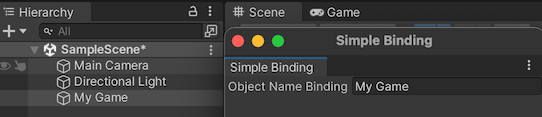
您可以在此 GitHub 代码仓库中找到此示例创建的完整文件。
先决条件
本指南适用于熟悉 Unity 编辑器、UI 工具包和 C# 脚本的开发者。在开始之前,请熟悉以下内容:
使用绑定路径进行绑定
在 C# 中创建一个带有 TextField 的自定义 Editor 窗口。将绑定路径设置为游戏对象的名称 (name) 属性,并对 Bind() 方法进行显式调用。
使用任何模板在 Unity 中创建项目。
在项目 (Project) 窗口中,创建一个名为
bind-with-binding-path的文件夹来存储文件。在 bind-with-binding-path 文件夹中,创建一个名为
Editor的文件夹。-
在 Editor 文件夹中创建一个名为
SimpleBindingExample.cs的 C# 脚本,并将其内容替换为以下代码:using UnityEditor; using UnityEngine; using UnityEditor.UIElements; using UnityEngine.UIElements; namespace UIToolkitExamples { public class SimpleBindingExample : EditorWindow { TextField m_ObjectNameBinding; [MenuItem("Window/UIToolkitExamples/Simple Binding Example")] public static void ShowDefaultWindow() { var wnd = GetWindow<SimpleBindingExample>(); wnd.titleContent = new GUIContent("Simple Binding"); } public void CreateGUI() { m_ObjectNameBinding = new TextField("Object Name Binding"); // Note: the "name" property of a GameObject is "m_Name" in serialization. m_ObjectNameBinding.bindingPath = "m_Name"; rootVisualElement.Add(m_ObjectNameBinding); OnSelectionChange(); } public void OnSelectionChange() { GameObject selectedObject = Selection.activeObject as GameObject; if (selectedObject != null) { // Create the SerializedObject from the current selection SerializedObject so = new SerializedObject(selectedObject); // Bind it to the root of the hierarchy. It will find the right object to bind to. rootVisualElement.Bind(so); // Alternatively you can instead bind it to the TextField itself. // m_ObjectNameBinding.Bind(so); } else { // Unbind the object from the actual visual element that was bound. rootVisualElement.Unbind(); // If you bound the TextField itself, you'd do this instead: // m_ObjectNameBinding.Unbind(); // Clear the TextField after the binding is removed m_ObjectNameBinding.value = ""; } } } }
测试绑定
- 在 Unity 中,选择窗口 (Window) > UIToolkitExamples > 简单绑定示例 (Simple Binding Example)。此时将显示一个带有文本字段的自定义编辑器 (Editor) 窗口。
- 在场景中选择任意游戏对象。游戏对象的名称将显示在编辑器 (Editor) 窗口的文本字段中。如果在文本字段中更改游戏对象的名称,那么该游戏对象的名称就会改变。