Find a specific version of a package
To find a specific package version:
In Unity, open the Package Manager window. Refer to Access the Package Manager window.
-
If you’re looking for a pre-release package, follow these steps:
-
Select Project Settings under the Advanced
 menu.
menu.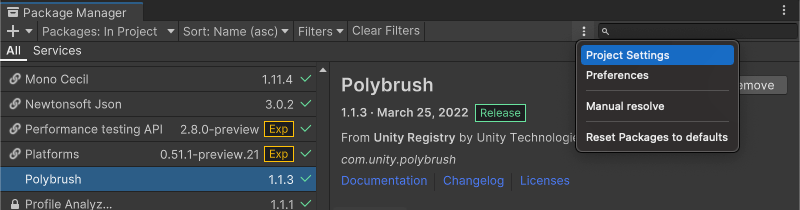
Project Settings opens the Package Manager project settings window The Package Manager Project Settings window appears.
Under the Advanced Settings group, select Show Pre-release Package Versions.
Close the Project Settings window. Any pre-release packages now appear in the list with the Pre label.
-
-
You can either browse the list of packages or find a specific package using one of these methods:
- Search for a package by name or keyword. Note: The context you selected in the navigation panel limits the search scope. For example, if you’re searching for an Asset Store package, make sure you select the My Assets context before starting your search. When you switch contexts, the Package Manager window clears the search box. But if you return to the previous context, the Package Manager window restores your search term.
- Sort the list (for example, by Recently updated, to find the most recently updated packages).
- Apply filters to the list.
Select a package from the list of packages.
-
For packages from the Unity Registry, select the Version History tab in the details panel. If multiple versions are available, select See other versions and expand the entries to display information specific to each version.
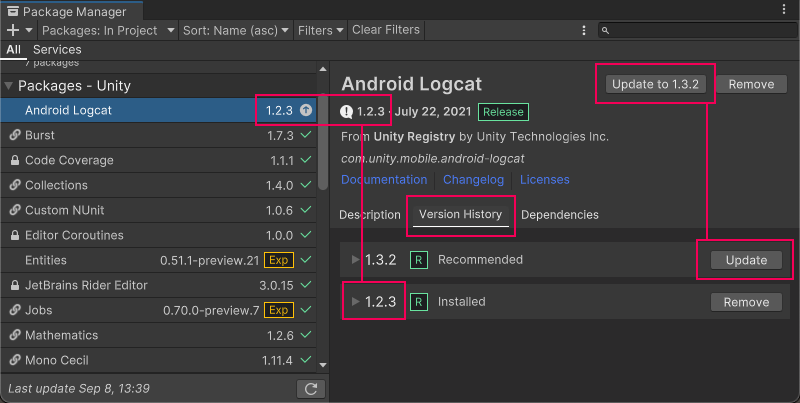
Version numbers for installed packages display in multiple places and the recommended version appears on the Update button -
When the Version History tab displays, you can perform a variety of actions when you expand a specific version:
- You can view the changelog for that version and click Changelog to view the full list of changes across versions.
- If you don’t already have this package installed in your project, you can install this version.
- If another version of this package is already installed in your project, you can update the package to this version.
- If you installed this package in your project but don’t want it anymore, you can remove the package from your project.