Video Player component targets
Use the Video Player component to play videos (from a URL or video clips) on various surfaces in your scene.
The Video Player component lets you play video content on different targets, which changes where the video content displays in your scene. To change the video’s target, open the Video Player component and set the Render Mode property to your preferred target.
This page provides details about some of the video targets available:
For more details of the Render Mode property and its options, refer to the Render mode dropdown.
For information about all of the Video Player component’s settings, refer to Video Player component reference. For instructions on how to create the component, refer to Create a Video Player component.
The default target of the Video Player
Unity determines the default target when you create the component. If you drop a Video Clip or Video Player component onto a__ GameObject__Unity 场景中的基础对象,可以表示角色、道具、风景、摄像机、路径点等。GameObject 的功能由所附的组件决定。更多信息
See in Glossary, the texture of the GameObject’s Renderer becomes the target.
If you drag the Video Clip into the scene, the target is set to the far plane of the scene’s main camera. Otherwise, the VideoPlayer uses the Render Texture render mode.
Display your video content on a Camera plane
You can choose to project the video onto the near plane or far plane of the Camera. To enable this setting, set Render Mode to Camera Near Plane or Camera Far Plane.
The near plane shows the video in front of any objects in the scene. Displaying the video on this plane is useful for video cutscenes or__ UI__(即用户界面,User Interface)让用户能够与您的应用程序进行交互。Unity 目前支持三种 UI 系统。更多信息
See in Glossary elements that need to overlay the scene.
The far plane shows the video in the background of the scene, which is ideal for animated backgrounds.
Display your video content on a GameObject’s Material and Texture
You can use the Video Player component to attach video files to GameObjects, and play the video’s content on the GameObject’s Texture at runtime.
When you attach a Video Player component to a GameObject that contains a Renderer component, Unity automatically sets the Material Property of the component to the GameObject’s main Texture.
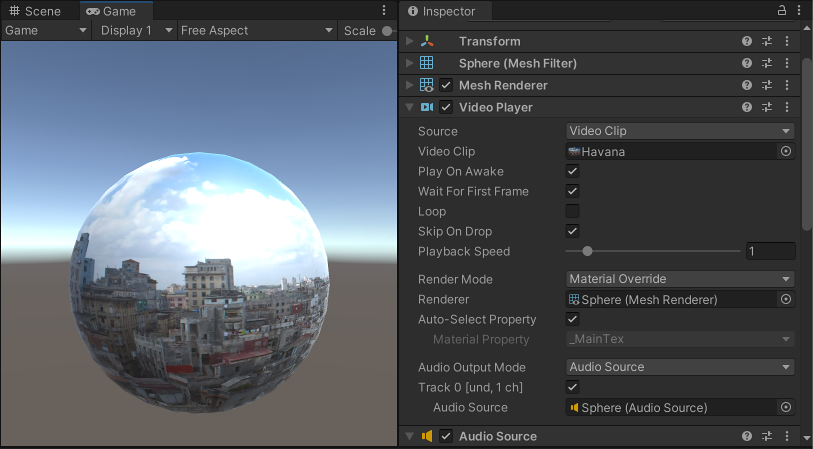
The following screenshot shows a Video Player component attached to a spherical GameObject. The GameObject has a Mesh Renderer component, so the Video Player automatically assigns it to the Renderer field, which means the video clip plays on the Mesh Renderer’s Texture.
Display your content on a Render Texture
You can use the Video Player to display video content on a Render Texture. This is useful if you want to project your video onto multiple GameObjects or to apply post-processing effects to the content. For instructions on how to set up and optimize a Render Texture for video, refer to Set up your Render Texture to display video.
Use scripting to set a target (API Only)
When you set Render Mode to API Only, the Video Player component doesn’t automatically assign a target or draw the video content anywhere. Instead, this mode expects you to handle video rendering manually through C# code. Use scripting to access the video frames via the VideoPlayer.texture property.
This render mode provides the video as a Render Texture or Texture object, which you can dynamically assign to texture fields in your scene through code. This approach is useful because it eliminates the need to create and manage an intermediate Render Texture manually.
With API Only, you can use video content anywhere the Unity API allows you to assign a texture, such as on Raw Image UI elements, or GameObject materials.