Get started
Unity Cloud Collaboration Tools is an Editor package that provides a UI for the Unity Collaboration Service, so you can collaborate and comment in real time.
Use the Collaboration Tools to do the following:
- Create, read, update, and delete comments in scenes and on assets
- Discuss in threads with collaborators
- Reply to comments
- Resolve and unresolve comments
- Subscribe and unsubscribe users from threads
- Create, update, and delete attachments for comments
- Add and remove reactions to comments
In this guide, you create your first comment thread, read it in the Collaboration window, reply to it, and resolve it.
Before you start
Make sure that:
- The package is installed
- You're signed in to the Unity Editor with your Unity ID
- Your project is connected to Unity Cloud (refer to Prerequisites)
- A saved scene is open, because threads can only attach to a saved scene
Open the Collaboration window
On Unity 6000.3 or later, select the Collaboration button in the Editor's main toolbar.

On Unity 6000.0 to 6000.2, go to Unity Cloud > Collaboration instead.
The Collaboration window opens and loads the threads for your active scene. In a project with no threads yet, the window shows the message There are no threads to show in this project.
Create your first comment
You create scene comments from the Collaboration overlay, the vertical toolbar docked on the left side of the Scene View.
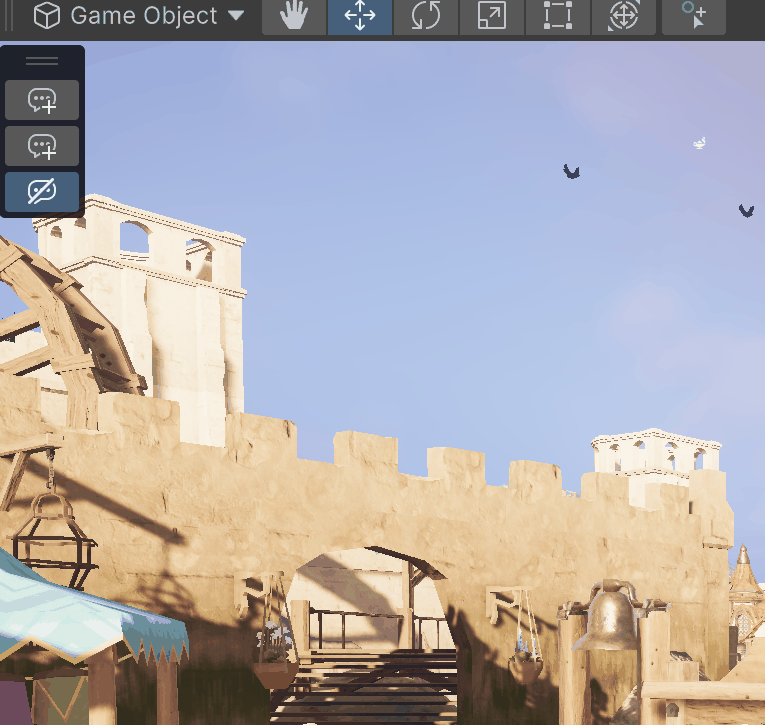
- In the Scene View's Collaboration overlay, select Add new thread (the speech-bubble toggle).
- In your scene, select the surface of the object you want to comment on.
A comment panel opens next to the point you selected, and a pending comment bubble marks the spot. - Type your comment.
- Select Send (or press Enter).
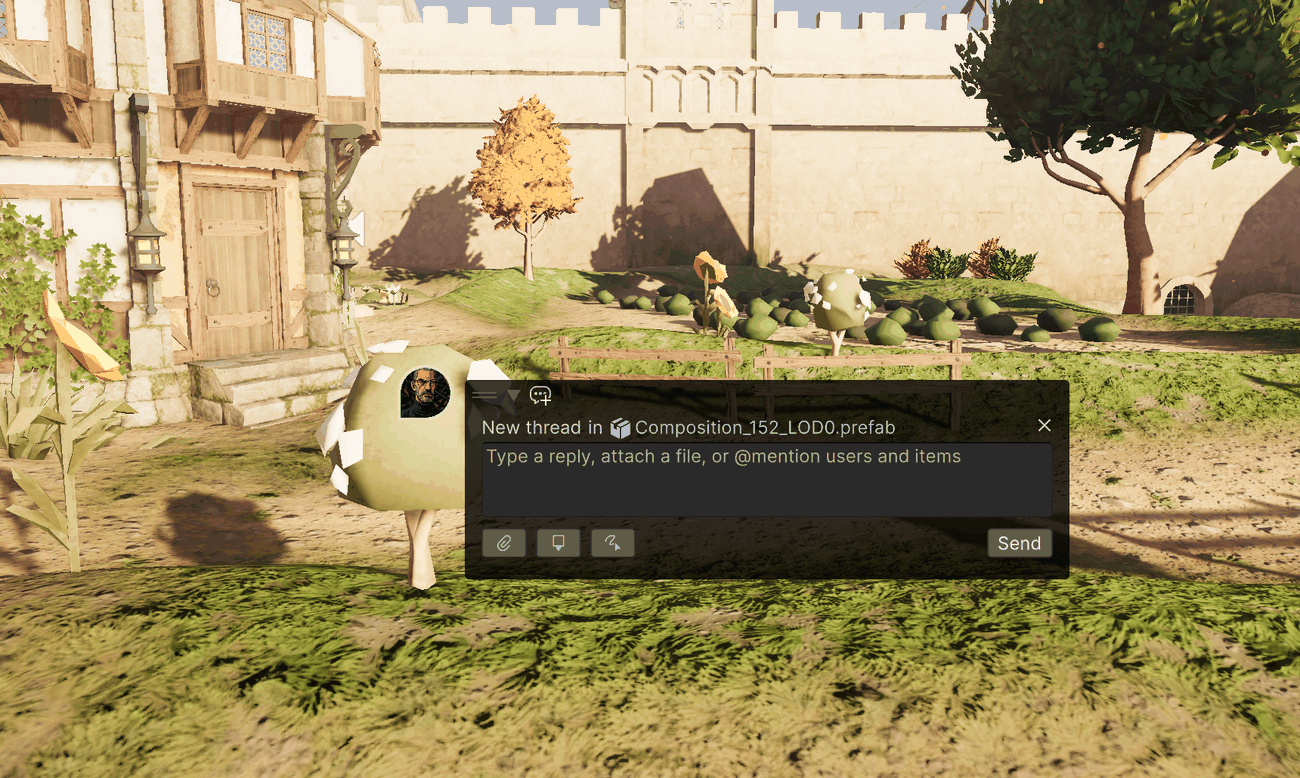
The Editor saves your comment to your Unity Cloud project. The thread appears in the Collaboration window's list, and everyone who opens this project sees it.
Note
Comment bubbles are hidden by default. If you don't see the bubble after sending, select Show comments in the Collaboration window header. For more information, refer to Comment bubbles in the Scene View.
Reply and resolve
- In the Collaboration window, select the thread you created.
The thread opens, showing the original comment and a reply field. - Type a reply and select Send.
- Select ← Back to return to the list.
- When you finish the discussion, hover over the thread's row and select the resolve icon (tooltip: Resolve thread).
A green check now marks the thread. Use the filter dropdown in the window header to hide or show resolved threads.
Next steps
- Take the Interface overview tour to learn every control
- Comment on a GameObject or a project asset
- Enrich comments with mentions, attachments, and sketches