Interface overview
This page describes every surface Unity Cloud Collaboration Tools adds to the Editor. The task pages linked throughout explain each workflow in detail.
Collaboration button
On Unity 6000.3 or later, the package adds a Collaboration button to the Editor's main toolbar.

- Select the button to open or focus the Collaboration window.
- The button's icon changes when any thread in your active scene has replies you haven't read yet.

- Right-click the button for its settings menu. Show comments toggles the comment bubbles in the Scene View; a check mark means they're visible.

The button stays disabled until the Editor has confirmed your project's Unity Cloud connection. As with every native toolbar element, you can hide or show it from the main toolbar's own customization menu.
Note
On Unity 6000.0 to 6000.2, the main toolbar button isn't available. Use the Unity Cloud > Collaboration menu to open the window instead.

Collaboration window
The Collaboration window is where you browse and manage threads.
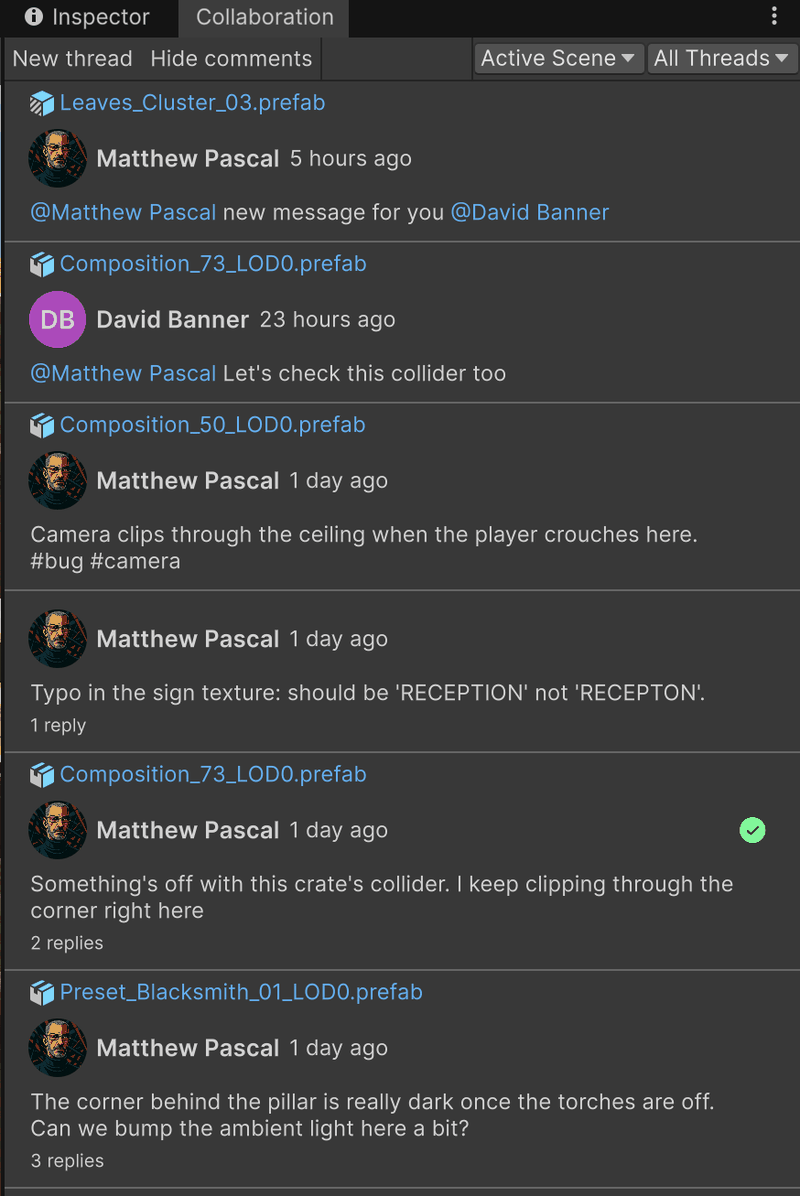
Header
| Control | Description |
|---|---|
| New thread | Starts a new scene comment: the Scene View opens a comment panel in its center. Available in Active Scene mode only. |
| Show comments / Hide comments | Toggles the comment bubbles in the Scene View. Available in Active Scene mode only. |
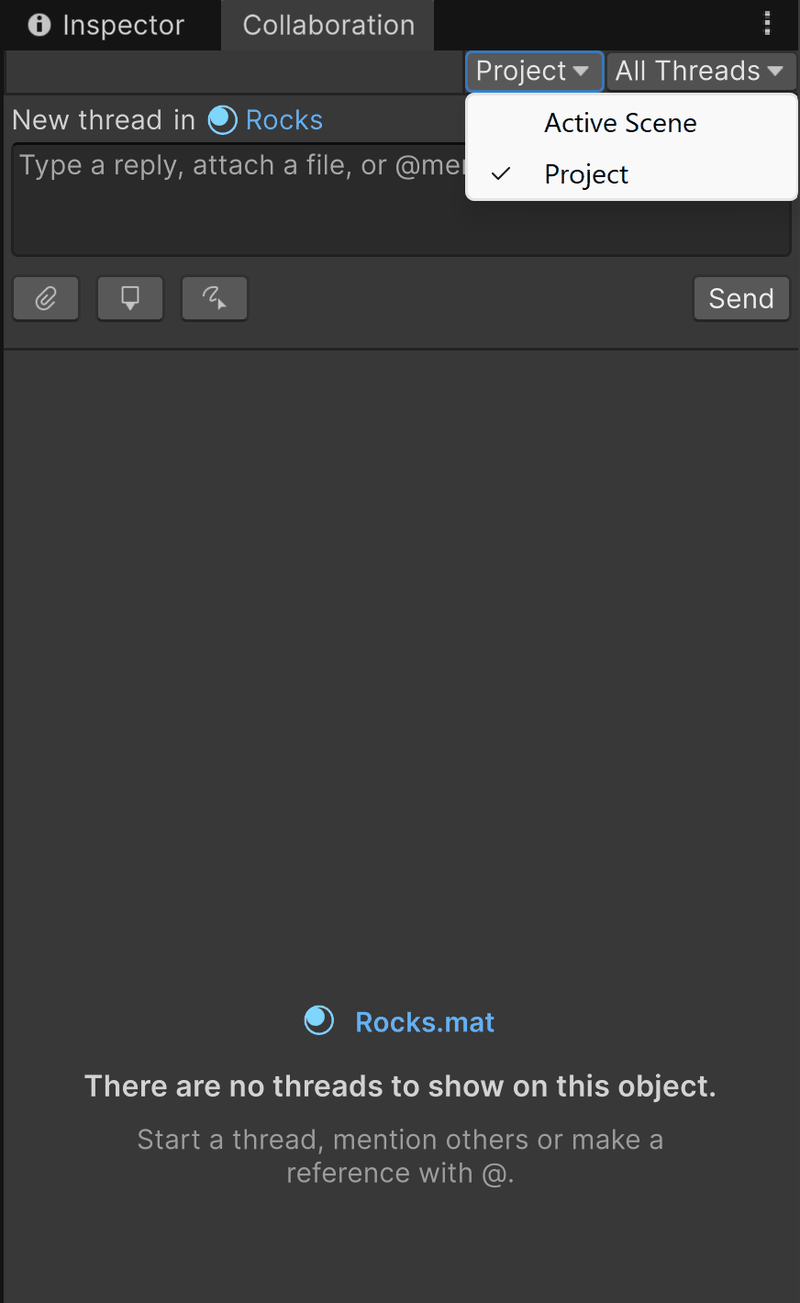
| Source dropdown | Chooses what the list shows: Active Scene (threads anchored in the scene you're editing) or Project (threads on project assets). Refer to View and filter threads. |
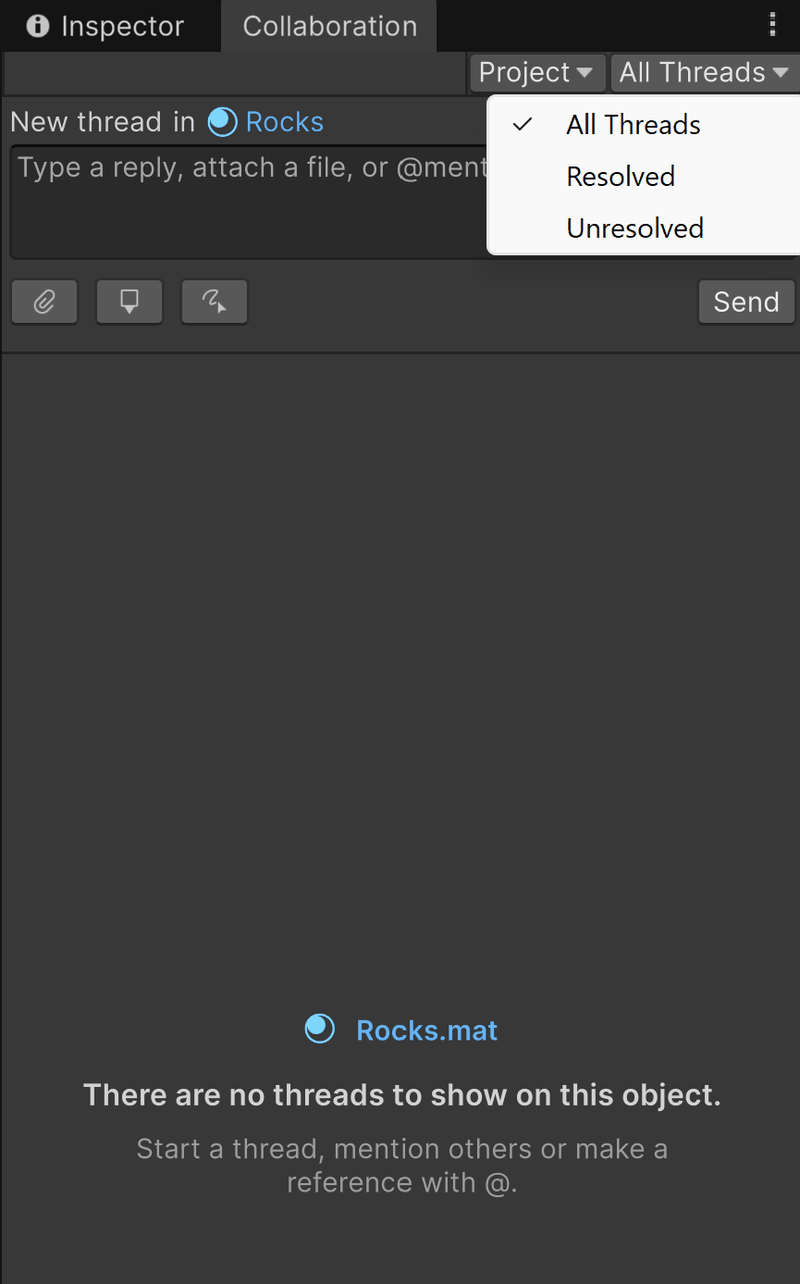
| Filter dropdown | Narrows the list by resolution state: All Threads, Resolved, or Unresolved. |
Thread list
Each row in the list is one thread and shows:
- The thread's target (the scene, GameObject, or asset it's attached to) with its icon and name
- The author's profile picture, or their initials on a colored background when they have no picture
- The author's name and how long ago the author created the thread
- A preview of the comment text; mentions render as links, and selecting an asset mention highlights that asset in the Project window
- A summary line such as 2 replies, 1 attachment, when the thread has replies or attachments
- A resolve icon: a green check on resolved threads (tooltip: Mark as unresolved), or an outline on open ones (tooltip: Resolve thread)
- A ⋯ menu (tooltip: More options) with the Delete thread action
- A blue dot (tooltip: Unread messages) when the thread has replies you haven't read
Click anywhere on a row to open the thread inside the window, with its full reply history and a reply field. Select ← Back to return to the list.
While the window fetches threads (for example, right after you open it or switch scenes), it shows a loading spinner. When there's nothing to show, it shows an explanatory placeholder instead of an empty list. For each placeholder and what it means, refer to View and filter threads.
Composer
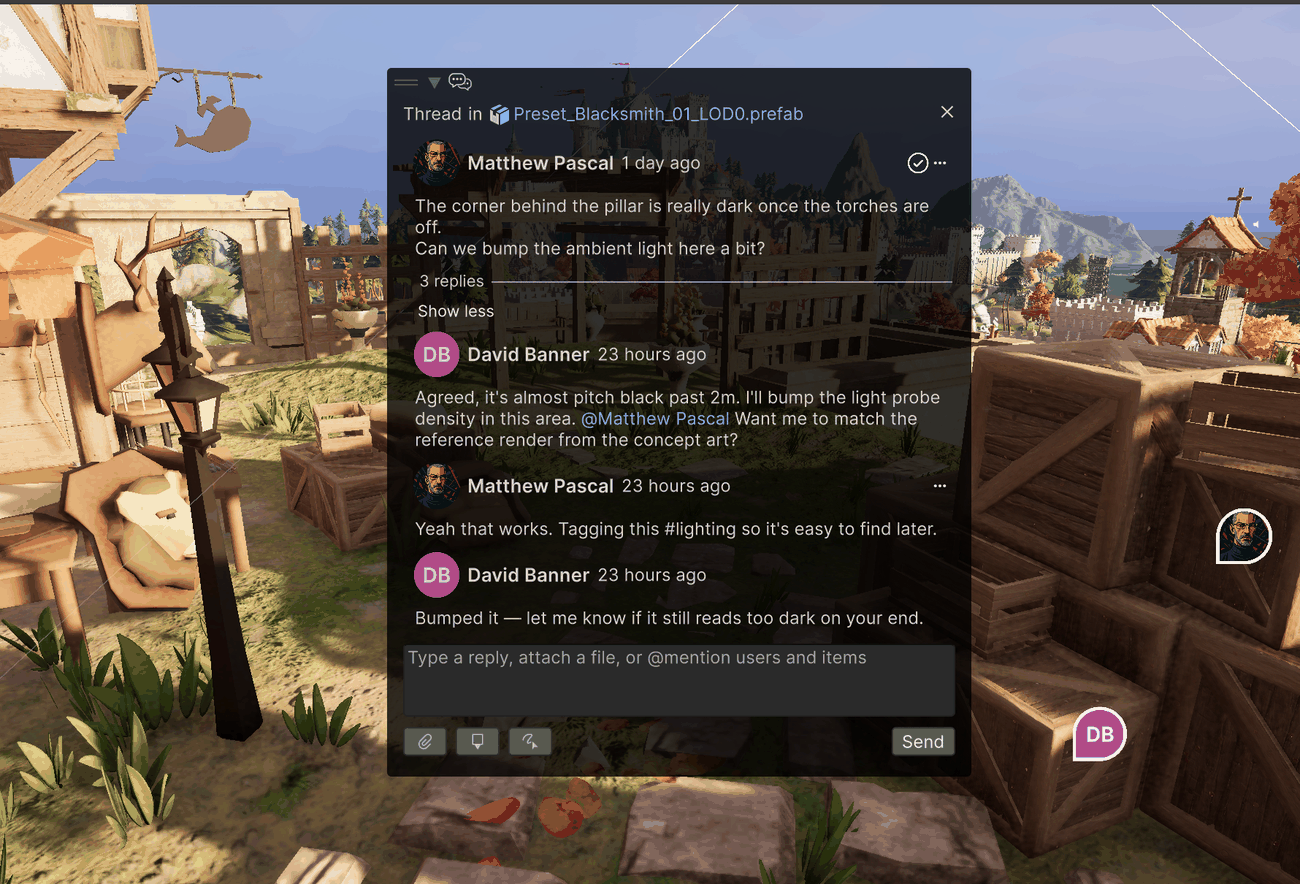
When you scope the window to a project asset, a comment field for that asset is always available at the bottom of the window, so you can start a new thread on the asset directly. In every composer, the input field reads Type a reply, attach a file, or @mention users and items, and the buttons below it let you attach an image, place a spatial marker, or draw a sketch before you Send.
Scene View overlay
The package adds a Collaboration overlay to every Scene View: a vertical toolbar docked on the left edge by default.
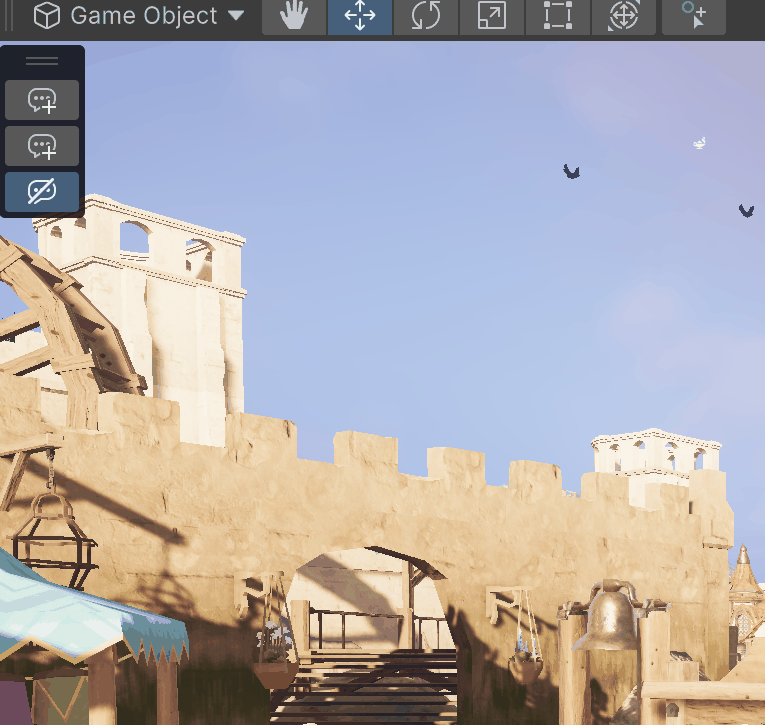
| Button | Description |
|---|---|
| Add new thread | Toggles comment mode: click anywhere in the scene to start a thread at that spot. Refer to Comment on a location in your scene. |
| Add new thread for selected object | Starts a thread on the currently selected GameObject, without selecting a point in the scene. Refer to Comment on a GameObject. |
| Show/Hide comment bubbles | Toggles the comment bubbles in the Scene View. |
Until the Editor confirms your project's Unity Cloud connection, all three buttons are disabled and show the tooltip Project is not yet connected to the Cloud.
As with any Scene View overlay, you can move it, collapse it, or hide it from the Scene View's Overlays menu (press the ` key inside the Scene View to open it).
Floating thread panels
When you create or open a thread in the Scene View, a floating Thread panel appears over the Scene View:
- A header naming the thread's target (for example, the object's name and icon), with a ✕ button to close the panel
- The existing comments and replies, scrollable, for existing threads
- An input field with attachment buttons and Send
Comment bubbles in the scene
Threads anchored in the scene appear as round bubbles at their anchor point, showing the author's avatar or initials. When you hover over a bubble, the Editor highlights it, and when you select it, the thread's floating panel opens.
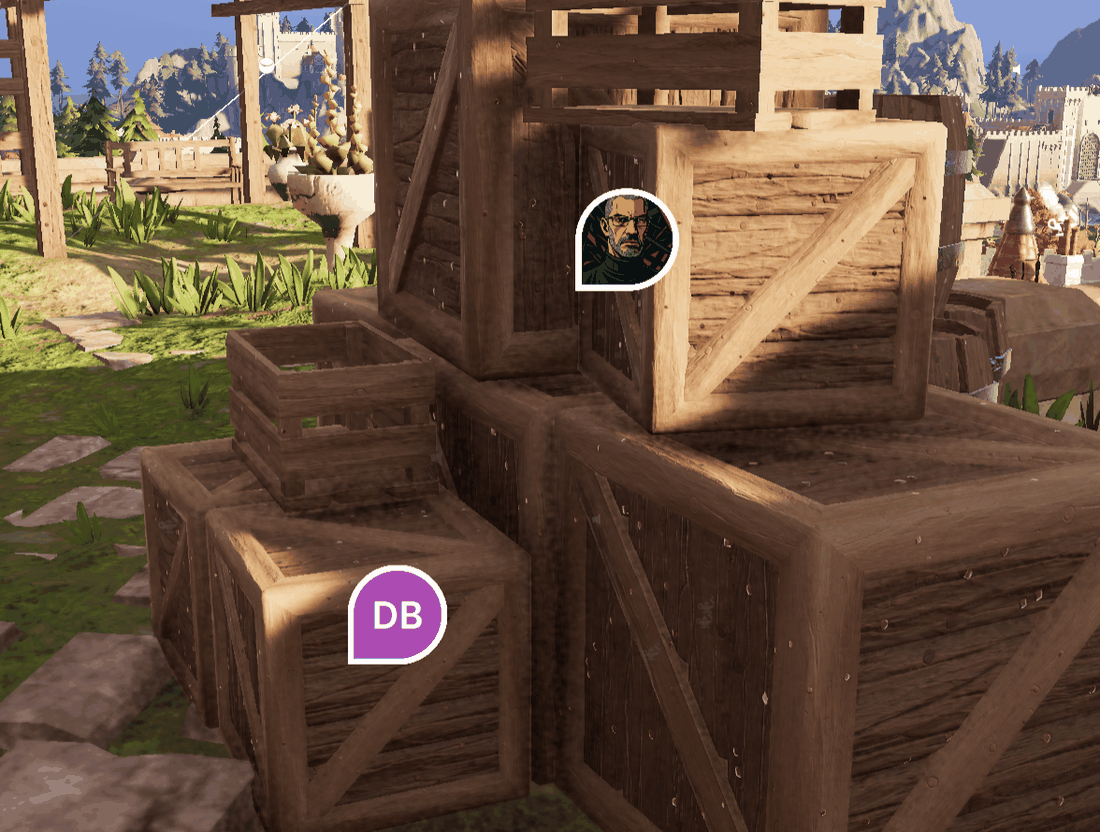
Bubbles are hidden until you turn them on. For everything about them, including the three places you can toggle their visibility, refer to Comment bubbles in the Scene View.
Context menus
Two Editor context menus let you start threads without opening any collaboration UI first:
- Right-click a GameObject in the Hierarchy: Comments > Create new thread for GameObject
- Right-click an asset in the Project window: Comments > Create new thread for an asset
Both entries are available only when you select exactly one object.