Comment on a GameObject
You can comment on GameObjects so that your feedback stays with the specific object, rather than a point in space. For example, "This character's material is wrong" or "This light is the wrong color for this area". The comment anchors to the object automatically, so you don't need to select a point in the scene.
Before you start
- Select the GameObject you want to comment on, in a saved scene. The Hierarchy menu entry requires exactly one selected object and stays disabled for multi-selections or an empty selection. The Scene View button only requires a non-empty selection — with several objects selected, it acts on just the active (most recently selected) one without warning, so select a single object if you want to be sure which one you're commenting on.
- You must connect the project to Unity Cloud (refer to Prerequisites).
From the Scene View overlay
- Select the GameObject you want to comment on.
- In the Scene View's Collaboration overlay, select Add new thread for selected object.
A comment panel opens, and a pending bubble appears on the object's surface facing the camera. - Type your comment and select Send.
From the Hierarchy context menu
- In the Hierarchy, right-click the GameObject.
- Select Comments > Create new thread for GameObject.
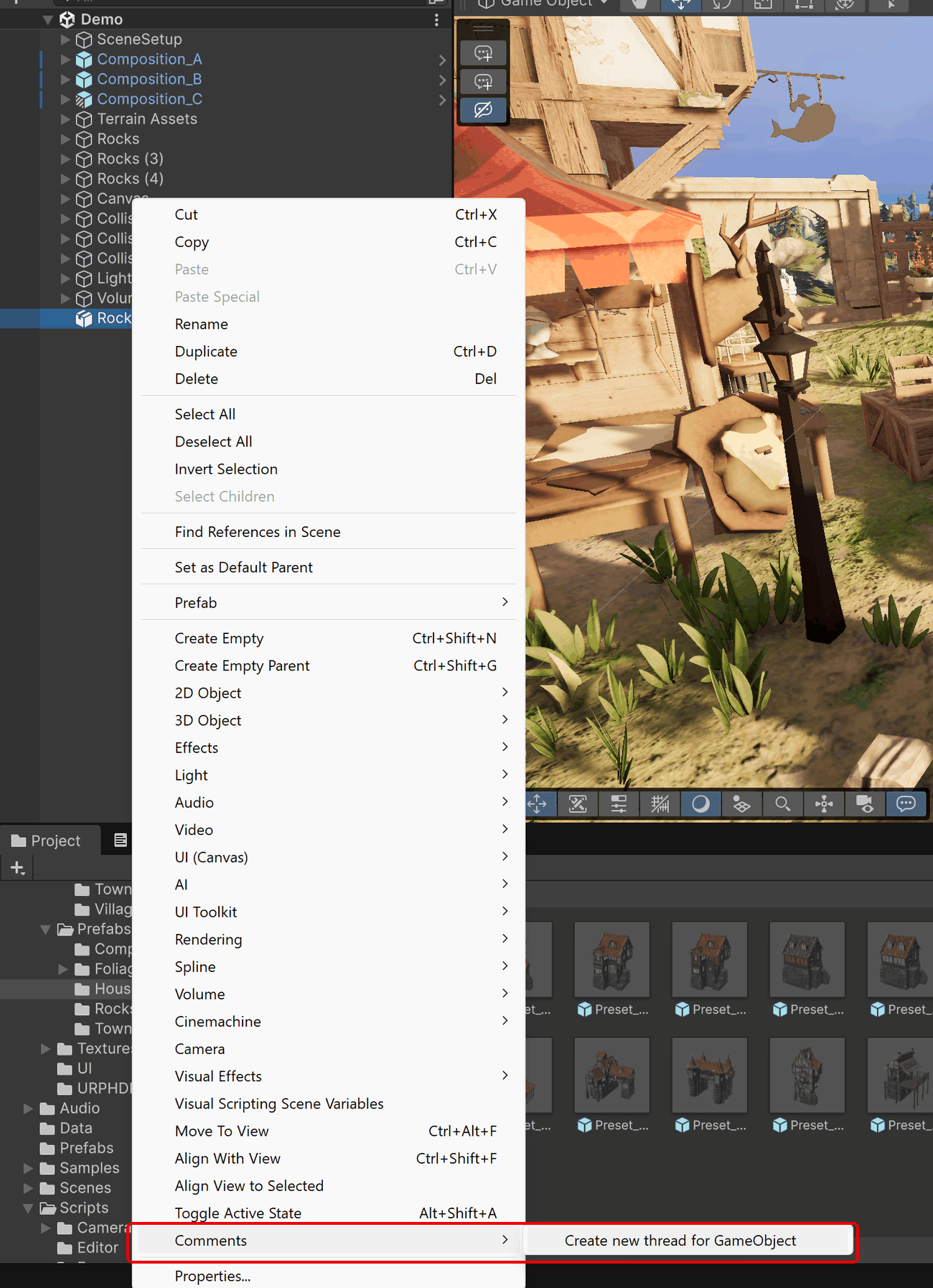
The same comment panel opens in the Scene View, ready for your comment.
Good to know
- The bubble places itself. The comment anchors to the object's camera-facing surface, so the bubble sits on the object just as if you had selected it.
- Multi-scene editing works. The thread belongs to the scene the object lives in, even when that's an additively loaded scene rather than the active one. You'll see the thread listed when that scene is the active scene.
- Prefab assets aren't scene objects. Selecting a prefab in the Project window and using the main GameObject menu does nothing, because GameObject threads must attach to objects in saved scenes. To comment on the prefab asset itself, refer to Comment on a project asset.