Comment on a location in your scene
Use a scene comment when you want to give feedback on a place, such as a corner that needs more light, a texture seam, or an area that feels too empty. The thread anchors to the exact point you select, and a comment bubble marks it for everyone. Collaborators can restore the camera angle to see the context of your comment.
Before you start
- You must save your scene. Threads attach to the scene asset, so an unsaved scene can't hold them.
- The Collaboration overlay's buttons must be available. If they show the tooltip Project is not yet connected to the Cloud, refer to Prerequisites.
Create the thread
- In the Scene View's Collaboration overlay, select Add new thread.
- Select the point in the scene you want to comment on.
If you select an object, the comment anchors to that object's surface at the point you selected. If you select empty space, the comment anchors to the scene itself, a short distance in front of the camera.
A comment panel opens next to the point, and a pending bubble marks the spot while you write. - Type your comment. You can mention people and assets, attach images or a spatial marker, and draw a sketch.
- Select Send, or press Enter.
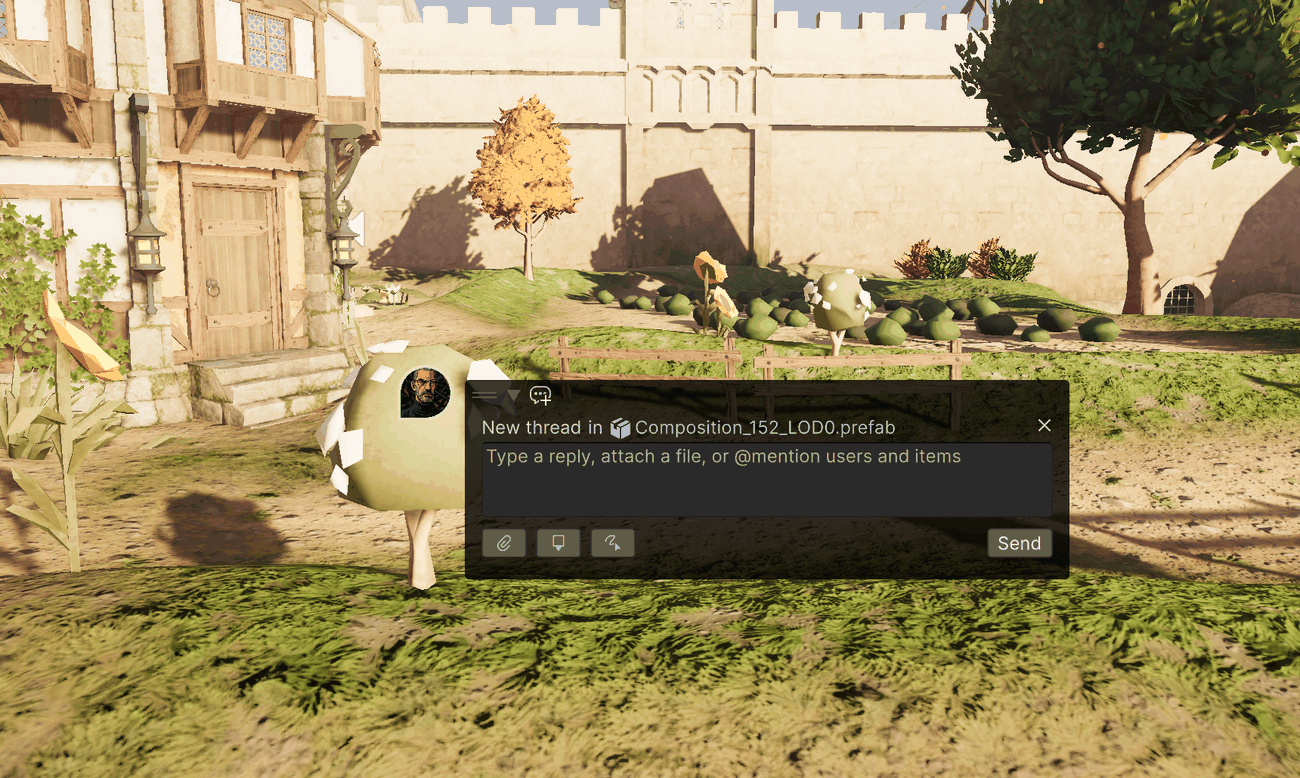
The Editor creates the thread, and its bubble stays at the anchor point. If the Collaboration window is open, it switches to Active Scene mode so you can see the new thread in its list.
To discard the comment instead, select the ✕ in the panel's header. The Editor doesn't save anything or create a thread.
Note
Enter sends your comment. To start a new line instead, press Shift+Enter or Ctrl+Enter (Cmd+Enter on macOS).
Where the thread lives
Scene comments always belong to the scene that was active when you created them:
- They're listed in the Collaboration window's Active Scene mode whenever that scene is open.
- Their bubbles appear in the Scene View when comment bubbles are visible. For more information, refer to Comment bubbles in the Scene View.