View and filter threads
The Collaboration window lists your project's threads. This page explains what controls which threads you see, and what the empty states mean.
Scene threads and project threads
The source dropdown in the window header switches between the two kinds of threads:
- Active Scene: Threads anchored in the scene you're currently editing (scene locations and GameObjects).
- Project: Threads on project assets.
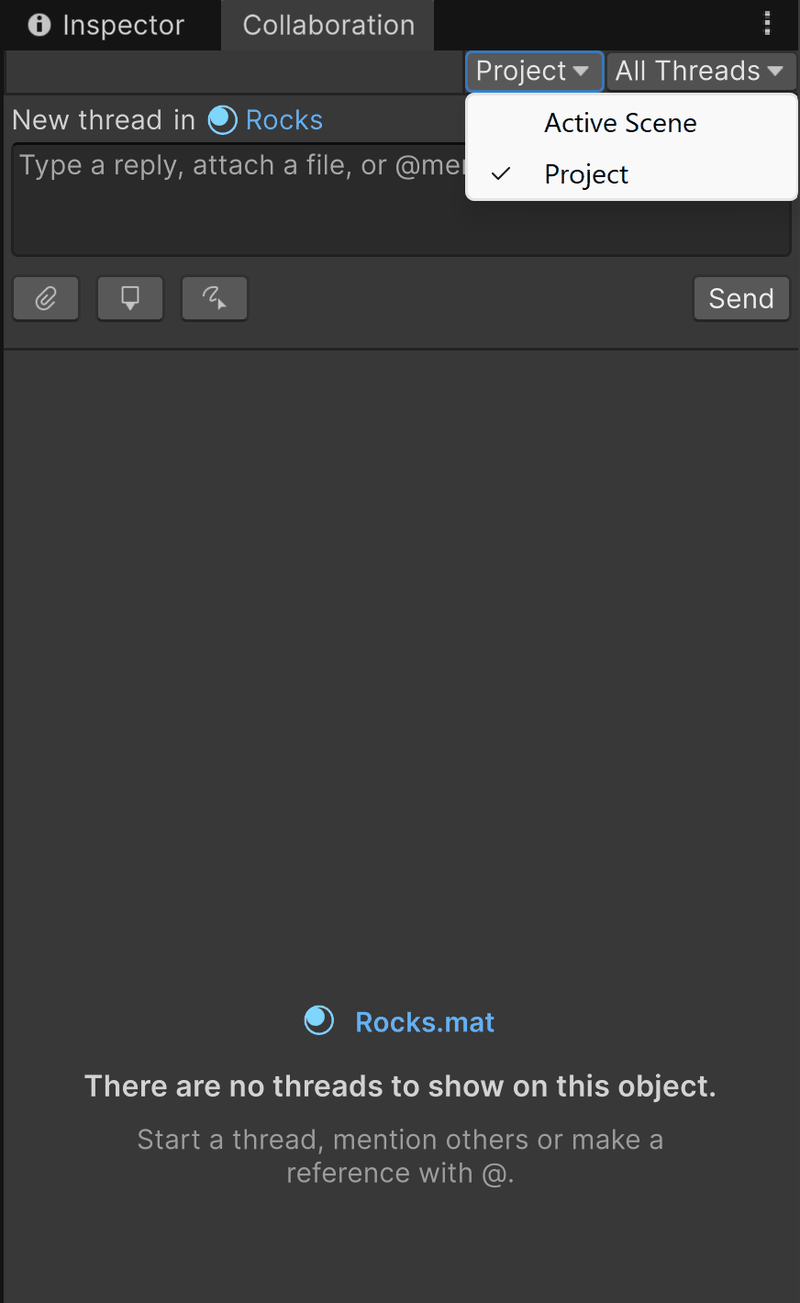
You can switch modes manually with the dropdown at any time, but the window also follows what you're doing:
| When you... | The window shows... |
|---|---|
| Select an asset in the Project window | Only that asset's threads (Project mode, scoped to the asset), plus a comment field to start a new thread on it |
| Select a folder, or navigate folders in the Project window | All project-asset threads (Project mode, whole project) |
| Select a GameObject in the scene | The active scene's threads (Active Scene mode) |
| Open a prefab in Prefab Mode | That prefab asset's threads |
| Create a scene comment from the Scene View | The active scene's threads, so you can see your new comment immediately |
If you rename a scoped asset (or an anchored scene object), the names in the window update immediately.
Filter by resolution state
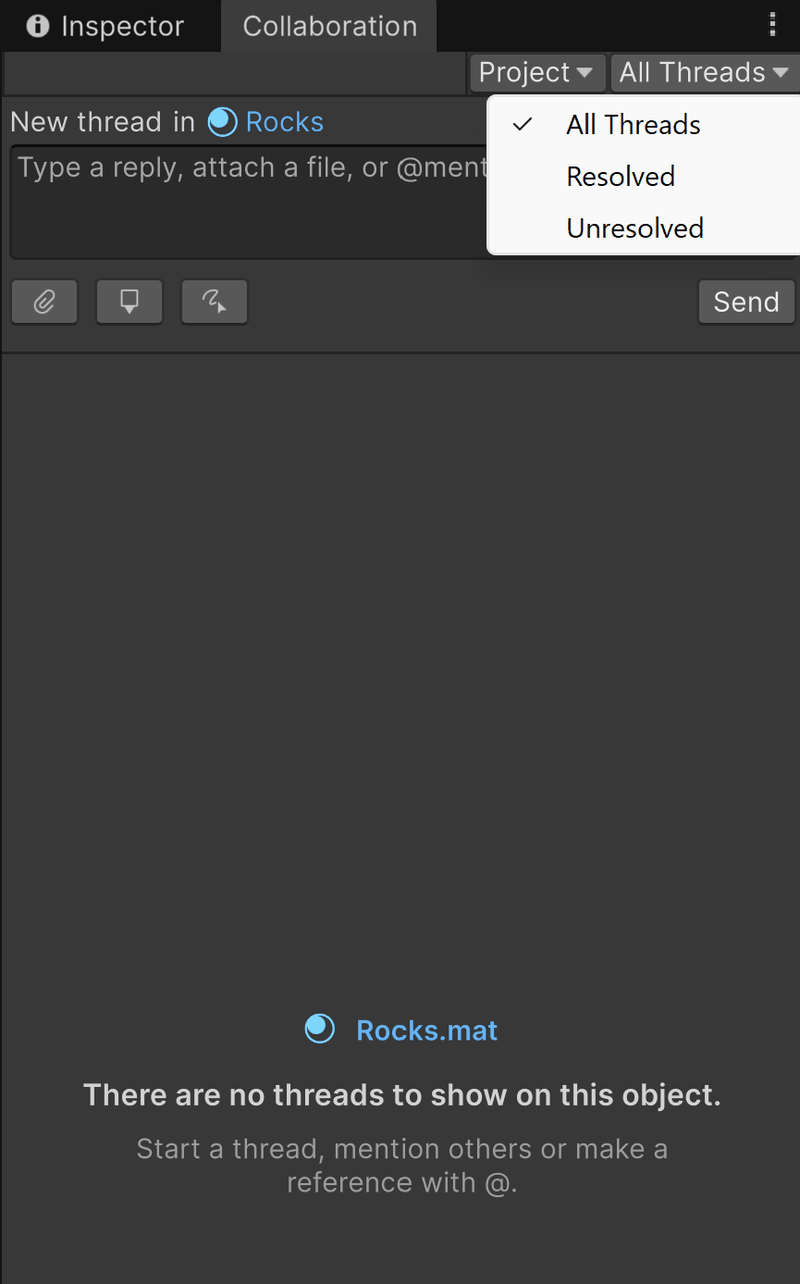
The filter dropdown narrows the current list by resolution state: All Threads, Resolved, or Unresolved.
A green check marks resolved threads in the list. Refer to Resolve and delete threads.
Unread indicators
- A thread row shows a blue dot (tooltip: Unread messages) when it has replies you haven't seen. Open the thread to catch up; the dot clears after you read it.
- On Unity 6000.3 or later, the Collaboration toolbar button switches to its notification icon while any thread in your active scene has unread replies.
Empty states
When there's nothing to list, the window tells you why:
| Message | Meaning |
|---|---|
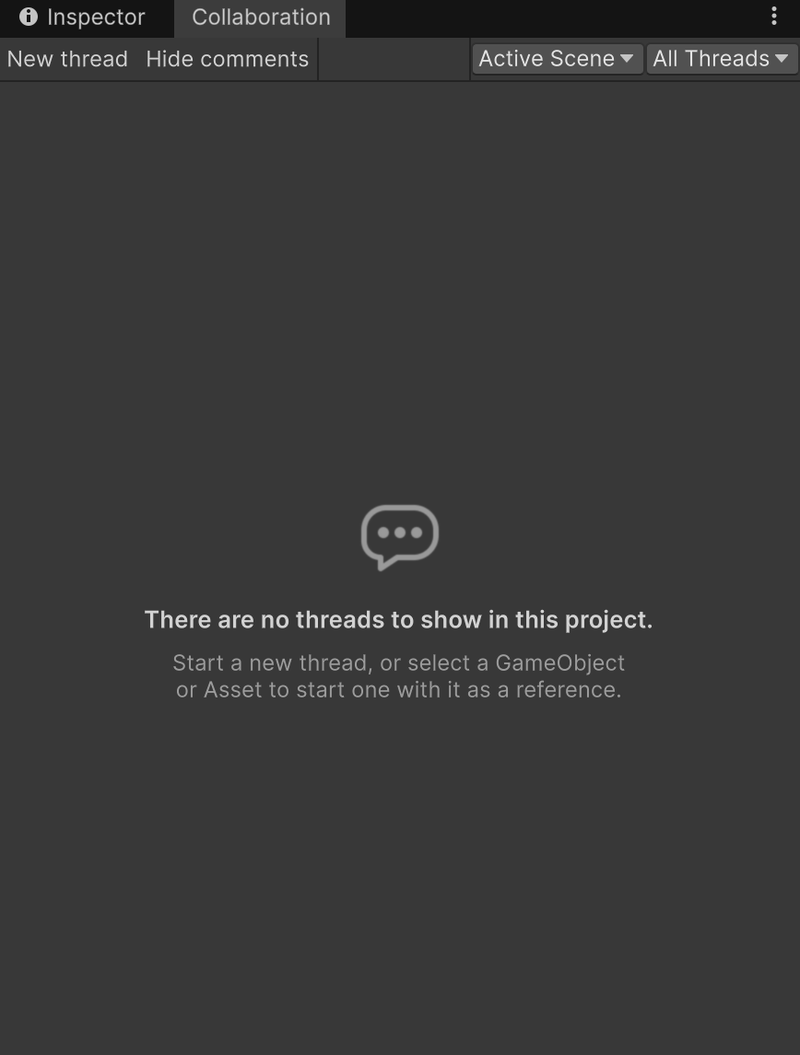
| There are no threads to show in this project. | The current scope (the whole project or the active scene) has no threads yet. |
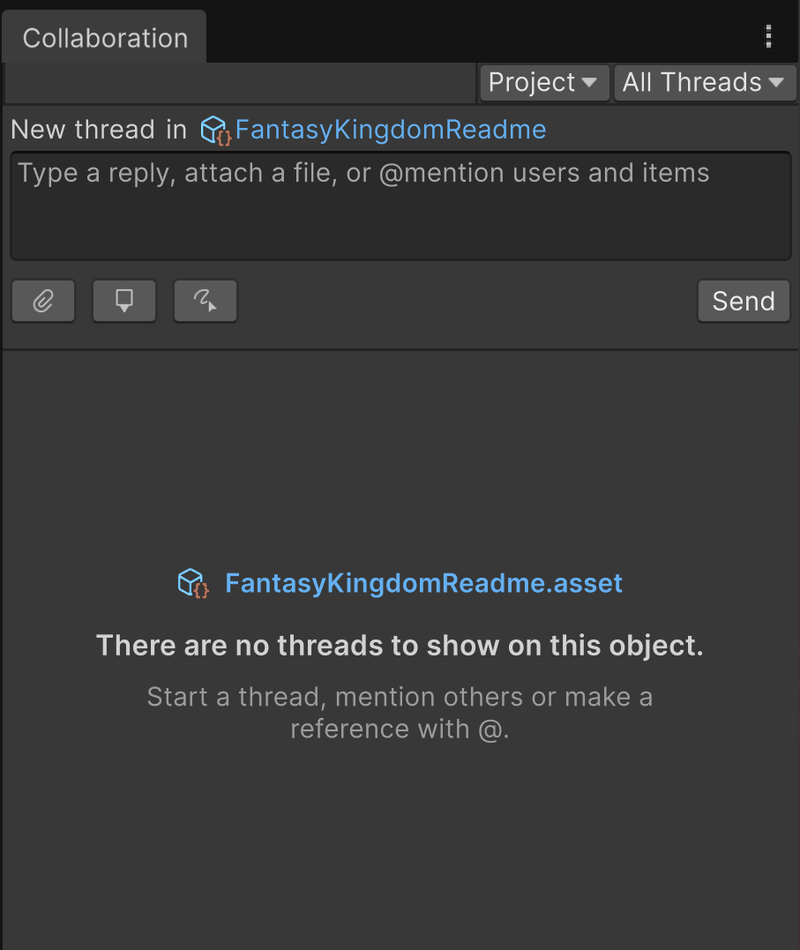
| There are no threads to show on this object. | You scoped the window to the selected asset, and that asset has no threads. The card names the asset; select the asset's name to highlight it in the Project window. |
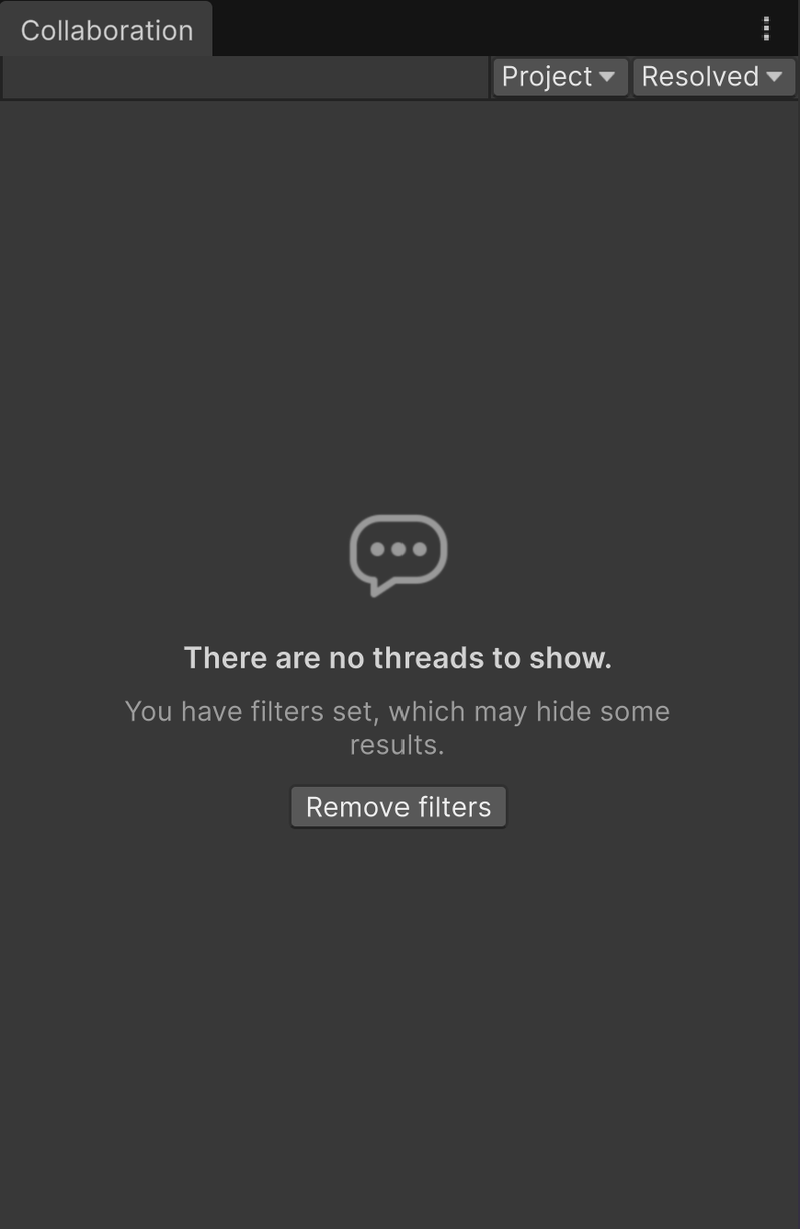
| There are no threads to show. | Threads exist, but the current Resolved/Unresolved filter hides all of them. Select Remove filters on the card to show them again. |
Loading
While the window fetches threads (for example, right after it opens or after you switch scenes or change scope), it shows a loading spinner instead of the list. If the spinner never finishes, check your network connection and refer to Troubleshooting.