Tree Editor concepts
The Tree Editor tool lets you create trees directly within the Unity Editor. Use the Tree Editor to create new trees, then use the Terrain system to add the trees to your world.
For most uses, the SpeedTree Modeler replaces the Tree Editor. For backward compatibility with content created before SpeedTree was introduced, use Tree Editor.
The Tree Hierarchy view
To open the Tree Hierarchy view, add a Tree GameObject (GameObject > 3D Object > Tree).
At the top of the tree’s Inspector is the Tree Hierarchy view, which shows the tree root node and any branch and leaf groups the tree has. Use the Tree Hierarchy view to add and delete branch and leaf groups, to control their properties, and to configure the tree.
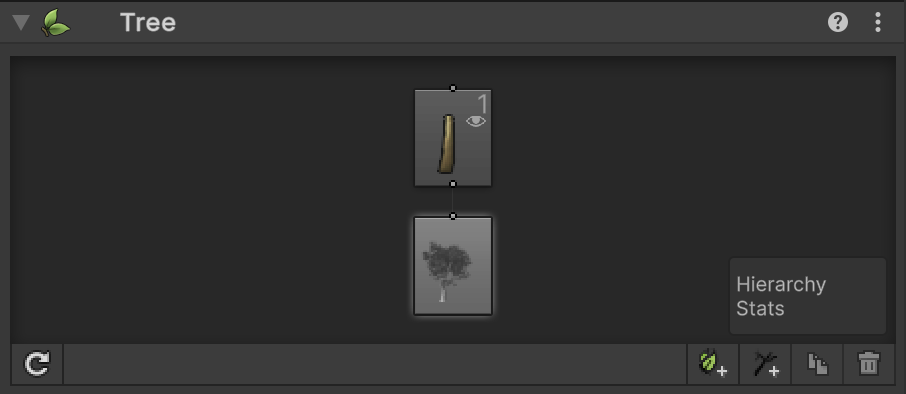
For more information about the Tree Hierarchy view, refer to the Tree Hierarchy view UI reference.
Tree levels and groups
The Tree Editor manages branches and leaves in groups, and arranges the groups in levels.
The tree root doesn’t count as one of the levels, so the first level is the trunk. Branches growing directly from the trunk are the primary level. Branches growing from the primary branches are the secondary level. The branching process continues until the terminal twigs, adding a level each time.
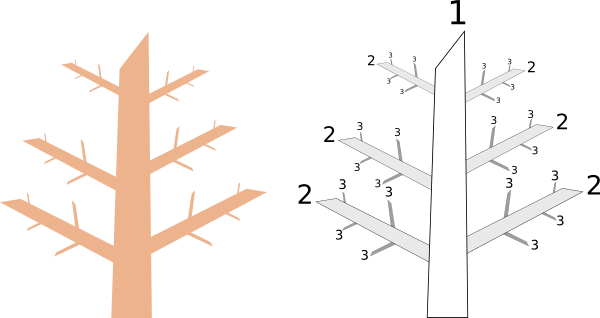
A branch group can subdivide into further branch groups. For example, you can add two branch groups to your trunk, and give each branch group a different growth angle or its own leaf group.
Leaves are also arranged in groups. Unlike branch groups, leaf groups can’t further subdivide: you can’t add a leaf or branch group to a leaf group.
For more information about working with branch and leaf groups, refer to Design a tree. For more information about the Tree Hierarchy view, refer to the Tree Hierarchy view UI reference.
The tree root node
The tree root node exposes properties that affect the entire tree. For example, all branch and leaf groups inherit the LOD Quality property from the tree root node, although each branch group can add a multiplier to this value.
For more information about the tree root node, refer to Root node reference.
Tree Materials
Trees can have four materials:
- Leaves.
- Bark.
- Cross-section of a broken branch.
- Fronds.
For information about shaders for these materials, refer to Shaders and the Ambient-Occlusion folder.
Tree geometry
There are three geometry options for branches:
- Branch Only.
- Branch and Fronds.
- Fronds Only.
Each branch group can have a different geometry option. For example, you can have a branch group with a Branch Only geometry as the trunk, and a branch group with Fronds Only geometry as the branches.
To learn more about fronds, refer to Branch group reference.