Version: Unity 6.7 Alpha (6000.7)
Language : English
Occlusion maps
Secondary Maps (Detail Maps) and Detail Mask

Add light emission to a material

Adding emission to a Material makes it appear as a visible source of light in your Scene. The Material emission properties control the color and intensity of light that the surface of a Material emits.

Emission is useful when you want some part of a GameObject to appear lit from the inside, such as the screen of a monitor, the disc brakes of a car braking at high speed, or glowing buttons on a control panel. GameObjects that use emissive Materials appear to remain bright even in dark areas of your Scene.
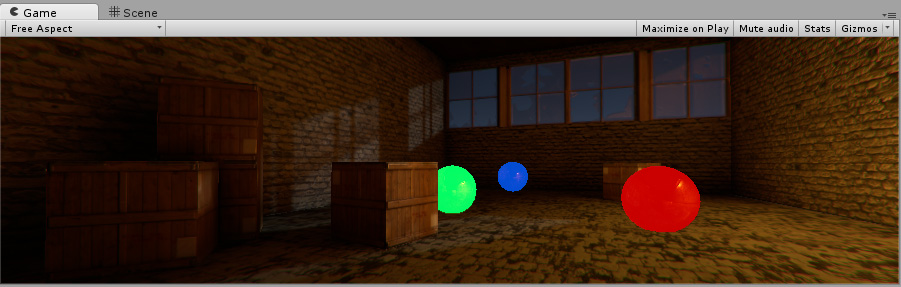
Red, Green, and Blue spheres using emissive Materials. Even though they are in a dark Scene, they appear to be lit from an internal light source.

Use Emission

You can define basic emissive Materials with a single color and emission level. To make a Material emissive, enable the Emission checkbox. This exposes the Color and Global Illumination properties.

Examples
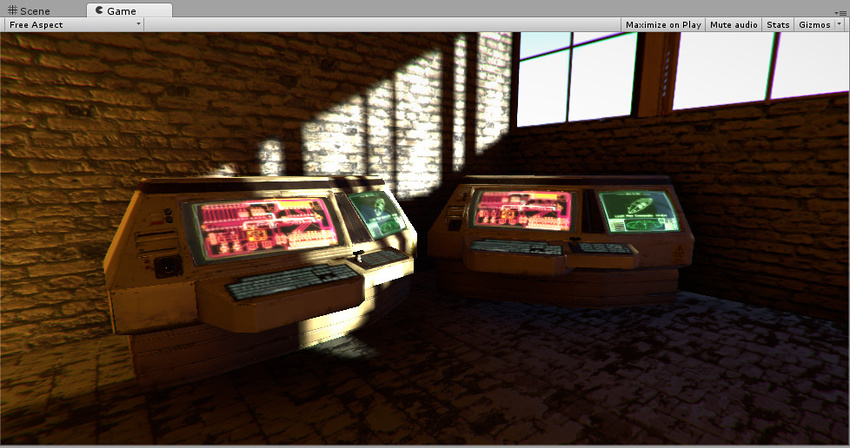
In this image, there are areas of high and low levels of light, and shadows falling across the emissive areas which gives a full representation of how emissive Materials look under varying light conditions.
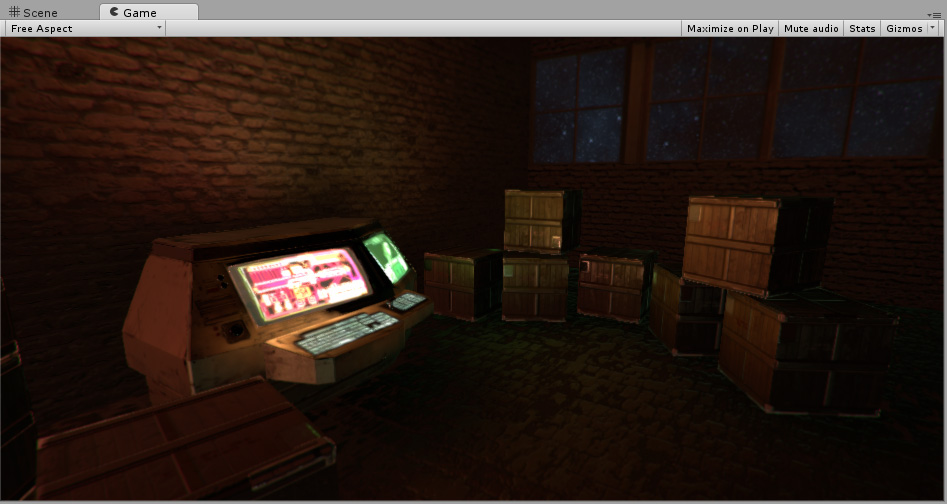
Baked emissive values from the computer terminals emission map light up the surrounding areas in this dark Scene
Baked emissive values from the computer terminal’s emission map light up the surrounding areas in this dark Scene

Additional resources

Occlusion maps
Secondary Maps (Detail Maps) and Detail Mask