SpeedTree model import
SpeedTree provides prebuilt tree Assets and modeling software focused specifically on trees.
Unity recognizes and imports SpeedTree Assets in the same way that it handles other Assets. If you’re using SpeedTree Modeler 7, make sure to resave your .spm files using the Unity version of the Modeler. If you’re using SpeedTree Modeler 8, 9, or 10, you can save your .st or .st9 files directly into the Unity Project folder.
Make sure that Textures are reachable in the Project folder and that Unity automatically generates Materials for each Level of Detail (LOD). When you select an Asset, there are import settings to tweak the generated GameObject and attached Materials. Unity does not re-generate Materials when you re-import them, unless you click the Generate Materials or Apply & Generate Materials button. Therefore, it is possible to preserve any customizations to the Materials.
The SpeedTree importer generates a Prefab with the LODGroup component configured. You can instantiate the Prefab in a Scene as a common Prefab instance, or select the Prefab as a tree prototype and paint it across the Terrain.
Additionally, the Terrain accepts any GameObject with an LODGroup component as a tree prototype, and does not place limitations on the Mesh size, or number of Materials used. This is different from Tree Editor trees. However, be aware that SpeedTree trees usually use three to four different Materials, which as a result, issues a number of draw calls every frame. Thus, we recommend that you avoid heavy use of LOD trees on platforms, such as the mobile platforms, where additional draw calls are relatively costly in terms of rendering performance.
Materials
The SpeedTree Model Importer has a MaterialsAn asset that defines how a surface should be rendered. More info
See in Glossary tab to improve the workflow for handling SpeedTree Material Assets. See documentation on the SpeedTree Model Importer’s Material tab page for more information.
Casting and receiving real-time shadows
To make billboards cast shadows correctly, Unity rotates billboards during the shadow caster pass to make them face the light direction (or light position in the case of point light) instead of facing the camera.
To enable these options, select the BillboardA textured 2D object that rotates so that it always faces the Camera. More info
See in Glossary LOD level in the InspectorA Unity window that displays information about the currently selected GameObject, asset or project settings, allowing you to inspect and edit the values. More info
See in Glossary of a SpeedTree Asset, check Cast Shadows or Receive Shadows in Billboard Options, and click Apply.
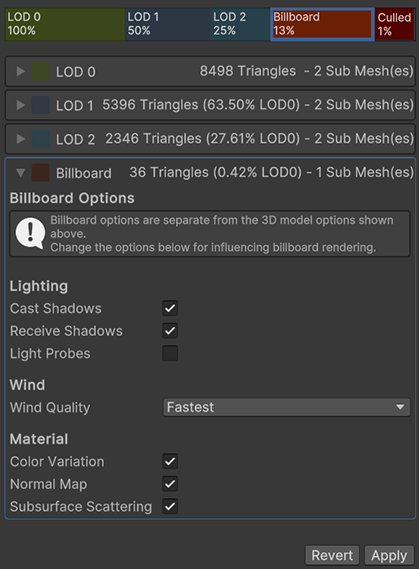
To change the billboard shadow options of instantiated SpeedTree GameObjects, select the billboard GameObject in the Hierarchy window and tweak these options in the Inspector of the Billboard Renderer.
The trees you paint on a Terrain inherit billboard shadow options from the Prefab. Use BillboardRenderer.shadowCastingMode and BillboardRenderer.receiveShadows to alter these options at runtime.
Known issues: As with any other renderer, the Receive Shadows option has no effect while using deferred rendering. Billboards always receive shadows in deferred path.