SpeedTree Import Settings
Switch to ScriptingWhen you put SpeedTree files in the Assets folder of your Unity project, the Unity Editor automatically imports and stores them as Unity assets.
SpeedTree import settings are specific to files for models created in SpeedTree. For information on models and animation created in other 3D modeling applications, refer to the Model Import Settings window.
Importing SpeedTree files to Unity
Unity recognizes and imports SpeedTree model assets in the same way it handles other assets. If you’re using SpeedTree Modeler 7, re-save your .spm files using the Unity version of the Modeler. If you’re using SpeedTree Modeler 8, 9, or 10, you can save your .st or .st9 files directly into the Unity project folder.
The SpeedTree Importer generates a prefab with the LOD GroupA component to manage level of detail (LOD) for GameObjects. More info
See in Glossary component configured. You can instantiate the prefab in a scene as a common prefab instance, or select the prefab as a tree prototype and then paint it across the terrain.
Wind settings
When you import an .st9 file to the Unity Editor, you can select the correct Wind algorithm to use for the new Unity asset.
Materials
By default, Unity imports SpeedTree model materials as sub-assets. If you want to make adjustments to the materials, you can extract them to a location of your choice or re-use existing materials with Material Remapping.
SpeedTree Import window
You can customize import settings from the SpeedTree Import window:
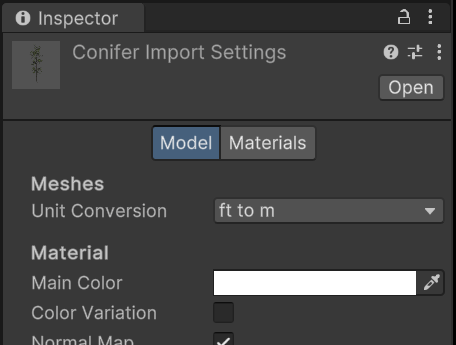
View import settings
To view the import settings in the Inspector window, select the file in the Project window.
Customize how Unity imports the file
To customize how Unity imports the selected file, use the properties on the Model, Materials, and Wind tabs on this window.
For more information about settings you can use to customize how Unity imports a SpeedTree model, see the following topics:
| Topic | Description |
|---|---|
| Model tab | Understand the options in the Model tab of the SpeedTree Import Settings window. |
| Materials tab | Understand the options in the Materials tab of the SpeedTree Import Settings window. |
| Wind tab | Understand the wind options for SpeedTree 9 assets imported as .st9 files. |