Material Validator window reference for the Built-In Render Pipeline
Important: The Built-In Render Pipeline is deprecated and will be made obsolete in a future release.
It remains supported, including bug fixes and maintenance, through the full Unity 6.7 LTS lifecycle.
For more information on migration, refer to Migrating from the Built-In Render Pipeline to the Universal Render Pipeline and Render pipeline feature comparison.
Validate Albedo mode
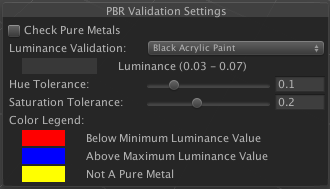
The PBR Validation Settings that appear in the Scene view when you set Material Validation to Validate Albedo.
| Property | Description |
|---|---|
| Check Pure Metals | Enable this checkbox if you want the Material Validator to highlight in yellow any pixels it finds which Unity defines as metallic, but which have a non-zero albedo value. See Pure Metals for more details. By default, this is not enabled. |
| Luminance Validation | Use the drop-down to select a preset configuration for the Material Validator. If you select any option other than Default Luminance, you can also adjust the Hue Tolerance and Saturation Tolerance. The color bar underneath the name of the property indicates the albedo color of the configuration. The Luminance value underneath the drop-down indicates the minimum and maximum luminance value. The Material Validator highlights any pixels with a luminance value outside of these values. This is set to Default Luminance by default. |
| Hue Tolerance | When checking the albedo color values of your material, this slider allows you to control the amount of error allowed between the hue of your material, and the hue in the validation configuration. |
| Saturation Tolerance | When checking the albedo color values of your material, this slider allows you to control the amount of error allowed between the saturation of your material, and the saturation in the validation configuration. |
| Color Legend | These colors correspond to the colours that the Material Validator displays in the Scene view when the pixels for that Material are outside the defined values. This property has the following options:
|
Validate Metal Specular mode
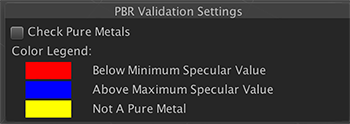
The PBR Validation Settings that appear in the Scene view when you set Material Validation to Validate Metal Specular.
| Property | Description |
|---|---|
| Check Pure Metals | Enable this checkbox if you want the Material Validator to highlight in yellow any pixels it finds which Unity defines as metallic, but which have a non-zero albedo value. See Pure Metals, below, for more details. By default, this is not enabled. |
| Color Legend | These colors correspond to the colours that the Material Validator displays in the Scene view when the pixels for that Material are invalid - meaning their specular value falls outside the valid range for that type of material (metallic or non-metallic). This color legend has the following valid ranges:
|