背景画像の設定
画像要素または VisualElement.style.backgroundImage プロパティを使用して、UI にビジュアルコンテンツを追加できます。どちらを選択するかは、アプリケーションの固有の要件によって異なります。詳細については、画像と VisualElement.style.backgroundImageを参照してください。
# 画像アセットで背景画像を設定する
インポートされたまたはビルトインの画像アセットを使用して、背景画像を設定できます。背景画像を設定する場合は、サポートされている背景画像のタイプを選択する必要があります。
ノート:
- SVG 画像を背景画像として使用するには、
com.unity.vectorgraphicsパッケージをインストールする必要があります。 - プロジェクトに画像をインポートする場合は、最も直感的な結果を得るために画像のインポート設定を定義します。
背景画像は、UI Builder で、USS で直接、または C# ファイルで設定できます。
USS の例:
MyElement {
    background-image: url("path/to/imageFile.png");
}
C# の例:
// Use the AssetDatabase method to load the texture.
myElement1.style.backgroundImage = AssetDatabase.LoadAssetAtPath<Texture2D>("path/to/imageFile.png");

// Use the AssetDatabase method to load the sprite.
myElement2.style.backgroundImage = new StyleBackground(AssetDatabase.LoadAssetAtPath<Sprite>("path/to/spriteAssetFile.png"));

// Load the texture from the project's Resources folder.
myElement3.style.backgroundImage = Resources.Load<Texture2D>("imageFile");

// Load the sprite from the project's Resources folder.
myElement4.style.backgroundImage = new StyleBackground(Resources.Load<Sprite>("spriteAssetFile"));

// Use the Unity Editor's default resources.
myElement5.style.backgroundImage = EditorGUIUtility.FindTexture("CloudConnect");
myElement6.style.backgroundImage = EditorGUIUtility.IconContent("FolderOpened Icon").image;
背景画像のスケールモードの設定
背景画像のスケールモードは、ビジュアル要素に合わせて画像を拡大縮小する方法を定義します。
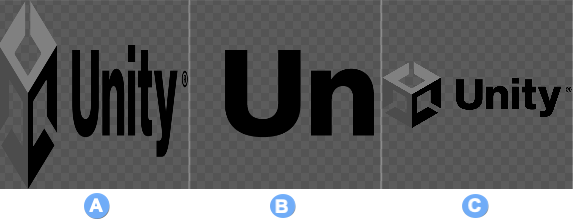
背景画像でサポートされているスケールモード。
A: ビジュアル要素の領域全体を埋めるために画像を引き伸ばす stretch-to-fill。
B: ビジュアル要素に合わせて画像を拡大縮小する scale-and-crop。画像がビジュアル要素より大きい場合、画像は切り取られます。
C: ビジュアル要素に合わせて画像を拡大縮小する scale-to-fit。伸縮適合モードと類似していますが、画像のアスペクト比は維持されます。
スケールモードは、UI Builder で、USS で直接、または C# ファイルで設定できます。
USS の例:
MyElement {
    -unity-background-scale-mode: scale-and-crop;
}
C# の例:
// Set the scale mode to scale-and-crop.
myElement.style.backgroundPositionX = BackgroundPropertyHelper.ConvertScaleModeToBackgroundPosition(ScaleMode::ScaleAndCrop);
myElement.style.backgroundPositionY = BackgroundPropertyHelper.ConvertScaleModeToBackgroundPosition(ScaleMode::ScaleAndCrop);
myElement.style.backgroundRepeat = BackgroundPropertyHelper.ConvertScaleModeToBackgroundRepeat(ScaleMode::ScaleAndCrop);
myElement.style.backgroundSize = BackgroundPropertyHelper.ConvertScaleModeToBackgroundSize(ScaleMode::ScaleAndCrop);
UI ツールキットによる 9 スライス画像
一般的に、9 スライステクニックは通常の 2D Sprite に適用できます。ただし、UI Toolkit では、テクスチャ、レンダーテクスチャ、SVG ベクトル画像に 9 スライステクニックを適用できます。
9 スライスを適用するには、以下の設定を行います。
- スライス値: スライス値は、画像の左、右、上、下のスライスのピクセル値です。値は画像のピボットポイントを基準にしています。例えば、ピボットポイントが画像の中心にある場合、左側のスライス値は画像の左端からピボットポイントまでのピクセル数です。
-
スライススケール: スライススケールは、9 スライステクニックの適用後に画像に適用される乗数です。スプライトの場合、Unity はパネルの
reference sprite pixels per unit valueに対するスプライトのpixels-per-unit値 (デフォルトは100) によって-unity-slice-scaleを調整します。例えば、スプライトのpixels-per-unitが16の場合、スケールは16/100 = 0.16で調整されます。したがって、スケールを2pxに設定すると、最終スケールは2px * 0.16px = 0.32pxになります。テクスチャとベクトル画像の場合、Unity は設定されたスライススケール値に追加の調整を行いません。
スライス値とスライススケールは、UI Builder で、USS で直接、または C# ファイルで設定できます。スプライト画像の場合は、スプライトエディターで値を設定することもできます。
UI Builder:
Background セクションの Slice フィールドを使用して、スライス値とスライススケールを設定します。
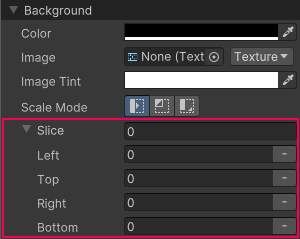
USS の例:
MyElement {
    -unity-slice-left: 10px;
    -unity-slice-right: 10px;
    -unity-slice-top: 10px;
    -unity-slice-bottom: 10px;
    -unity-slice-scale: 2px;
}
C# の例:
MyElement.style.unitySliceLeft = 10px;
MyElement.style.unitySliceRight = 10px;
MyElement.style.unitySliceTop = 10px;
MyElement.style.unitySliceBottom = 10px;
MyElement.style.unitySliceScale = 2px;
重要:
- USS で設定されたスライス値は、関連するビジュアル要素内の画像にのみ適用されます。値は他のビジュアル要素や他の UI ドキュメント、シーンで使用される同じ画像には適用されません。
- 未設定のスライス値は 0 です。例えば、Top、Bottom、Right のスライス属性を設定し Left のスライス値を空にすると、Left スライス値は 0 になります。
- USS で設定されたスライス値は、スプライトエディターで設定されたスライス値をオーバーライドします。