Texture type and shape settings reference
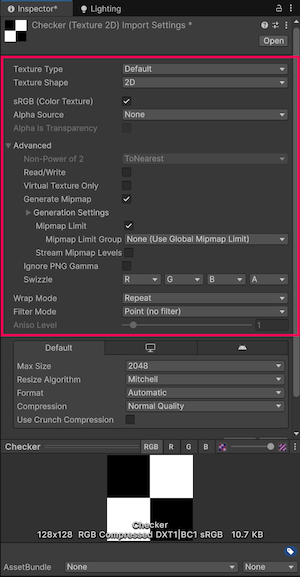
Note: Some of the less commonly used properties are hidden by default. Expand the Advanced section in the Inspector window to view these properties.
Texture Type
Use the Texture Type property to select the type of Texture you want to create from the source image file. The other properties in the Texture Import settings window change depending on the value you set.
| Property | Function |
|---|---|
| Default | This is the most common setting used for all Textures. It provides access to most of the properties for Texture importing. For more information, see the Default Texture type. |
| Normal map | The Normal map texture type formats the texture asset so it’s suitable for real-time normal mapping. For more information, see the Normal map texture type documentation. For more information on normal mapping in general, see Importing Textures. |
| Editor GUI and Legacy GUI | The Editor GUI and Legacy GUI texture type formats the texture asset so it’s suitable for HUD and GUI controls. For more information, see the Editor GUI and Legacy GUI texture type documentation. |
| Sprite (2D and UI) | The Sprite (2D and UI) texture type formats the texture asset so it’s suitable to use in 2D applications as a Sprite. For more information, see the Sprite (2D and UI) texture type documentation. |
| Cursor | The Cursor texture type formats the texture asset so it’s suitable to use as a custom mouse cursor. For more information, see the Cursor texture type documentation. |
| Cookie | The Cookie texture type formats the texture asset so it’s suitable to use as a light cookie in the Built-in Render Pipeline. For more information, see the Cookie texture type documentation. |
| Lightmap | The Lightmap texture type formats the texture asset so it’s suitable to use as a Lightmap. This option enables encoding into a specific format (RGBM or dLDR depending on the platform) and a post-processing step on texture data (a push-pull dilation pass). For more information, see the Lightmap texture type documentation. |
| Directional Lightmap | The Directional Lightmap texture type formats the texture asset so it’s suitable to use as a directional Lightmap. For more information, see the Directional Lightmap texture type documentation. |
| Shadowmask | The Shadowmask texture type formats the texture asset so it’s suitable to use as a shadowmask. For more information, see the Shadowmask texture type documentation. |
| Single Channel | The Single Channel texture type formats the texture asset so it only has one channel. For information on the properties available only for the this type, see the Single Channel texture type documentation. |
Texture Shape
Use the Texture Shape property to select and define the shape and structure of the Texture. There are four shape types:
- 2D is the most common setting for all Textures; it defines the image file as a 2D Texture. These are used to map Textures to 3D Meshes and GUI elements, among other Project elements.
- Cube defines the Texture as a cubemap. You could use this for Skyboxes or Reflection Probes, for example. This type is only available with the Default, Normal Map, and Single Channel Texture types.
- 2D Array defines the Texture as a 2D array texture. This is commonly used as an optimization for some rendering techniques, where many textures of the same size & format are used.
- 3D defines the Texture as a 3D texture. 3D textures are used by some rendering techniques to represent volumetric data.
2D Array and 3D columns and rows
When you set the Texture Shape property to 2D Array or 3D, Unity displays the Columns and Rows properties. Use these to tell Unity how to divide the flipbook texture into cells.
| Property: | Function: |
|---|---|
| Columns | The number of columns that the source flipbook texture is divided into. |
| Rows | The number of rows that the source flipbook texture is divided into. |
Other settings
Depending on which Texture Type you select, different properties can appear in the Texture Import Settings window. Some of these properties are specific to the Texture Type itself, such as Sprite Mode available with the Sprite (2D and UI) type.
Use Advanced settings to make finer adjustments to the way Unity handles the Texture. The order and availability of these settings can vary depending on the Texture Type you choose.
For information on the properties for each texture type, refer to the documentation for that texture type:
- Default
- Normal map
- Editor GUI and Legacy GUI
- Sprite (2D and UI)
- Cursor
- Cookie
- Lightmap
- Directional Lightmap
- Shadowmask
- Single Channel