Launch and use the Search window
The Search window finds assets in your project, packages in Unity’s registry, assets from the Unity__ Asset Store__由 Unity 和社区成员创建的免费和付费的资产库,其规模处于不断壮大中。提供各种资产,涵盖了从纹理、模型和动画到完整项目示例、教程和编辑器扩展等类型。更多信息
See in Glossary, log information, and so on. You can compare items, view them in an Inspector tab, and act on them.
This page reviews the window’s interface.
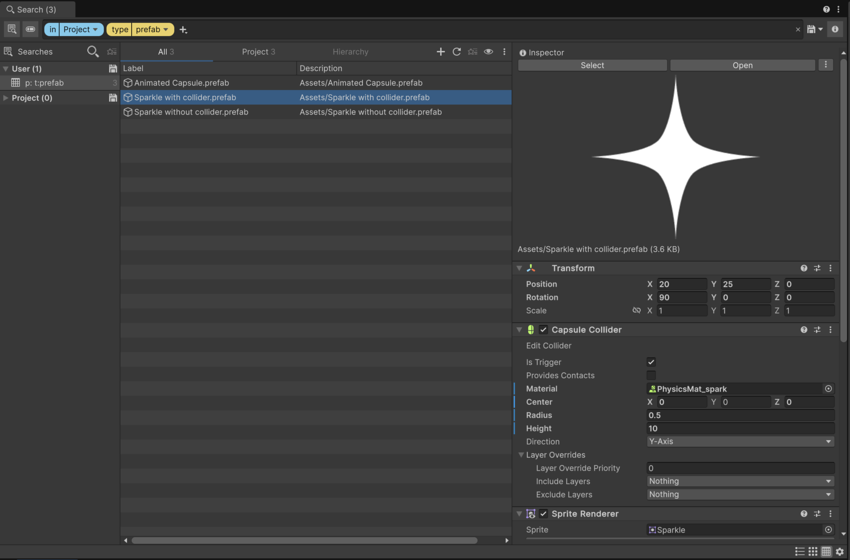
Launch Search
To launch Search, do one of the following:
- Press Ctrl+K (macOS: Cmd+K).
- From the main menu, select Edit > Search > Search All.
- From the main toolbar, select the magnifying glass icon.
Tip: You can create your own shortcuts and menu items for custom searches. For more information, refer to Invoke from the main menu.
As well as the general Search window, you can also open the following specialized search windows:
- Scene: Finds scene and scene templates.
- Files: Runs the File search provider to find files in your project.
- Asset Store: Finds items in the Unity Asset Store with the Asset Store search provider.
- Asset Database: Finds items in the Asset Database with the Asset Database search provider.
Search mechanisms
Unity Search supports two search mechanisms:
Visual query builder: Use the visual query builder to create complex queries that combine multiple search tokens. For details, refer to Visual query builder.
Textual search: Enter a search query in the search field. For syntax and examples, refer to Textual query references.
The toggle for search mechanisms is next to the search field:

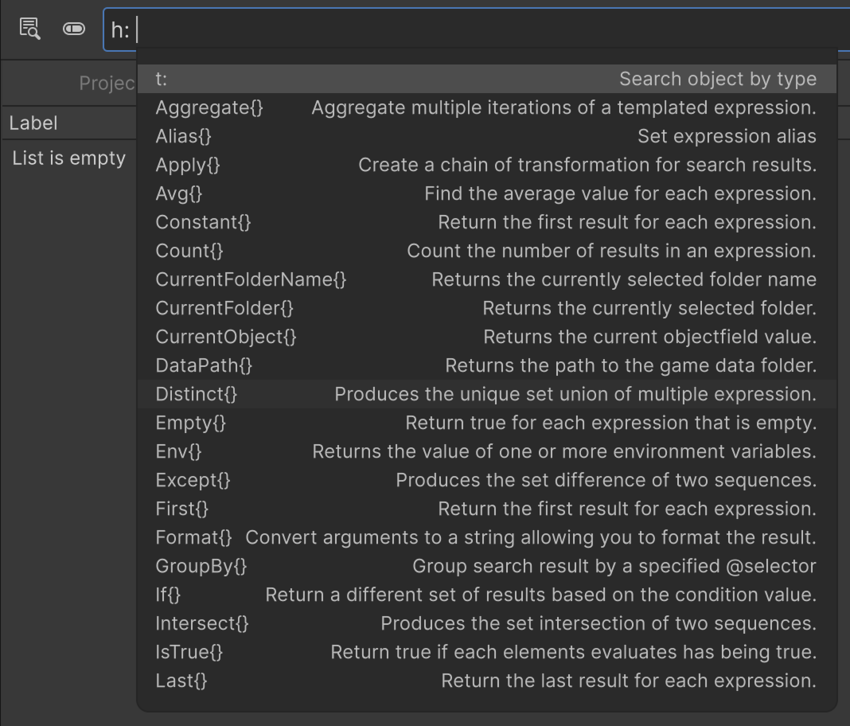
Press Tab for autocomplete
For autocomplete suggestions for the current query, press Tab.
Tab works with both the visual query builder and textual queries.
For textual queries, Tab shows autocomplete suggestions like filters, tokens, and recent searches.
For the visual query builder:
- If your cursor isn’t next to any text, Tab shows the available filters.
- If your cursor is next to text, Tab shows the same autocomplete suggestions as the textual query.
Select results views
The Search window has three views:
- Tables: The table view is the most flexible, because you can add and remove columns, compare data across multiple search results, and export data. For more information, refer to Manage results tables.
- List: The list view is the default view, and shows search results as a list of items.
- Grid: The grid view shows search results as a grid of thumbnails.
Tip: The zoom slider controls the size of the search result thumbnails in the list and grid views. When the thumbnail is large enough, the view switches to the grid view. If it’s too small, the view switches to the list view.
Add an Inspector tab
The Search window can show an Inspector tab for a selected item. The tab shows a preview of the item if the item type supports previews, and the item’s components. You can also perform actions on the item, based on the item type.
To toggle the Inspector tab, select the Inspector icon ( ) in the Search window.
To view an item in the Inspector tab, click the item in the search results.
For more information about the Inspector tab, refer to The Inspector window.
Display or hide the status bar
The Search window’s status bar shows the query’s status, search providers, number of results, and query run time.
To show or hide the status bar, from the Search window’s More (⋮) menu, select Status bar.
Add result types and indices
To add or remove result types, from the Search window’s View menu ( ):
):
For results from the File search provider, select Show more results.
-
For results from packages in the projects, such as their scripts and images, select Show package results. Show more results needs to be active for Show package results to work.
This option shows results from the Project window; it’s not the same as searching for packages with the Packages provider.
To add or remove indices, from the Search window’s View menu ():
- For results from the Assets index, select Assets (asset index).
- For results from a custom index, select your custom index’s name.
Adding and removing indices isn’t the same as using search providers. Instead, it changes what the search providers can search through. For more information, refer to Focus searches with search providers.
Cycle through search history
To cycle through search query changes:
- To undo, press Ctrl+Z (macOS: Cmd+Z).
- To redo, press Ctrl+Y (macOS: Cmd+Y).
Save and reuse queries
You can save and reuse search queries. For more information, refer to Manage search queries.
To show or hide the saved queries list, select the Searches icon ( ) in the Search window.
Change search preferences
To change search preferences, click the gear icon in the Search window. For more information, refer to The Preferences window’s Search tab.