Make a material transparent
To make a material transparent if it uses the Standard Shader, follow these steps in the Inspector window of the material:
- Set Rendering Mode to Transparent or Fade.
- Select the Albedo swatch to open the Color window.
- Set the Alpha (A) slider. A value of 0 means fully transparent, and a value of 1 means fully opaque.

Use a texture to control transparency
If you use a texture for Albedo instead of a color, by default the alpha channel of the texture controls the transparency of the material. A value of 0 in the alpha channel means fully transparent, and a value of 1 means fully opaque. You can use different values to make different areas more or less transparent.
Unity combines the alpha channel of the texture with the alpha value you set in the Color window. For example, if you set the alpha value in the Color window to 0.1, opaque texture pixels become almost fully transparent.
To check the alpha channel of a texture, follow these steps:
- Select the texture in the Project window.
- Go to the texture preview section and select the Alpha (A) button. The preview displays black for 0 and white for 1, with shades of gray between.
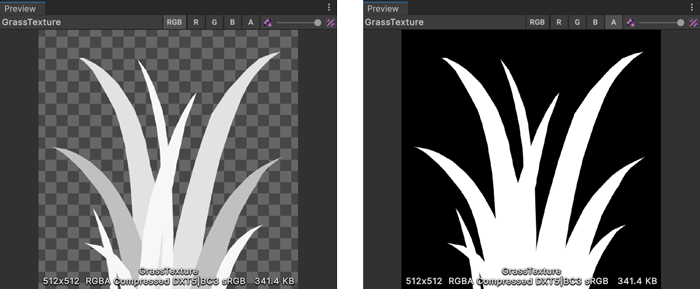
Refer to Default Import Settings reference for more information about texture transparency settings.