Control which GameObjects are selectable in the Scene view
Toggle the pickability of a GameObject to choose which GameObjects are selectable in the Scene view. By default, all GameObjects are pickable, which means you can select them in the Scene view. Disable the pickability of a GameObject to exclude it from selections in the Scene view. For example, if you’re working in a large scene with many GameObjects, block specific GameObjects from being selected in the Scene view to prevent them from being edited accidentally.
A GameObject that has its pickability disabled is still rendered in the Scene view, but you can’t select or modify it in the Scene view. You can still select the GameObject in the Hierarchy window. The pickability state persists only in the Editor and only for the user in the project where the pickability was set. Changing the pickability state of a GameObject is not recorded as a modification to the scene.
For a description of each pickability toggle, refer to Scene pickability icons.
Enable or disable the pickability of a GameObject
Control the pickability of individual GameObjects from the Picking column in the Hierarchy window.
The pickability toggle appears when you hover over a pickable GameObject. For a GameObject that’s not pickable, the toggle is always visible.
Pickability controls work like the Scene visibility controls.
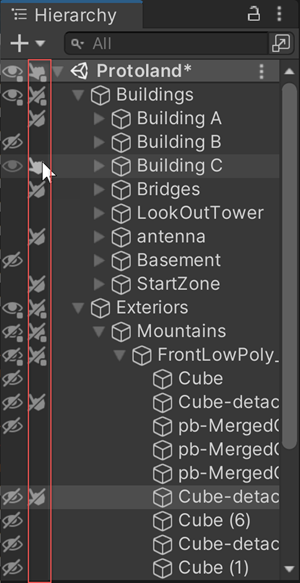
To enable or disable the pickability of a GameObject and its child GameObjects:
- Select the GameObject’s pickability toggle in the Picking column of the Hierarchy window.
- Select a GameObject in the Scene view, and press L.
To enable or disable the pickability of multiple GameObjects:
- Select the GameObjects in the Hierarchy window, then select the pickability toggle in the Picking column.
- Select the GameObjects, then press L.
To enable or disable the pickability of a parent GameObject only and none of its child GameObjects, hold Alt (macOS: Option) and select the GameObject’s pickability toggle in the Hierarchy window. The child GameObjects retain whatever pickability state they had previously.
Any pickability changes you make in the Hierarchy window are persistent. Pickability changes are reapplied whenever you use Select All, Deselect All, or close and re-open the scene.