Debug Draw Modes for lighting reference
The Scene view has several Debug Draw Modes to help you understand and debug the lighting in your scene.
Use the Scene view View Options toolbar to select a Debug Draw Mode.
If you use the Universal Rendering Pipeline or the High Definition Render Pipeline, not all the modes appear. You can use the Rendering Debugger window to debug lighting in these pipelines.
Lighting
Contributors / Receivers
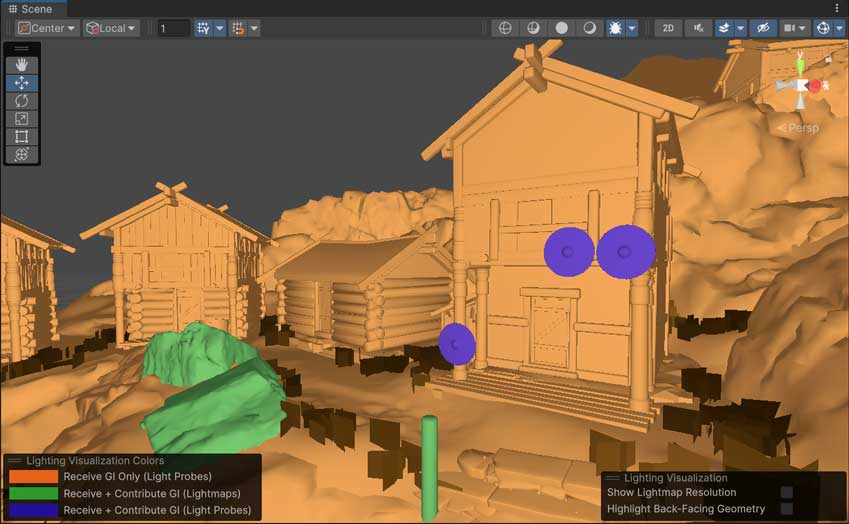
The Contributors / Receivers mode displays the following colors depending on whether objects contribute to and receive global illumination:
- Orange means the object doesn’t contribute to global illumination. To change this, use the Contribute GI flag in the object’s Static Editor Flags property.
- Green means the object receives global illumination from lightmaps. To change this, use the Receive Global Illumination setting in the object’s Mesh Renderer component.
- Blue means the object receives global illumination from Light Probes. To change this, use the Receive Global Illumination setting in the object’s Mesh Renderer component.
You can customize the colors that appear in the Contributors / Receivers debug draw mode. For more information, refer to Scene color preferences.
Shadow Cascades
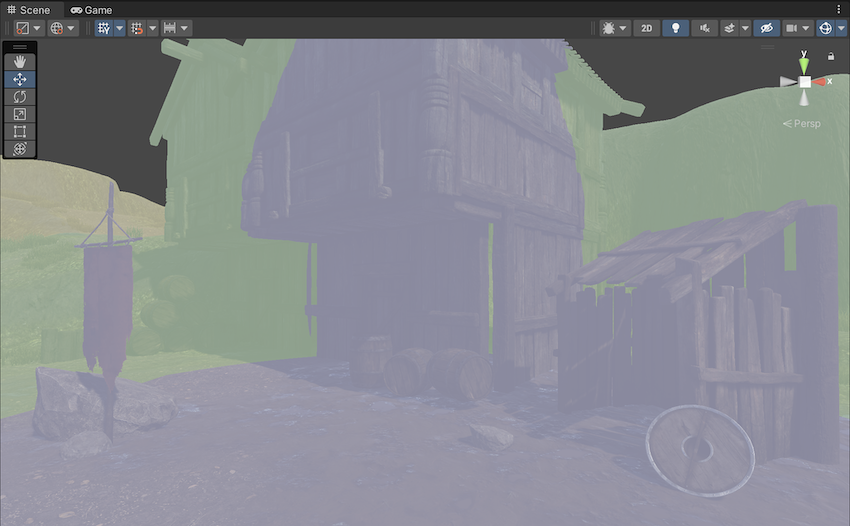
The Shadow Cascades mode displays a different color for each shadow cascade. The colors match the shadow cascade colors in the Shadows section of the Quality Settings window.
You can use this mode to help you adjust the shadow distance, cascade count and cascade shadow splits.
This mode uses the Scene view far plane instead of the shadow distance. You might need to reduce the shadow distance if you want to match the in-game behavior of a camera with a small far plane distance.
Global Illumination
The following modes are enabled when you use Enlighten Realtime Global Illumination or Baked Global Illumination.
Indirect (Realtime Global Illumination only)
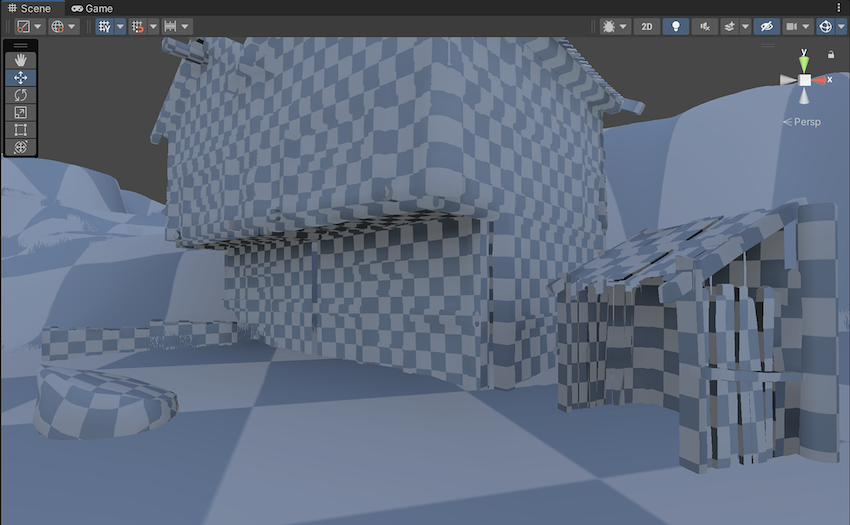
The Indirect mode displays the realtime lightmaps generated by Enlighten Realtime Global Illumination.
Directionality
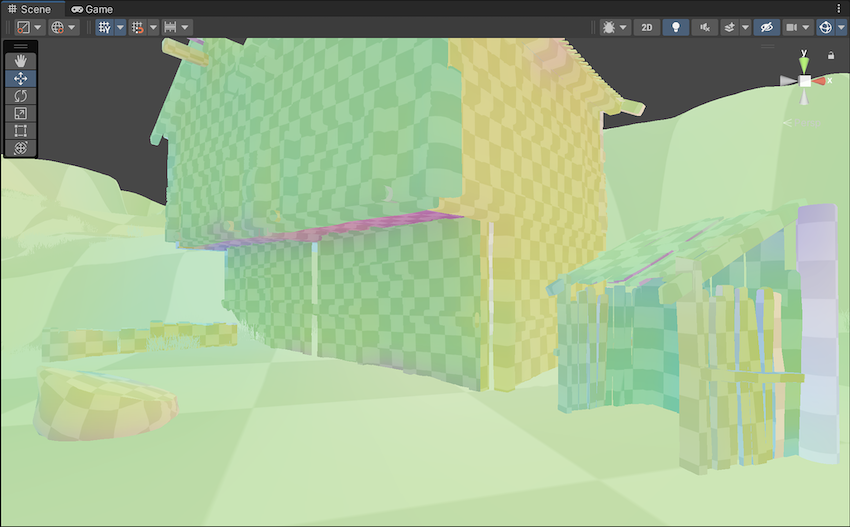
The Directionality mode displays the dominant light direction as a color. Refer to Directional Mode for more information.
Albedo
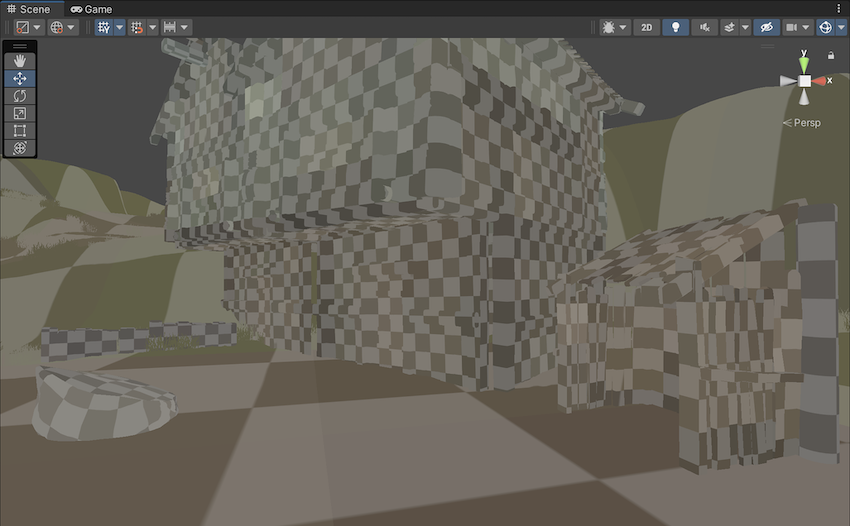
The Albedo mode displays the albedo color of materials.
Emissive
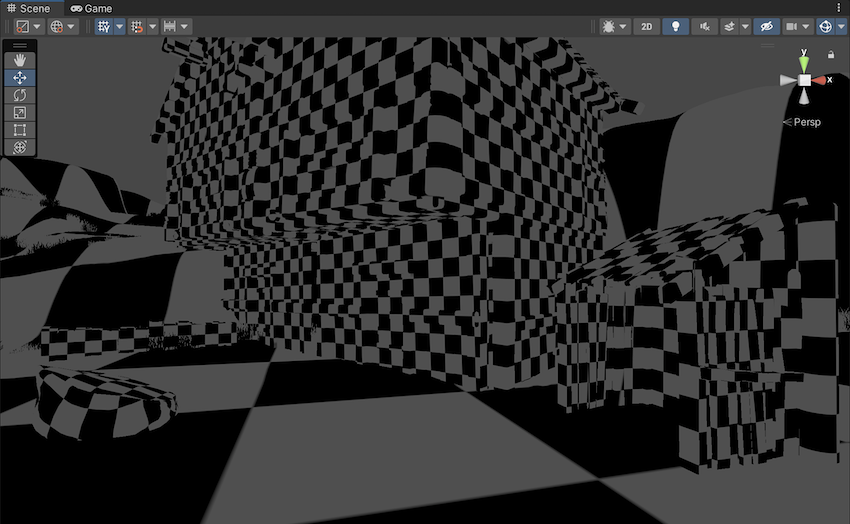
The Emissive mode displays the emissive color of emissive materials.
UV Charts
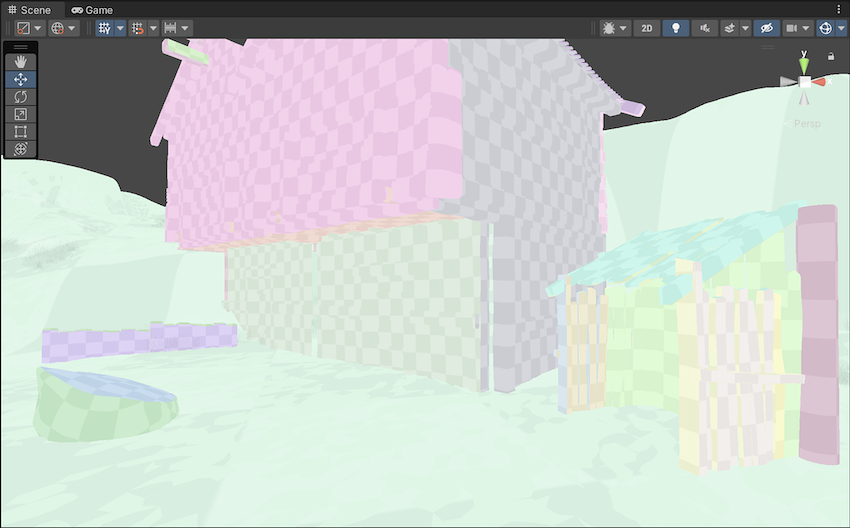
The UV Charts mode displays a different color for each UV chart.
You can use this mode to check how lightmaps scale onto geometry. Change the scale using settings such as Resolution in the Lightmap Parameters Asset, or the Scale in Lightmap property of individual renderers.
Systems (Realtime Global Illumination only)
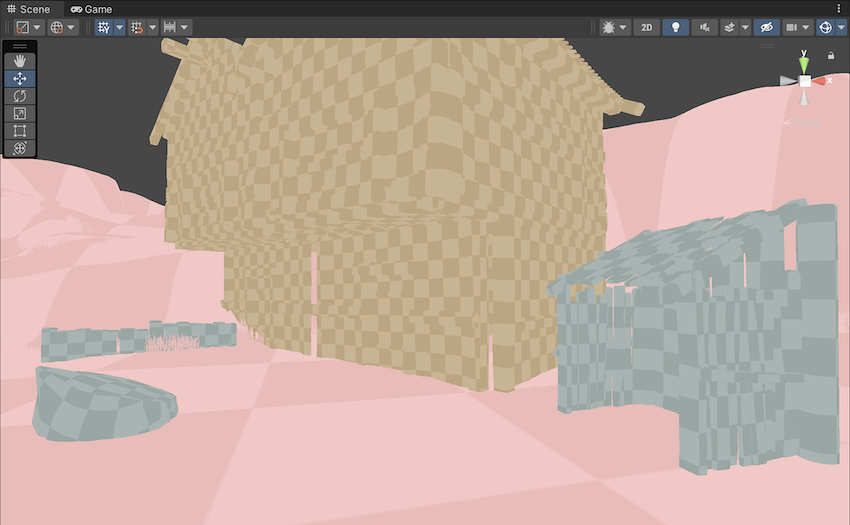
The Systems mode displays a different color for each group of clusters (systems) that Enlighten Realtime Global Illumination creates to generate realtime lightmaps.
Refer to How Enlighten Realtime Global Illumination works for more information.
Clustering (Realtime Global Illumination only)
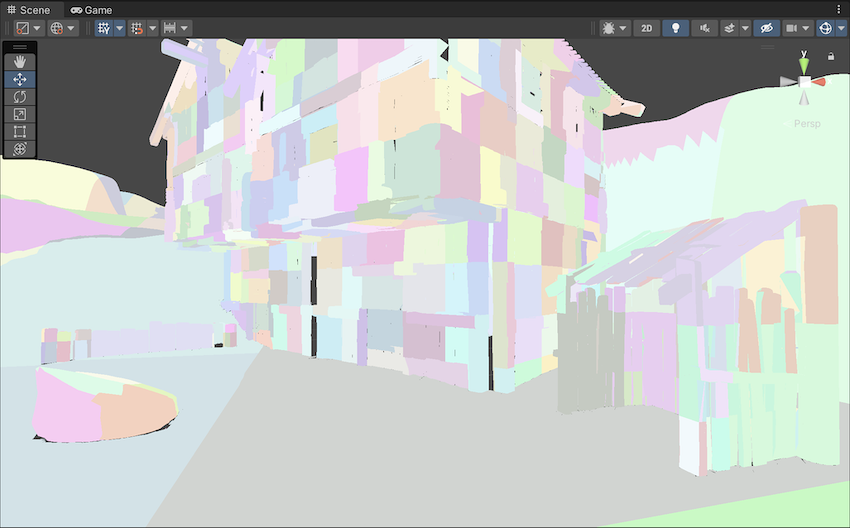
The Clustering mode displays a different color for each cluster Enlighten Realtime Global Illumination creates to generate realtime lightmaps.
Large scenes might generate more clusters than Unity can store in memory. To reduce the number of clusters, use the Cluster Resolution setting in the Lightmap Parameters Asset to adjust the ratio of clusters to geometry.
Refer to How Enlighten Realtime Global Illumination works for more information.
Lit Clustering (Realtime Global Illumination only)
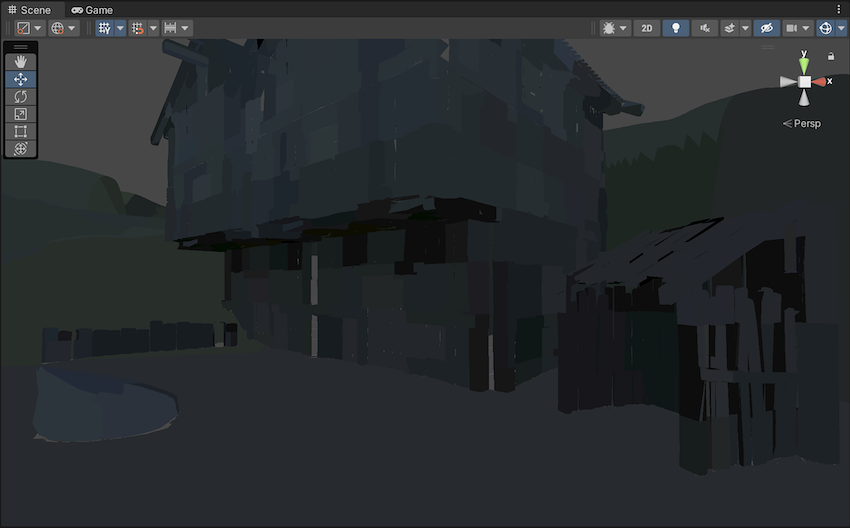
The Lit Clustering mode displays a different color for each cluster Enlighten Realtime Global Illumination creates to generate realtime lightmaps, and applies color from the realtime lightmaps.
Texel Validity (Baked Global Illumination only)
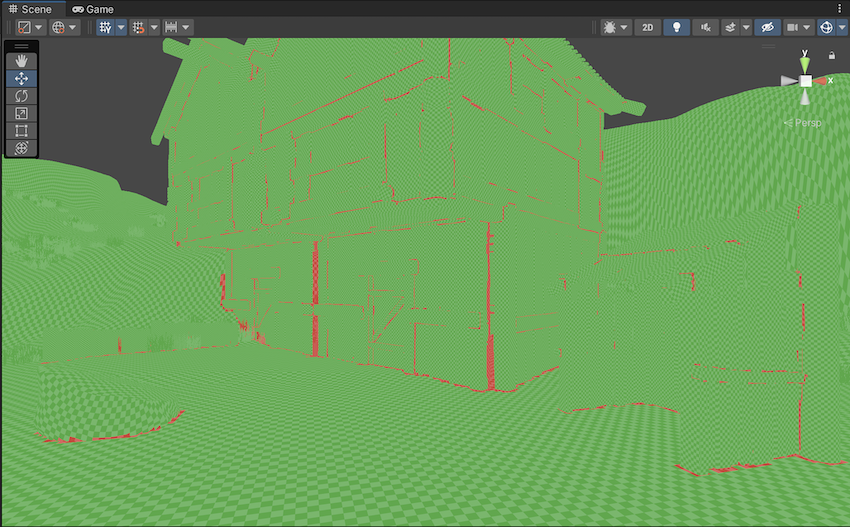
The Texel Validity mode displays red on a surface if the baked lightmap texel is invalid. Unity marks a texel as invalid when the lightmapping process emits rays from the surface and hits mostly backfaces. Unity tries to interpolate a color for an invalid texel by looking at neighboring valid texels.
To adjust the threshold for marking texels as invalid, use the Backface Tolerance setting in the Lightmap Parameters Asset.
UV Overlap (Baked Global Illumination only)
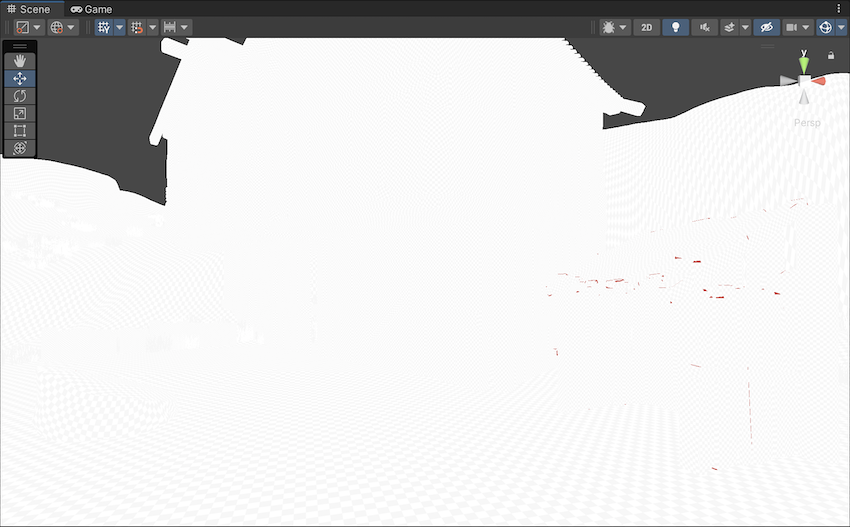
The UV Overlap mode displays red if a baked lightmap texel is too close to a texel in another lightmap chart, which might cause aliasing, pixelation and other issues. Refer to Fixing lightmap UV overlap for more information.
Lightmap indices (Baked Global Illumination only)
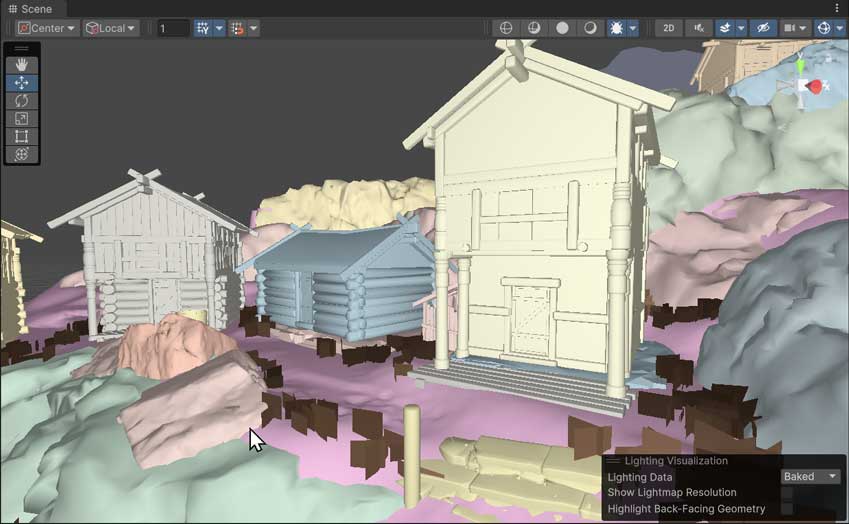
The Lightmap indices mode displays a different color for each baked lightmap.
Light Overlap (Baked Global Illumination only)
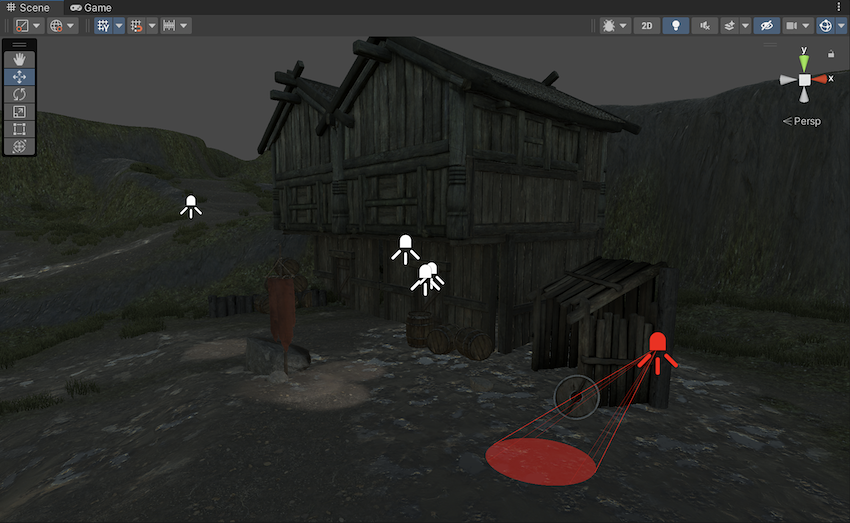
If you use the Shadowmask Lighting Mode, the Light Overlap mode displays a light volume as red if the light doesn’t contribute to the baked shadow mask textures. This means there are more than 4 light volumes that overlap, so the highlighted light has to fall back to fully baked. Refer to Light Mode: Shadowmask for more information.
Baked Lightmap (Baked Global Illumination only)
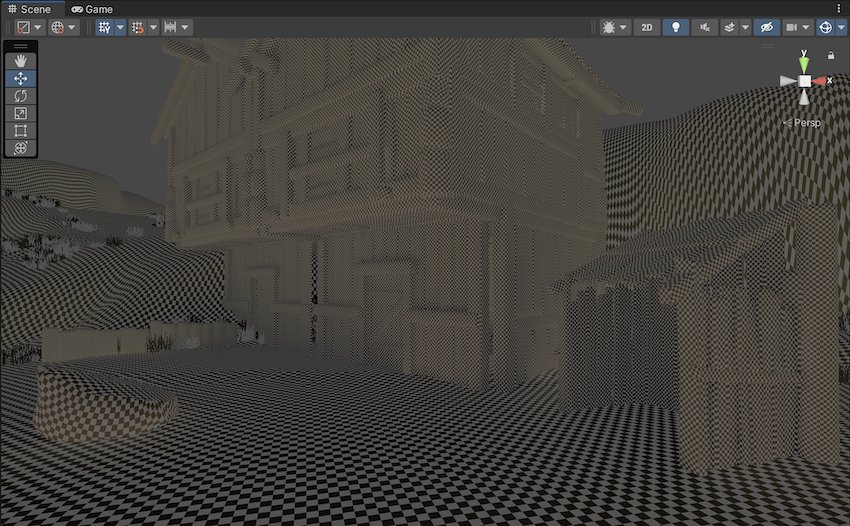
The Baked Lightmap mode displays the lightmaps generated by Baked Global Illumination.
Shadowmask (Baked Global Illumination only)
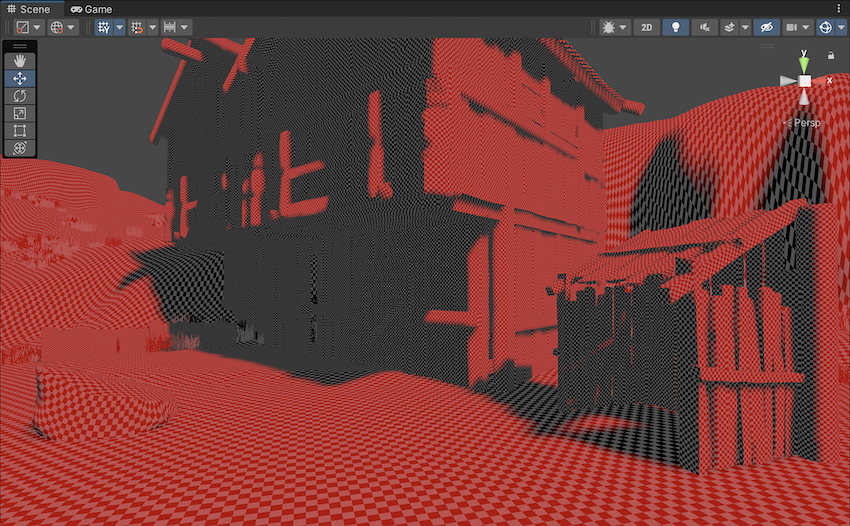
If you use the Shadowmask Lighting Mode, the Shadowmask mode displays the baked shadow mask textures. Refer to Light Mode: Shadowmask for more information.
Lighting Visualization overlay reference
The properties in the Lighting Visualization overlay depend on the Debug Draw Mode you select.
| Property | Description |
|---|---|
| Lighting Data | Select whether Unity uses the current baked lightmaps in the Debug Draw Mode, or temporary lightmaps that Unity rebakes when you update the scene. Refer to Preview lightmapping for more information. The options are:
|
| Show Lightmap Resolution | Use a checkerboard pattern to display the resolution of lightmaps. Each check is one pixel in a lightmap. |
| Highlight Back-Facing Geometry | Display back-facing geometry. The default color is purple. |
| Adjust Lightmap Exposure | Raise or lower the brightness of the lightmap colors, to help make the range of colors more visible. The default value is 0. |
Color preferences
You can customize the colors that the Contributors / Receivers debug draw mode and the Highlight Back-Facing Geometry option use. For more information, refer to Scene color preferences.
Additional resources
- Lightmapping troubleshooting guide on the Unity Forums.