Set up your environment for Embedded Linux
Set up your environment to develop with Embedded Linux.
To create a Unity application for Embedded Linux, you first need to set up your Unity project to support Embedded Linux. To support Embedded Linux, a Unity project requires certain packages and dependencies.
Note: You must install the Embedded Linux platform package before you can set up your environment. For more information, refer to Install the platform package for Embedded Linux.
Install the toolchain and SDK packages
After you create a new project with Unity, you must install the following toolchain and SDK packages for your operating system and target architecture. To install a Unity package for Embedded Linux toolchain and SDK, refer to Install a UPM package by name.
Note: When you install sysroot and toolchain pacakges, the base sysroot package com.unity.sysroot is installed as a dependency. The base sysroot package contains common code shared between dependent sysroot and toolchain packages.
Toolchain packages
| Operating system | Package |
|---|---|
| Windows | com.unity.toolchain.win-x86_64-embeddedlinux |
| Windows(Arm64) | com.unity.toolchain.win-arm64-embeddedlinux |
| macOS | com.unity.toolchain.macos-x86_64-embeddedlinux |
| macOS(Arm64) | com.unity.toolchain.macos-arm64-embeddedlinux |
| Linux | com.unity.toolchain.linux-x86_64-embeddedlinux |
When you install a toolchain package, ensure to install the appropriate target architecture sysroot package based on the intended embedded Linux platform. For example, when you install the com.unity.toolchain.linux-x86_64-embeddedlinux toolchain package, ensure to install the corresponding target architecture sysroot package. For example, for x86_64 target architecture, use the sysroot package com.unity.sdk.embeddedlinux-x86_64. The complete list of sysroot packages for the supported target architectures is mentioned in the following table.
SDK packages
| Target architecture | Package |
|---|---|
| aarch64 | com.unity.sdk.embeddedlinux-aarch64 |
| x86_64 | com.unity.sdk.embeddedlinux-x86_64 |
| arm32 | com.unity.sdk.embeddedlinux-arm32 |
| x86 | com.unity.sdk.embeddedlinux-x86 |
When you install a sysroot package, ensure to install the appropriate toolchain package based on the intended target platform. For example, when you install the com.unity.sdk.embeddedlinux-x86_64 sysroot package, ensure to install the corresponding com.unity.toolchain.linux-x86_64-embeddedlinux toolchain package.
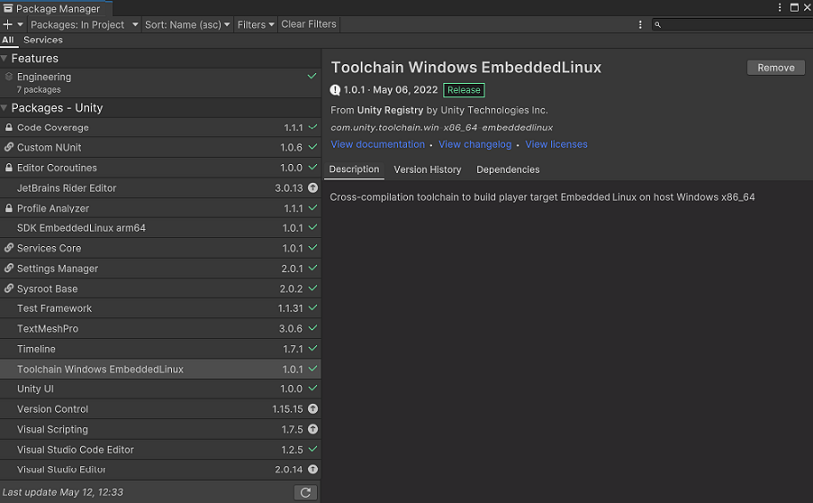
After you install the packages, the Package Manager window displays the toolchain and SDK packages that are installed for Embedded Linux.
Automated packages installation
You can also install the required Embedded Linux packages automatically from the Build Profiles window.
To initiate the automatic installation of packages:
- Go to File > Build Profiles from Unity’s main menu.
- In the Build Profiles window, select Add Build Profile to open the Platform Browser window.
- In the Platform Browser window, select Embedded Linux and then click Add Build Profile.
- Go to Edit > Project Settings from Unity’s main menu.
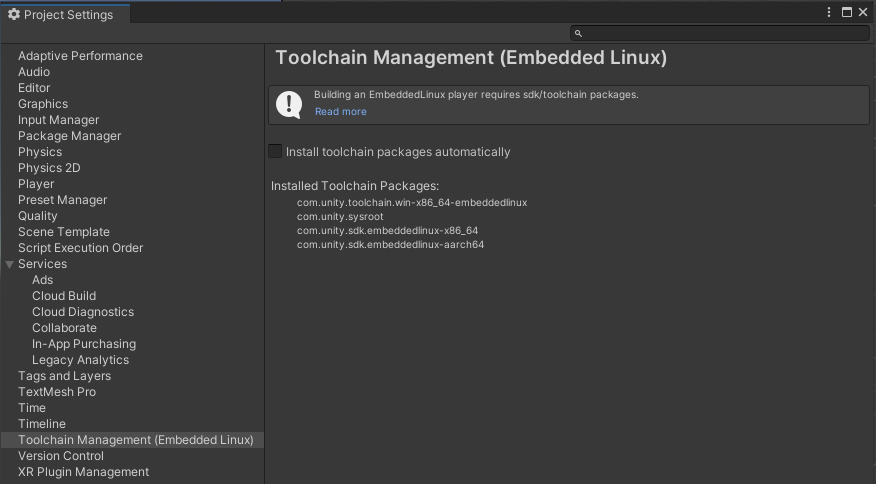
If the Unity Editor has the Install toolchain packages automatically option enabled by default, then the required packages such as the toolchain and SDKs for installed architectures are installed automatically. After the package installation process is complete, you can check which packages are installed in the Toolchain Management (Embedded Linux) tab in Project Settings.
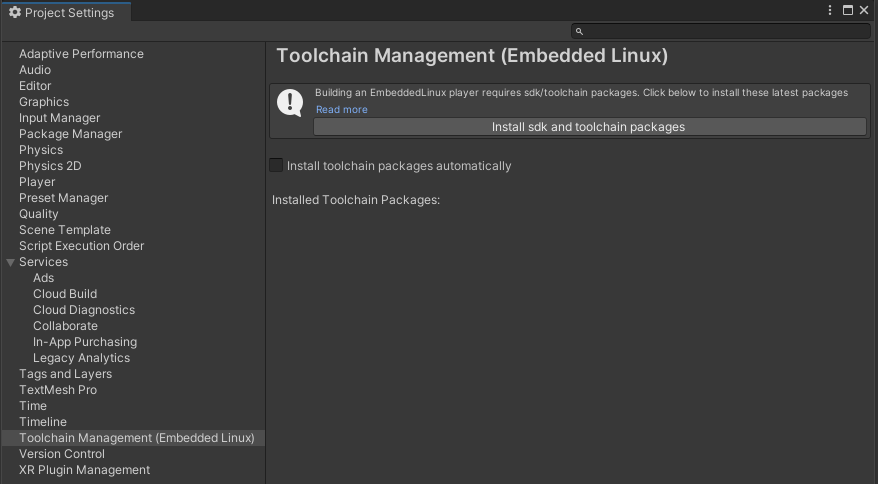
If the option to automatically install packages is disabled, you can switch to the Toolchain Management (Embedded Linux) tab and click Install sdk and toolchain packages.
After you’ve installed the packages, the Package Manager window displays the list of all the toolchain packages that are installed for Embedded Linux.
Dependencies
Embedded Linux must provide direct and indirect dependencies so Unity can run correctly.
Direct dependencies
Direct dependencies load at the application startup.
libm.so.6libgcc_s.so.1libpthread.so.0libc.so.6libdl.so.2librt.so.1
Indirect dependencies
Indirect dependencies load when needed during the application runtime as a shared library.
| Type | Dependencies |
|---|---|
| Audio |
libpulse-simple.so.0 libpulse.so.0 libesd.so.0 libasound.so or libasound.so.2
|
| Wayland |
libwayland-client.so.0 libwayland-egl.so.1 libwayland-cursor.so.0 libxkbcommon.so.0
|
| X11 |
libX11.so.6 libXext.so.6 libXcursor.so.1 libXinerama.so.1 libXi.so.6 libXrandr.so.2 libXss.so.1 libXxf86vm.so.1
|
| OpenGL ES |
libEGL.so.1 libGLESv2.so.2
|
| Vulkan | libvulkan.so.1 |
| Devices | libudev.so.1 |