Programming with gizmos and handles
The Gizmos and Handles classes allow you to draw lines and shapes in the Scene view and Game view, as well as interactive handles and controls. These two classes together provide a way for you to extend what is shown in these views and build interactive tools to edit your project in any way you like.
For example, rather than entering numbers in the Inspector, you could create a draggable circle radius gizmo around a non-player character in a game, which represents the area within which they can hear or see the player.
Gizmos
The Gizmos class allows you to draw lines, spheres, cubes, icons, textures and meshes into the Scene view to use as debugging, set-up aids, or tools while developing your project.
The following example draws a 10 unit yellow wire cube around a__ GameObject__Unity 场景中的基础对象,可以表示角色、道具、风景、摄像机、路径点等。GameObject 的功能由所附的组件决定。更多信息
See in Glossary:
using UnityEngine;
public class GizmosExample : MonoBehaviour
{
    void OnDrawGizmosSelected()
    {
        // Draw a yellow cube at the transform position
        Gizmos.color = Color.yellow;
        Gizmos.DrawWireCube(transform.position, new Vector3(10, 10, 10));
    }
}
The following image shows how this cube looks when placed on a Directional Light GameObject:
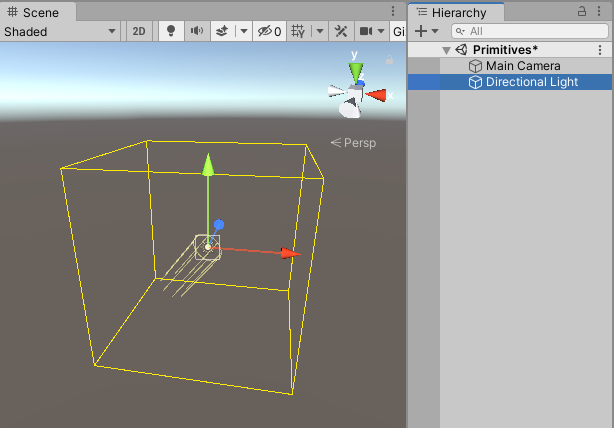
For a full API reference including usage examples, refer to the API reference page for Gizmos.
Handles
Handles are similar to gizmos, but provide more interactivity and manipulation. The default 3D controls that Unity provides to manipulate items in the Scene view are a combination of gizmos and handles. There are a number of built-in handle GUIs, such as the familiar tools to position, scale and rotate an object via the Transform component.
You can define your own handle GUIs to use with custom component editors. Such GUIs can be a very useful way to edit procedurally-generated Scene content, “invisible” items and groups of related objects, such as waypoints and location markers.
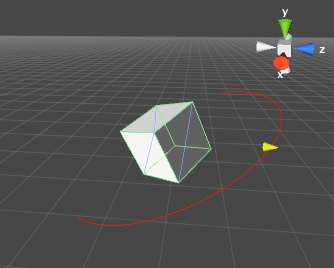
The following example creates an arc area with an arrowhead handle, allowing you to modify a “shield area” in the Scene view:
using UnityEditor;
using UnityEngine;
using System.Collections;

//this class should exist somewhere in your project
public class WireArcExample : MonoBehaviour
{
    public float shieldArea;
}

// Create a 180 degrees wire arc with a ScaleValueHandle attached to the disc
// that lets you modify the "shieldArea" value in the WireArcExample
[CustomEditor(typeof(WireArcExample))]
public class DrawWireArc : Editor
{
    void OnSceneGUI()
    {
        Handles.color = Color.red;
        WireArcExample myObj = (WireArcExample)target;
        Handles.DrawWireArc(myObj.transform.position, myObj.transform.up, -myObj.transform.right, 180, myObj.shieldArea);
        myObj.shieldArea = (float)Handles.ScaleValueHandle(myObj.shieldArea, myObj.transform.position + myObj.transform.forward * myObj.shieldArea, myObj.transform.rotation, 1, Handles.ConeHandleCap, 1);
    }
}
For a full API reference including usage examples, refer to the API reference page for Gizmos.