Troubleshooting objects appearing unlit or darker than intended
Fix issues causing some objects to appear unlit or darker than intended.
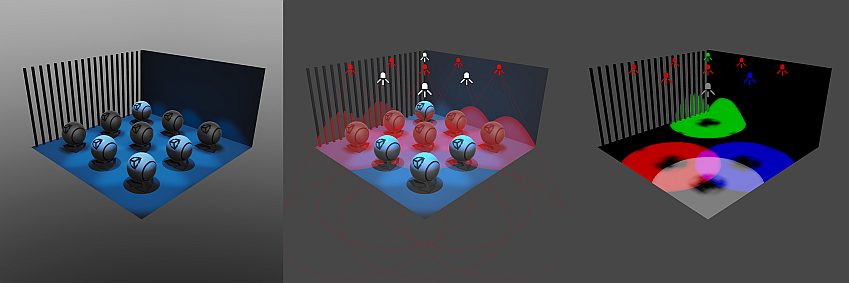
Symptoms
Mixed lights in the scene are rendered as baked lights and some objects and areas in the scene appear unlit or darker than intended.
Cause
This issue can occur when Unity converts mixed lights to baked lights during the lighting setup. Baked lights don’t provide real-time lighting, so they don’t illuminate dynamically in the scene. Instead, their contribution is baked into lightmaps, light probes, or reflection probes. If you don’t properly configure the baked lighting setup, objects may remain dark due to missing or incomplete lighting data during the bake process.
In ShadowmaskA shadowmask texture uses the same UV layout and resolution as its corresponding lightmap texture. More info
See in Glossary Lighting Mode, only four mixed lights can overlap. Unity converts lights that exceed this limit into baked lights.
In Subtractive Lighting Mode, no lights (except for directional lights) cast real-time shadows. This is a limitation of this lighting mode.
When you use baked lighting, real-time adjustments (such as changing the light’s color, intensity, or position during runtime) are no longer possible, which may limit dynamic or interactive lighting effects in the scene and cause the objects to appear darker or lit in unintended ways.
Resolution - Change the light placement and radius
To verify that light overlap exceeding the limit is the main issue, switch to the Light Overlap Scene view draw mode after generating lighting. This draw mode highlights overlapping lights in red so you can identify the number of overlapping lights.
Move the affected lights so that they no longer overlap. You can also adjust the Range or Spot Angle properties in the Light component. Generate lighting again after making the changes to check if this fixes the issue.
Resolution - Switch to a different Lighting Mode
Each Lighting Mode has different advantages and limitations. If your project will be lit using a single directional light, then consider the Subtractive Lighting Mode instead of Shadowmask. Refer to Lighting Modes to view the different limits and ways Unity calculates lighting for each mode.