Draw and configure a line in 3D space
To create a Line Renderer:
- In the Unity menu bar, go to GameObject > Visual Effects > Line.
- Select the Line Renderer GameObject.
- Add points to the Line Renderer’s Positions array, either by directly setting array values in the Inspector window or by using the Create Points Scene Editing Mode. Refer to Access scene editing tools.
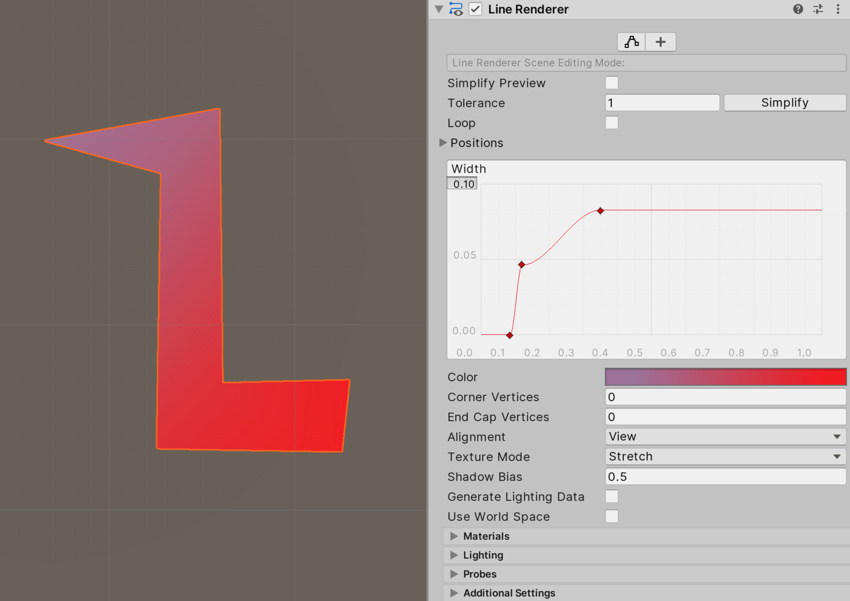
- Use the Inspector window to configure the color, width, and other display settings of the line.
Set the Line Renderer Material
By default, a Line Renderer uses the built-in Material, Default-Line. You can make many changes to the appearance of the line without changing this Material, such as editing the color gradient or width of the line.
For other effects, such as applying a texture to the line, you will need to use a different Material. If you do not want to write your own Shader for the new Material, Unity’s built-in Standard Particle Shaders work well with Line Renderers.
See Creating and using Materials for more information.
Access scene editing tools
You can use the Line Renderer’s Inspector to change the Scene Editing Mode. Different Scene Editing Modes enable you to use the Scene view and the Inspector to edit the Line Renderer in different ways.
There are three Scene Editing Modes: None, Edit Points, and Create Points.
Scene Editing Mode: None
When no Scene Editing Mode is selected, you can configure and perform a simplification operation that removes unnecessary points from the Positions array.
Scene Editing Mode: Edit Points
When the Scene Editing Mode is set to Edit Points, Unity represents each point in the Line Renderer’s Positions array as a yellow sphere in the Scene view. You can move the individual points using the Move tool.
Scene Editing Mode: Create Points
When the Scene Editing Mode is set to Create Points, you can click inside the Scene view to add new points to the end of the Line Renderer’s Positions array.