Retarget humanoid animation
Use retargeting to apply the same animation to different humanoid models without having to restructure skeletons or rename bones. Each humanoid model must use the Humanoid animation type and have a configured Avatar. A configured Avatar provides a standard hierarchy and bone names.
You might want to retarget humanoid animation in many situations. For example, you might want to reuse the same walk animation to animate different humanoid models. You might want to dynamically swap player characters at runtime.
This topic explains how to replace an animated model with a new model. When you replace the animated model it retargets the animation to the replacement model.
Prerequisites
To follow the steps in this topic, your project and scene must have the following:
- An animated humanoid model (old model). The old model is in the scene and it has a configured Avatar. The old model has an Animator component with an Animator Controller and a state machine. The old model might also have script components that handle user input and control state machine transitions.
- A non-animated humanoid model (replacement model). The replacement model is in the Assets folder and not in the scene. The replacement model doesn’t have a configured Avatar. You will configure its Avatar and add the replacement model to the scene in the steps.
Retarget animation to a new humanoid model
To replace an animated humanoid model and retarget its animation to a new humanoid model, follow these steps:
-
In the Project folder, select the replacement model. The Import Settings window opens in the Inspector window.
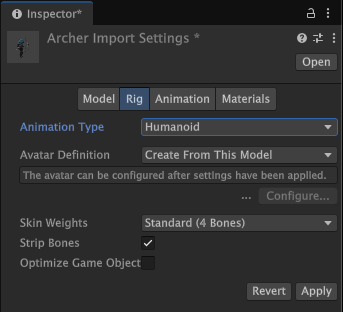
The Import Settings window for the Archer model. Select the Rig tab.
Set Animation Type to Humanoid.
Select Apply. You must first apply before you can configure the replacement model’s avatar. This adds an Animator component to the model.
Set the Avatar Definition to Create From This Model and select Configure. This creates a new avatar based on the hierarchy and bones of the model. This places Unity in Avatar Configuration mode. When you configure an Avatar, your model must be in a T-stance. For more information on how to configure an Avatar, consult Avatar Mapping tab.
After you configure the Avatar, select Done.
From the Project folder, drag the replacement model into your scene.
Select the replacement model in the Hierarchy.
-
In the Inspector window, use the Transform component to adjust the replacement model’s starting location, rotation, and scale.
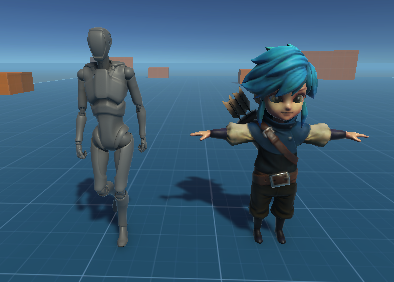
The old Armature model and its replacement: the Archer model. In the Animator component, select the same Animator Controller used by the old model.
In the Animator component, if the Avatar isn’t already selected, select the Avatar you configured for the destination model.
If your old model has additional components and scripts, add the same components and scripts to your replacement model. You might have to adjust property values to ensure that the retargeted animation works correctly with the replacement model.
When the replacement model functions the same as the old model, you can delete the old model from your scene.
Additional resources
- Importing a model with humanoid animations
- Avatar Mapping tab
- Animator componentA component on a model that animates that model using the Animation system. The component has a reference to an Animator Controller asset that controls the animation. More info
See in Glossary - The Project window
- The Hierarchy window