Inverse Kinematics
Most character animation is created by rotating the angles of joints in a skeleton to predetermined values. The position of a child joint changes according to the rotation of its parent. The end point of a chain of joints is determined by the angles and relative positions of the individual joints along the chain. This method of posing a skeleton is known as forward kinematics.
However, it is often useful to pose joints from the opposite point of view. Start from a chosen position in space, or a goal, and work backwards to find a way to orient the joints so that the end point reaches the goal. This can be useful if you want a character to grab an object or stand on an uneven surface. This approach is known as inverse kinematics (IK). It is supported in Mecanim for a humanoid character with a correctly configured Avatar.
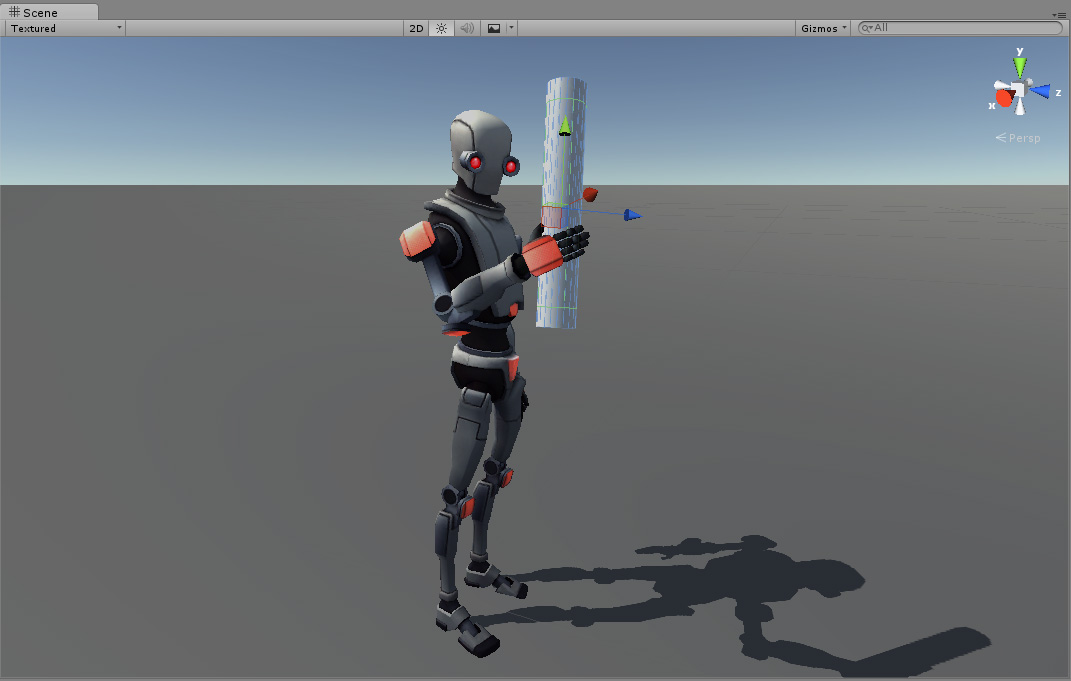
To set up IK for a character, you typically have objects around the scene that a character interacts with. You can use these objects and your character to set up IK within a script. You can use the following Animator functions:
- SetIKPositionWeight
- SetIKRotationWeight
- SetIKPosition
- SetIKRotation
- SetLookAtPosition
- bodyPosition
- bodyRotation
For example, the image above shows a character touching a cylindrical object. To do this with IK and through scripting, follow these steps:
Create a valid Avatar for your character.
Create an Animator Controller with at least one animation for this character.
-
In the Layers pane of the Animator window, click the Cog icon in the Base Layer and enable IK Pass from the context menu. When enabled, IK Pass sends an
OnAnimatorIKcallback. In a later step, you will use this callback to implement inverse kinematics in a script.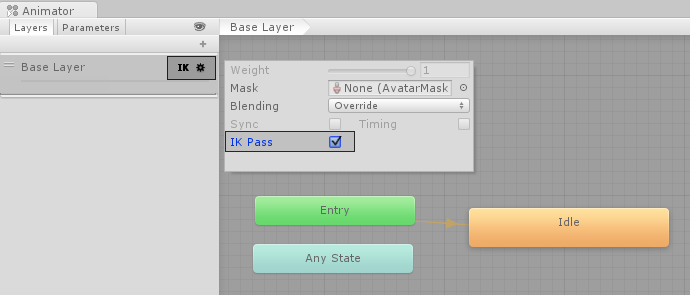
Enable the IK Pass checkbox for the Default Layer. -
Make sure the Animator Controller is assigned to the character’s Animator Controller.
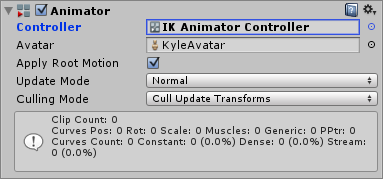
The Animator Controller component assigned to the character’s Animator Controller. -
Next, add a script to your character. In this example, the script is named
IKControl. This script sets the IK target for the right hand of the character. This script also changes the look at position so that the character looks towards the cylinder object when grabbed. The full script is listed below:using UnityEngine; using System; using System.Collections; [RequireComponent(typeof(Animator))] public class IKControl : MonoBehaviour { protected Animator animator; public bool ikActive = false; public Transform rightHandObj = null; public Transform lookObj = null; void Start () { animator = GetComponent<Animator>(); } //a callback for calculating IK void OnAnimatorIK() { if(animator) { //if the IK is active, set the position and rotation directly to the goal. if(ikActive) { // Set the look target position, if one has been assigned if(lookObj != null) { animator.SetLookAtWeight(1); animator.SetLookAtPosition(lookObj.position); } // Set the right hand target position and rotation, if one has been assigned if(rightHandObj != null) { animator.SetIKPositionWeight(AvatarIKGoal.RightHand,1); animator.SetIKRotationWeight(AvatarIKGoal.RightHand,1); animator.SetIKPosition(AvatarIKGoal.RightHand,rightHandObj.position); animator.SetIKRotation(AvatarIKGoal.RightHand,rightHandObj.rotation); } } //if the IK is not active, set the position and rotation of the hand and head back to the original position else { animator.SetIKPositionWeight(AvatarIKGoal.RightHand,0); animator.SetIKRotationWeight(AvatarIKGoal.RightHand,0); animator.SetLookAtWeight(0); } } } } To avoid the right hand passing through the Cylinder GameObject, add an empty child GameObject to the
CylinderGameObject. To do this, right-click the Cylinder GameObject in the Hierarchy window and select Create Empty. Name this empty child GameObjectCylinder Grab Handle.-
Position and rotate the
Cylinder Grab HandleGameObject so that the right hand touches but does not pass through the cylinder.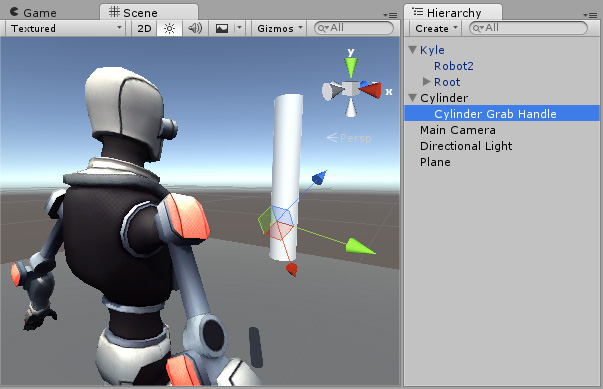
An empty GameObject acts as the IK target. Add this empty GameObject so that the right hand interacts with the Cylinder object. Assign the
Cylinder Grab HandleGameObject as the Right Hand Obj property of theIKControlscript.-
Assign the
CylinderGameObject as the Look Obj so that the character looks towards the center of the Cylinder when IK Active is enabled.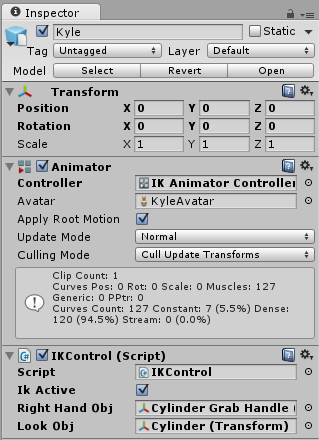
The IKControl (Script) component with its properties assigned. Enter play mode. Your character should touch and release the Cylinder GameObject as you enabled and disable the IK Active checkbox. While in Play Mode, change the position and rotation of the
CylinderGameObject to see how the right hand and character look at reacts.