Animator component
Switch to ScriptingUse an Animator component to assign animation to a GameObject in your Scene. The Animator component requires a reference to an Animator ControllerControls animation through Animation Layers with Animation State Machines and Animation Blend Trees, controlled by Animation Parameters. The same Animator Controller can be referenced by multiple models with Animator components. More info
See in Glossary which defines which animation clips to use, and controls when and how to blend and transition between them.
If the GameObject is a humanoid character with an Avatar definition, the Avatar should also be assigned in the Animator component.
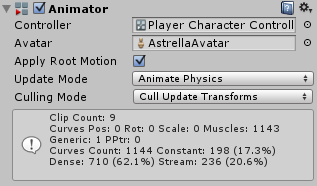
Properties
| Property | Function |
|---|---|
| Controller | The animator controller attached to this character. |
| AvatarAn interface for retargeting animation from one rig to another. More info See in Glossary |
The Avatar for this character. (If the Animator is being used to animate a humanoid character) |
| Apply Root Motion | Select whether to control the character’s position and rotation from the animation itself or from script. |
| Update Mode | This allows you to select when the Animator updates, and which timescale it should use.
|
| Culling Mode | The culling mode you can choose for animations.
|
Animation curve information
The information box at the bottom of the Animator component provides you with a breakdown of the data being used in all the clips used by the Animator Controller.
An animation clip contains data in animation curves, which represent how a value changes over time. These curves may describe the position or rotation of an object, the flex of a muscle in the humanoid animation system, or other animated values within the clip such as a changing material color.
This table explains what each item of data represents:
| Label | Description |
|---|---|
| Clip Count | The total number of animation clips used by the animator controller assigned to this Animator. |
| Curves (Pos, Rot & Scale) | The total number of curves Unity uses to animate the position, rotation or scale of GameObjects. These are for animated GameObjects that are not part of a standard humanoid rig. When animating a humanoid avatar, these curves would show up a count for extra non-muscle bones such as a tail, flowing cloth or a dangling pendant. If you have a humanoid animation and you notice unexpected non-muscle animation curves, you might have unnecessary animation curves in your animation files. |
| Muscles | The number of muscle animation curves used for humanoid animation by this Animator. These are the curves used to animate the standard humanoid avatar muscles. As well as the standard muscle movements for all the humanoid bones in Unity’s standard avatar, this also includes two “muscle curves” which store the root motion position and rotation animation. |
| Generic | The number of numeric (float) curves used by the animator to animate other properties such as material color. |
| PPtr | The total count of sprite animation curves (used by Unity’s 2d system) |
| Curves Count | The total combined number of animation curves |
| Constant | The number of animation curves that are optimized as constant (unchanging) values. Unity selects this automatically if your animation files contain curves with unchanging values. |
| Dense | The number of animation curves that are optimized using the dense method of storing data (discrete values which are interpolated between linearly). This method uses significantly less memory than the stream method. |
| Stream | The number of animation curves using the stream method of storing data (values with time and tangent data for curved interpolation). This data occupies significantly more memory than the dense method. |
If your animation clips are imported with Anim. Compression set to Optimal in the Animation import reference, Unity will use a heuristic algorithm to determine whether it is best to use the dense or stream method to store the data for each curve.