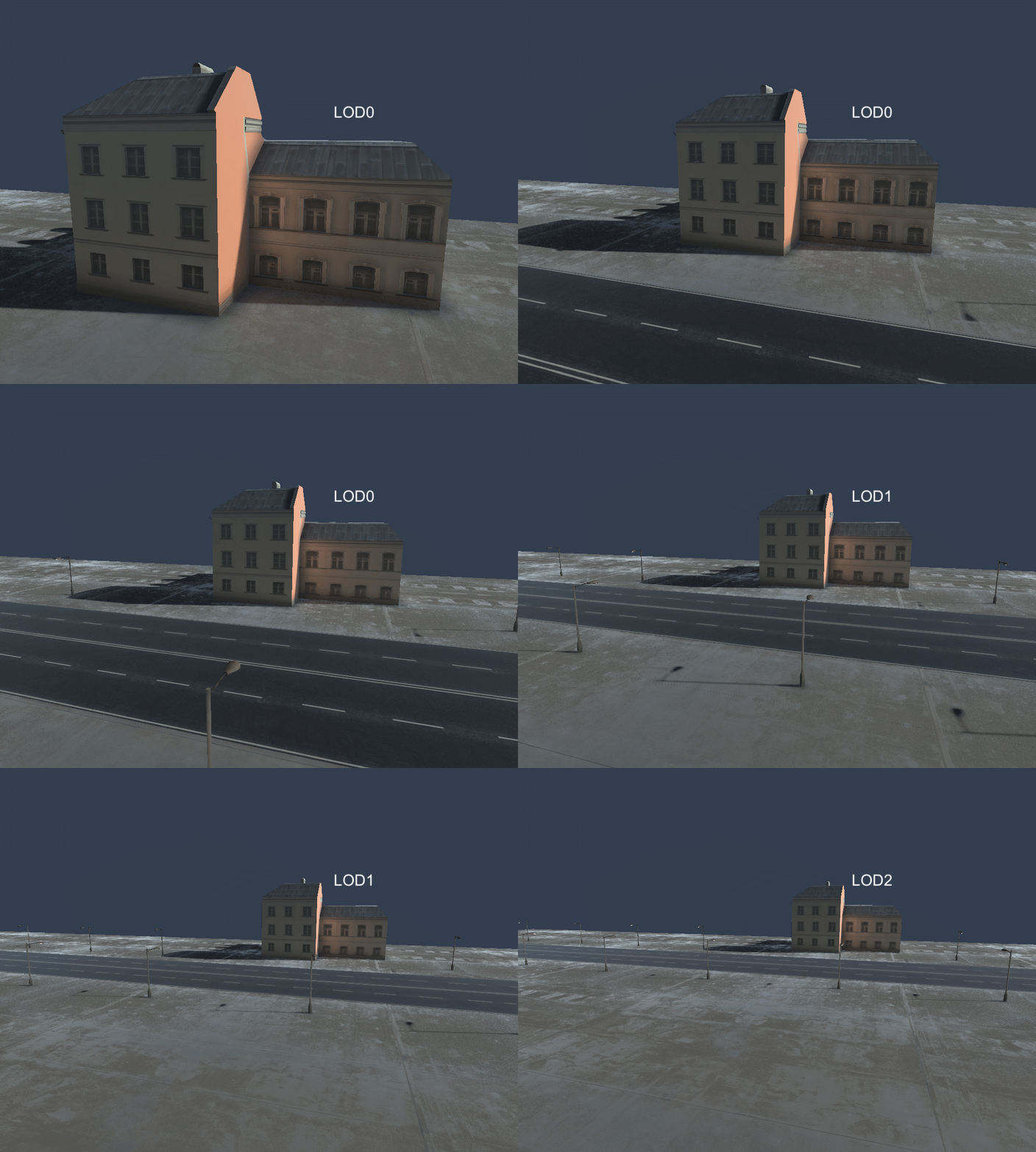
LOD and Enlighten Realtime Global Illumination
Objects with Receive Global Illumination set to Lightmaps have a lighting solution with lightmaps for baked direct and indirect lighting, and lightmaps for Enlighten Realtime Global Illumination. For more information about Receive Global Illumination, see the Mesh Renderer settings and the script reference for ReceiveGI.
When you use Unity’s LOD system in a Scene where you have enabled Baked Global Illumination and Enlighten Realtime Global Illumination, the system lights the most detailed model out of the LOD Group as if it has the Contribute Global Illumination setting enabled and isn’t part of the LOD group."
Enlighten can only compute direct lighting for lower LODs and the LOD system must rely on Light ProbesLight probes store information about how light passes through space in your scene. A collection of light probes arranged within a given space can improve lighting on moving objects and static LOD scenery within that space. More info
See in Glossary to sample indirect lighting.
To enable the Editor to produce lightmaps with Enlighten Realtime Global Illumination, select the GameObject you want to affect, view its Renderer component in the Inspector window, and ensure that Contribute Global Illumination is enabled.
For lower LODs in a LOD Group, you can only combine baked lightmaps with Enlighten Realtime Global Illumination from Light Probes or Light Probe Proxy VolumesA component that allows you to use more lighting information for large dynamic GameObjects that cannot use baked lightmaps (for example, large Particle Systems or skinned Meshes). More info
See in Glossary, which you must place around the LOD Group.