ListView を使ってリストへバインドする
バージョン: 2021.3+
ListView コントロールは、リストの作成に最も効率的な方法です。ListView を使ってリストへバインドするには、ListView のバインディングパスにリストを含むプロパティの名前を設定します。
この例では、ListView を使ってリストへバインドする方法を紹介します。
例の概要
この例では、トグルのリストを作成し、そのリストを GameSwitch オブジェクトの基礎となるリストにバインドします。
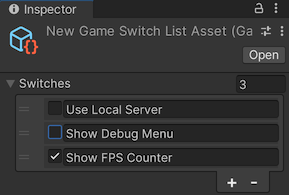
この例で作成して完成したファイルは、この GitHub リポジトリ にあります。
必要な要件
このガイドは、Unity エディター、UI Toolkit、および C# スクリプトに精通している開発者を対象としています。始める前に、以下の点を理解しておいてください。
リストを持つオブジェクトの作成
GameSwitch オブジェクトと、GameSwitch オブジェクトのリストをプロパティとして持つシリアル化されたオブジェクトを作成します。
任意のテンプレートで Unity プロジェクトを作成します。
Project ウィンドウで
bind-to-listという名前のフォルダーを作成し、すべてのファイルを保存します。-
GameSwitch.csという名前の C# スクリプトを作成し、そのコンテンツを以下のように置き換えます。using System; [Serializable] public struct GameSwitch { public string name; public bool enabled; } -
game_switch.uxmlという名前の UI Document を作成し、そのコンテンツを以下のように置き換えます。<UXML xmlns="UnityEngine.UIElements" xmlns:ue="UnityEditor.UIElements"> <Box style="flex-direction: row;"> <Toggle binding-path="enabled" /> <TextField binding-path="name" readonly="true" style="flex-grow: 1;"/> </Box> </UXML> -
GameSwitchListAsset.csという名前の C# スクリプトを作成し、そのコンテンツを以下のように置き換えます。using System.Collections.Generic; using UnityEngine; namespace UIToolkitExamples { [CreateAssetMenu(menuName = "UIToolkitExamples/GameSwitchList")] public class GameSwitchListAsset : ScriptableObject { public List<GameSwitch> switches; public void Reset() { switches = new() { new() { name = "Use Local Server", enabled = false }, new() { name = "Show Debug Menu", enabled = false }, new() { name = "Show FPS Counter", enabled = true }, }; } public bool IsSwitchEnabled(string switchName) => switches.Find(s => s.name == switchName).enabled; } }
カスタムエディターを作成しバインディングを設定する
トグルのリストでアセットを作成できるカスタムエディターを作成します。UI Document の binding-path 属性に GameSwitch リストのプロパティ名 (switches) を設定することで、トグルリストを GameSwitch リストにバインドします。
Editorという名前のフォルダーを作成します。-
Editor フォルダーに、
GameSwitchListEditor.csという名前の C# スクリプトを作成し、そのコンテンツを以下のように置き換えます。using UnityEditor; using UnityEngine; using UnityEngine.UIElements; namespace UIToolkitExamples { [CustomEditor(typeof(GameSwitchListAsset))] public class GameSwitchListEditor : Editor { [SerializeField] VisualTreeAsset m_ItemAsset; [SerializeField] VisualTreeAsset m_EditorAsset; public override VisualElement CreateInspectorGUI() { var root = m_EditorAsset.CloneTree(); var listView = root.Q<ListView>(); listView.makeItem = m_ItemAsset.CloneTree; return root; } } } -
game_switch_list_editor.uxmlという名前の UI Document を作成し、そのコンテンツを以下のように置き換えます。<UXML xmlns="UnityEngine.UIElements" xmlns:ue="UnityEditor.UIElements"> <ListView virtualization-method="DynamicHeight" reorder-mode="Animated" binding-path="switches" show-add-remove-footer="true" show-border="true" show-foldout-header="true" header-title="Switches" /> </UXML> Project ウィンドウで GameSwitchListEditor.cs を選択します。
game_switch.uxml を Inspector の項目アセットにドラッグします。
game_switch_list_editor.uxml を Inspector の Editor Asset にドラッグします。
バインディングのテスト
- メニューから、Assets > Create > UIToolkitExamples > GameSwitchList を選択します。これで、New Game Switch List Asset という名前のアセットが作成されます。
- Project ウィンドウで New Game Switch List Asset を選択します。Inspector にトグルのリストが表示されます。リストの並べ替え、折り畳み、リストへのエントリーの追加または削除、リスト内のエントリー数の変更を行うことができます。Inspector UI で変更を加えると、
GameSwitchListAssetオブジェクトのswitchesプロパティが変更されます。