Use search providers
All searches use at least one search provider:
The default providers are Project, Hierarchy, Menu, and Settings. If you run a search without specifying a provider, Search uses these default providers.
-
Alternatively, you can focus the search to one provider. This can be one of the default search providers, or any other search provider available in your project.
For example, if you need to add assets to your project, you can focus your search to the__ Asset Store__由 Unity 和社区成员创建的免费和付费的资产库,其规模处于不断壮大中。提供各种资产,涵盖了从纹理、模型和动画到完整项目示例、教程和编辑器扩展等类型。更多信息
See in Glossary search provider. This focus excludes the project’s current assets from your search results.
Tip: You can have multiple Search windows open, each with different providers active. This makes it easier to perform queries, because you don’t need to explicitly specify your provider in each query. For example, you can have a Search window that uses just the Calculator search provider, so you don’t have to prefix your queries with =.
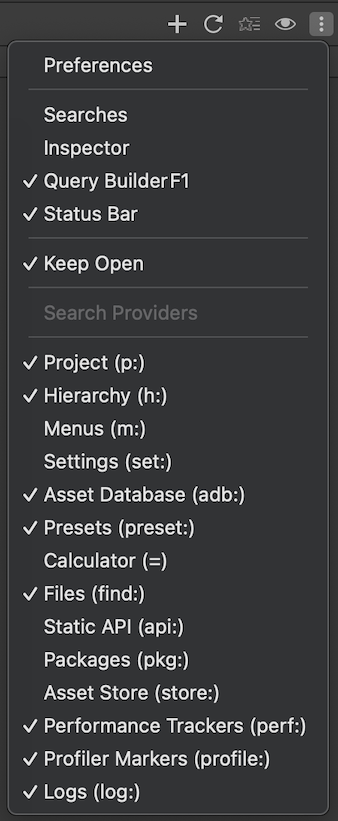
For information about individual search providers, refer to Search provider references.
The purpose of search providers
Use search providers to narrow your search results to a certain type of item. Providers have filters that match the item type they search for, so selecting a provider also narrows your filter list to only the relevant ones.
You can divide the search providers by their purpose:
| Purpose | Examples |
|---|---|
| Search your project’s assets | Project, Hierarchy, Asset Database. |
| Search files and presets | Files, Presets. |
| Search external sources | Asset Store, the Packages Registry. |
| Search performance and debugging | Profiler Markers, Performance Trackers, Logs. |
| Search the Unity Editor interface and actions | Settings, Menus, Static API, Calculator. |
Some search providers fit into more than one set. For example,:
- The Packages search provider can fetch items from the Package Manager registry, but it also searches your project for installed packages.
- The Menus search provider focuses on the Unity Editor’s menus, but it presents its results as actions that you can execute with a double-click.
- You can include the Files search provider in other search providers.
Custom search providers
You can create your own search providers. For more information, refer to Create a custom search provider.
Search with all active providers at once
By default, a search includes results from four providers:
- Project: Searches the project’s assets.
- Hierarchy: Searches__ GameObjects__Unity 场景中的基础对象,可以表示角色、道具、风景、摄像机、路径点等。GameObject 的功能由所附的组件决定。更多信息
See in Glossary in the loaded scenes (a loaded scene is displayed in the Hierarchy window). - Menu: Search the Unity Editor main menu.
- Settings: Search all Unity Editor settings.
You can add and remove providers from the default search by toggling them on and off. For more information, refer to Activate and deactivate search providers
Search a single provider
You can limit your search to a single provider for faster queries and a shorter results list.
You can add and remove providers from this search by toggling them on and off. For more information, refer to Activate and deactivate search providers
Use a provider filter in visual queries
When you use the visual query builder, the first filter’s dropdown includes all available search providers.
Note: The search provider selection must be the first filter; you can’t use it anywhere else in the query.
If you select a search provider, all other filters in the query match that provider. For example, if you select the Menus search provider, the next filter dropdown doesn’t include filters for Profiler Markers or Logs.
For more information, refer to Visual query builder.
Use a provider token in a textual query
To use a search provider in a textual query, prefix the query with the provider’s search token.
Note: The search provider’s token must be the first token; you can’t use it anywhere else in the query.
For example, m: is the search token for the Menus search provider. When you enter m:light in the search field, search returns all menu items that contain the word light.
For more information, refer to Textual query references.