Addressables introduction
The Addressables package provides a user interface for organizing and building assets in your project. You can organize assets into groups, which define how Unity packages assets and loads them, and then create content builds which you distribute alongside Player builds.
Asset addresses
In the Addressables system, assets are assigned addresses that you can use to load the assets at runtime. For example, an asset at Assets/Boss1/Materials/MainMaterial.material might be assigned an address like boss1_material_main. The Addressables resource manager looks up the address in the content catalog to find out where the asset is stored. Assets can be built in to your application, cached locally, or hosted remotely. The resource manager loads the asset and any dependencies, downloading the content first, if necessary.
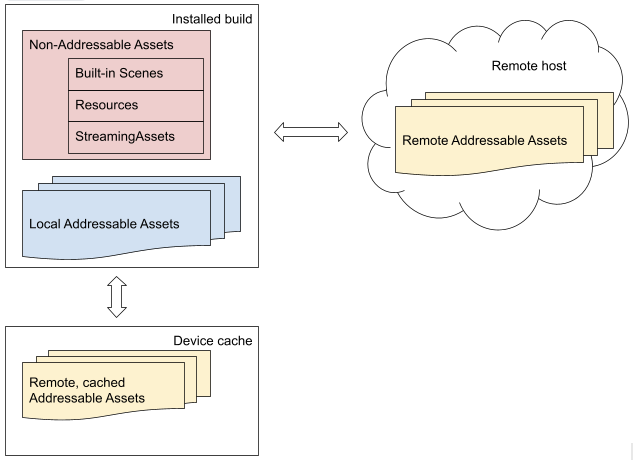
An overview of the Addressables system retrieving assets from different locations.
Because an address isn't tied to the physical location of the asset, you have several options to manage and optimize your assets, both in the Unity Editor and at runtime. Catalogs map addresses to physical locations.
Although it's best practice to assign unique addresses to your assets, an asset address doesn't have to be unique. You can assign the same address string to more than one asset when useful. For example, if you have variants of an asset, you can assign the same address to all the variants and use labels to distinguish between the variants:
- Asset 1: address:
"plate_armor_rusty", label:"hd" - Asset 2: address:
"plate_armor_rusty", label:"sd"
The Addressables API methods that only load a single asset, such as LoadAssetAsync, load the first instance found if you call them with an address assigned to multiple assets. Other methods, like LoadAssetsAsync, load multiple assets in one operation and load all the assets with the specified address.
Tip
You can use the MergeMode parameter of LoadAssetsAsync to load the intersection of two keys.
In the earlier example, you can specify the address, "plate_armor_rusty", and the label, "hd", as keys and intersection as the merge mode to load Asset 1. You can then change the label value to "sd" to load Asset 2.
For more information on how to assign addresses to assets, refer to Making an asset Addressable. For information on how to load assets by keys, including addresses, refer to Loading assets.
Organizing assets into groups
Use Addressables groups to organize your content. All Addressable assets belong to a group. If you don't explicitly assign an asset to a group, Unity adds it to the default group. Add an asset to a group and move assets between groups using the Addressables Groups window. You can also assign labels to assets in the Addressable Groups window.
You can also use labels to tag content that you might want to use in combination. For example, if you have labels defined for red, hat, and feather, you can load all red hats with feathers in a single operation.
Content builds
The Addressables system separates the building of Addressable content from a Player build. A content build produces the content catalog, catalog hash, and the AssetBundles or content directories containing your assets. You can build Addressable assets in a separate, content-only build, or build them at the same time as the Player.
The schemas assigned to a group define the content build system and the settings used to build the assets in a group. The default schemas determine which content build system Addressables uses to create a content build of the assets in your project, as follows:
- Content Directory: Uses content directories to create content builds.
- Content Packing & Loading: Uses AssetBundles to create content builds.
For more information about the content build systems available, refer to Choose a content build system.
Because asset formats are platform-specific, you must make a content build for each platform before building that platform's Player.
Refer to Building Addressable content for more information.
Content build output
The Addressables system produces a content catalog file that maps the addresses of assets to their physical locations. It can also create a hash file containing the hash of the catalog. If you're hosting Addressable assets remotely, the system uses this hash file to decide if the content catalog has changed and needs to download it. Refer to Content catalogs for more information.
The Profile selected when you perform a content build determines how the addresses in the content catalog map to resource loading paths. Refer to Profiles for more information.
For information about hosting content remotely, refer to Distributing content remotely.
Asset loading and unloading at runtime
To load an Addressable asset, you can use its address or other key such as a label or AssetReference. For more information, refer to Loading Addressable Assets. You only need to load the main asset and Addressables loads any dependent assets automatically.
When your application no longer needs access to an Addressable asset at runtime, you must release it so that Addressables can free the associated memory. The Addressables system keeps a reference count of loaded assets, and doesn't unload an asset until the reference count returns to zero. As such, you don't need to keep track of whether an asset or its dependencies are still in use. You only need to make sure that any time you explicitly load an asset, you release it when your application no longer needs that instance. Refer to Releasing Addressable assets for more information.
Control loading with asset references
An AssetReference is a type that you can set to any kind of Addressable asset. Unity doesn't automatically load the asset assigned to the reference, so you have more control over when to load and unload it.
Use fields of type AssetReference in a MonoBehaviour or ScriptableObject to reference an Addressable asset. You can drag and drop in the Editor Inspector to assign an Asset to an AssetReference field.
Addressables also provide specialized types, such as AssetReferenceGameObject and AssetReferenceTexture. You can use these specialized subclasses to prevent the possibility of assigning the wrong asset type to an AssetReference field. You can also use the AssetReferenceUILabelRestriction attribute to limit assignment to assets with specific labels.
For more information, refer to Using AssetReferences.
Dependency and resource management
One asset in Unity can depend on another. A scene might reference one or more prefabs, or a prefab might use one or more materials across the project. When you load an Addressable asset, the system automatically finds and loads any dependent assets that it references. When the system unloads an asset, it also unloads its dependencies, unless a different asset is still using them.
As you load and release assets, the Addressables system keeps a reference count for each item. When an asset is no longer referenced, Addressables unloads it.
How quickly Addressables releases an asset from memory depends on the content build system:
- AssetBundles: The AssetBundle is the unit of loading, so Addressables only releases it from memory when every asset it contains, and every asset that depends on it, is released. As a result, an individual asset can remain in memory after you release it if other assets in the same AssetBundle are still in use.
- Content directories: Addressables tracks each asset individually, so it releases an asset from memory as soon as that asset's direct dependencies are released, without waiting for other assets in the content build.
Refer to Memory management for more information.
Addressables tools
The Addressables system provides the following tools and windows to help you manage Addressable assets in your project:
- Addressable Groups window: The main interface for managing assets, group settings, and making builds.
- Profiles window: Helps set up paths used by content builds.
- Build layout report: Describes the AssetBundles produced by a content build.
- Addressables Analyze: The Analyze tool runs analysis rules that check whether Addressables content conforms to the set of rules you've defined. The Addressables system provides some basic rules, such as checking for duplicate assets, or you can add your own rules using the
AnalyzeRuleclass.