Group Inspector settings reference
Reference for Addressable Asset Group Inspector settings that control build paths, load paths, and content update restrictions.
When you select an Addressable group, you can control its settings in the Inspector. To open a group's settings, select the group from its containing folder in the Project window. Alternatively, open the Addressables Groups window (Window > Asset Management > Addressables > Groups), then select a group. The group's settings are displayed in the Inspector.
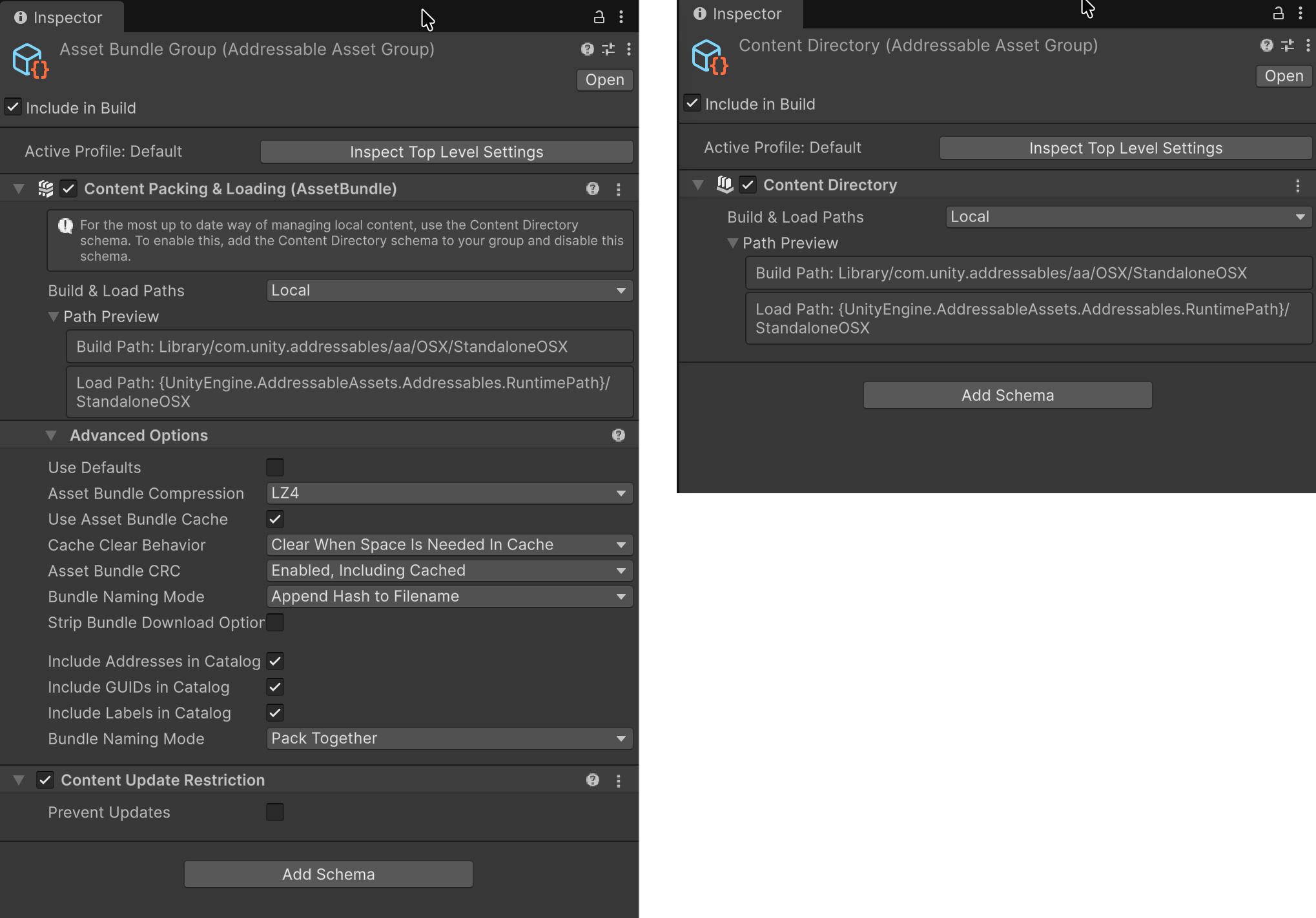
The Inspector window for a group using the Content Packing & Loading schema (left), and the Content Directory schema (right).
To add schemas to an Addressable Asset Group, select the Add Schema button. You can choose from the following:
- Content Directory: Defines the settings for building and loading Addressable assets using the content directory system. Select this option for new projects with assets that you plan on distributing locally.
- Content Packing & Loading: Defines the settings for building and loading Addressable assets using the AssetBundle system. Select this option if you're using an older project that uses AssetBundles, or you want to distribute assets remotely.
- Content Update Restrictions: Defines settings for making differential updates of an earlier build.
Build & Load Paths
Both the Content Directory and Content Packing & Loading schemas contain the same Build & Load Paths section. This is the only entry in the Content Directory schema.
Important
While the Content Directory schema has a RemoteBuildPath option, content directories don't support remote content delivery yet. Use the Content Packing & Loading schema to build remote AssetBundles instead.
The Build & Load Paths settings determine where the artifacts for your content builds are created and where the Addressables system loads them at runtime. The build and load path options are defined by variables in a Profile.
| Property | Description |
|---|---|
| Build & Load Paths | The Profile path pair that defines where the Addressables build system creates artifacts for this group and where the Addressables system loads those artifacts at runtime. Choose a path pair from the list or select <custom> if you want to set the build and load paths separately. |
| Build Path Load Path |
Only available if you set Build & Load Paths to <custom>. A Profile variable that defines where the Addressables build system creates artifacts for this group, or loads the build artifacts of the group. You can also set a custom string. Use one of the following:
|
When you choose a Profile variable, a preview of the path is displayed in the Path Preview. Components of the path in braces, such as {UnityEngine.AddressableAssets.Addressable.RuntimePath}, indicate that a static variable is used to construct the final path at runtime. That portion of the path is replaced by the current value of the static variable when the Addressables system initializes at runtime.
Warning
If you change the local build or load paths from their default values, you must copy the local build artifacts from your custom build location to the project's StreamingAssets folder before making a Player build. Changing these paths also prevents building your Addressables as part of the Player build.
Content Packing & Loading schema
Defines the settings for building and loading Addressable assets using the AssetBundle system.
Advanced Options
| Property | Description |
|---|---|
| Use Defaults | Uses the default compression settings, which is LZ4. |
| Asset Bundle Compression | The compression type for all bundles produced from the group. Choose from the following:
|
| Use Asset Bundle Cache | Cache remotely distributed bundles. |
| Cache Clear Behavior | Controls how old AssetBundles are cleared. Choose from the following:
|
| Asset Bundle CRC | Set how to verify an AssetBundle's integrity before loading it:
|
| Bundle Naming Mode | Set how to construct the file names of AssetBundles:
|
| Strip Bundle Download Options | Strips unused AssetBundle download data from the catalog to reduce its size. Only enable this for local groups. It applies only to binary catalogs, and is unavailable if Use UnityWebRequest for Local Asset Bundles is enabled. |
| Include Addresses in Catalog | Include the address strings in the catalog. If you don't use address strings to load assets in the group, you can disable this property to decrease the size of the catalog. |
| Include GUIDs in Catalog | Include GUID strings in the catalog. You must include GUID strings to access an asset with an AssetReference. If you don't use AssetReference or GUID strings to load assets, you can disable this property to decrease the size of the catalog. |
| Include Labels in Catalog | Include label strings in the catalog. If you don't use labels to load assets, you can disable this property to decrease the size of the catalog. |
| Include Folder Keys in Catalog | Include the address of each addressable folder as a shared key on every asset inside it. Enable this to load every asset in an addressable folder with one call, for example Addressables.LoadAssetsAsync<GameObject>(folderAddress, ...), similar to Resources.LoadAll. If you don't need to load a whole folder at once, you can disable this property to decrease the size of the catalog. |
| Exclude Individual Addresses for Folder Assets | Only shown when Include Folder Keys in Catalog is enabled. If enabled, assets inside an addressable folder don't get their own individual address added to the catalog — only the folder's shared key is added. GUIDs are unaffected, so AssetReference into folder assets keeps working. Use this if you always load these assets via the folder and never reference an individual asset by its own full address, to further decrease the size of the catalog. |
| Bundle Mode | Select how to pack the assets in this group into AssetBundles:
|
Content Update Restriction
Important
The following setting is only applicable if you're using AssetBundles as the content build system for your project.
The Content Update Restriction schema determines how Check for Content Update Restrictions treats assets in the group. To prepare your groups for a differential content update build rather than a full content build, open the Addressables Groups window, go to Tools and run the Check for Content Update Restrictions command. The tool moves modified assets in any groups with the Prevent Updates property enabled to a new group.
The Prevent Updates property acts in the following way:
- Enabled: If any assets in the AssetBundle have changed, then the Check for Content Update Restrictions tool moves them to a new group created for the update. When you make the update build, the assets in the AssetBundles created from this new group override the versions found in the existing AssetBundles.
- Disabled: The tool doesn't move any assets. When you make the update build, if any assets in the AssetBundle have changed, then the entire AssetBundle is rebuilt.