Label assets
Use labels to tag Addressable assets for runtime loading, and filtering assets in the Groups window.
You can tag Addressable assets with one or more labels in the Addressables Groups window. You can use labels in the following ways:
- Use one or more labels as keys to identify which assets to load at runtime.
- Use labels in the filter box of the Addressables Groups window to find labeled assets.
- Pack assets in a group into AssetBundles based on their assigned labels, if using the AssetBundle system.
Managing labels
To create and delete labels, use the Addressables Labels window, which is accessible from the Addressables Groups window (Window > Asset Management > Addressables > Groups > Tools > Windows > Labels).
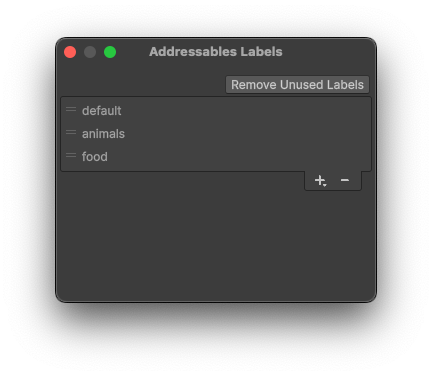
The Addressables Labels window.
To create a new label, select the + button at the bottom of the list. Enter the new name and click Save.
To delete a label, select it in the list and then select the - button. Deleting a label also removes it from all assets.
Tip
To undo the deletion of a label, add it back to the Addressables Labels window with the exact same string. Any assets that had the deleted label have it reapplied. However, Unity only reapplies deleted labels in this way if you haven't run an Addressables build. Once you run a build, adding a deleted label no longer reapplies it to any assets.
Load assets by label
If you use a list of labels to load assets, you can specify whether you want to load all assets that match any label, or only assets that have every label.
For example, if you use the labels, characters and animals to load assets, you can load assets that either have the characters or animals label. Alternatively, you can load assets that have both the characters and animals label. For more information, refer to Loading multiple assets.
Use labels to build separate AssetBundles
If you're using the AssetBundle content build system, then you can use the Bundle Mode setting to pack assets into a group based on their labels. The Addressables build script then creates an AssetBundle for each unique combination of labels in the group. For example, if you have assets in a group labeled as either cat or dog and either small or large, the build produces four AssetBundles: one for small cats, one for small dogs, one for large cats, and another for large dogs.