Metallic and specular workflows
Prebuilt Unity shaders have two different ways of calculating reflections, known as workflows:
- Metallic workflow. Set a value for how metallic the material is, where 0 is non-metallic and 1 is fully metallic. Unity calculates the strength and color of reflections, and tints them with the base color.
- Specular workflow. Set a color value to directly control the tint and intensity of reflections and highlights.
The workflow controls two types of reflections:
- Specular reflections, which are bright spots that reflect light components.
- Environment reflections, which reflect the surrounding environment, for example the skyboxA special type of Material used to represent skies. Usually six-sided. More info
See in Glossary.
In both workflows, you can also adjust the blurriness or sharpness of reflections using a smoothness value.
Note: You can use either workflow for any material. The metallic workflow isn’t only for metallic materials.
Metallic workflow
In the metallic workflow, the following applies:
- A value of 0 means the surface is non-metallic, also known as dielectric. The base color is visible as matte color, also known as diffuse reflection. Specular highlights are the color of the light source.
- A value of 1 means the surface is metallic. There’s no diffuse reflection. The base color defines the color of the specular reflections and environment reflections.
Values between 0 and 1 blend these two results.

For more information, refer to Configure reflections in prebuilt shaders.
Specular workflow
In the specular workflow, a specular color value directly controls the intensity and color of reflections on the surface. This makes it possible to have a specular reflection that’s a different color to diffuse reflection.
A black specular color means no reflections, while a white specular color means full reflection.
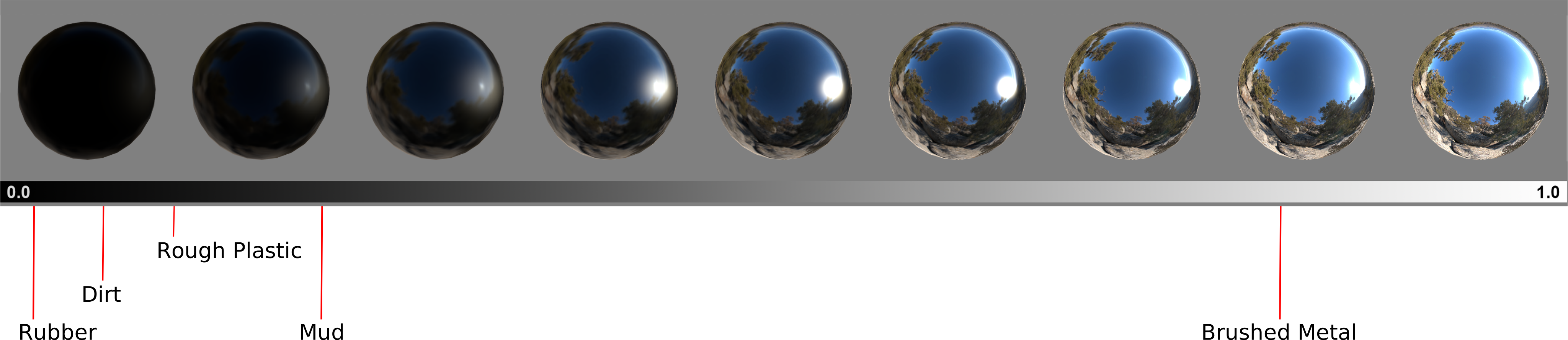
For more information, refer to Configure reflections in prebuilt shaders.
Smoothness
In both workflows, a smoothness value controls the clarity of the specular effect.
Smoothness represents the microsurface detail of the material. A low smoothness value means the surface is microscopically rough with many different surface angles, so light rays bounce off at a wide range of angles, and fewer reflections reach the camera. A high smoothness value means the surface is microscopically smooth like a mirror, so light rays bounce off at a narrow range of angles, and more reflections reach the camera.
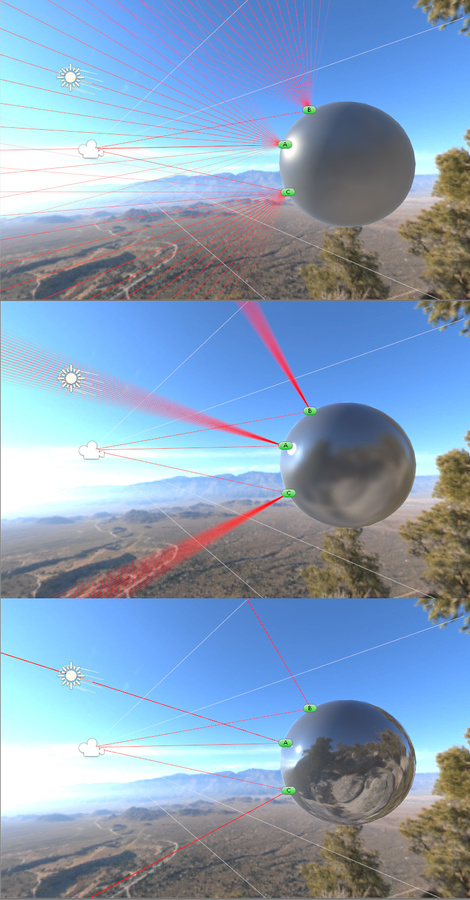
As a result, a low smoothness value produces blurry, diffuse reflections, while a high smoothness value produces clear, sharp reflections.
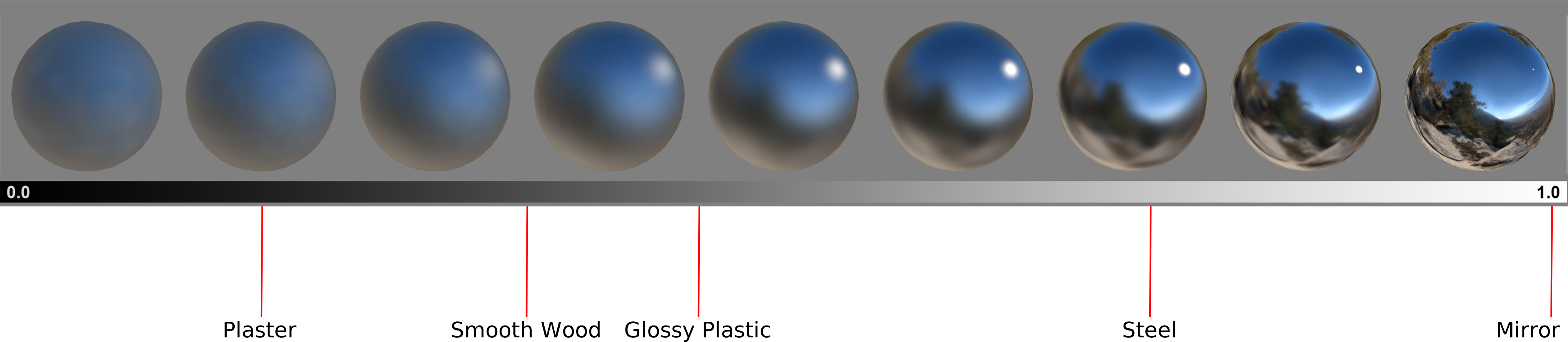
For more information, refer to Configure reflections in prebuilt shaders.
Additional resources
- Reflections
- Reference for metallic and specular values of real surfaces
- Creating Believable Visuals on the Unity Learn site