Introduction to Rendering Layers in URP
The Rendering Layers feature lets you configure certain Lights to affect only specific GameObjects.
Rendering Layers are labels you assign to Renderer components, which are responsible for drawing a GameObject on screen.
Rendering Layer Masks are filters you set on components and render passes that affect or query those Renderers, for example, Lights, Decal Projectors, shadows, or custom render passes. A component or render pass affects a GameObject when its Renderer’s Rendering Layers share at least one layer with that component or pass’s Rendering Layer Mask.
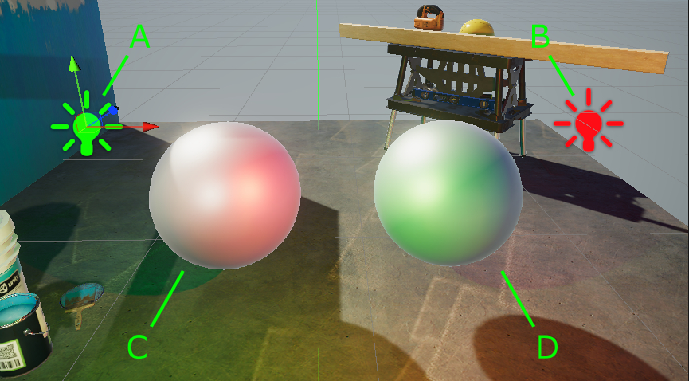
For example, in the following illustration, Light A affects Sphere D, but not Sphere C. Light B affects Sphere C, but not Sphere D.
Performance
This section contains information related to the impact of Rendering Layers on performance.
Keep the Rendering Layer count as small as possible. Avoid creating Rendering Layers that you don’t use in the project.
When using Rendering Layers for decals, increasing the layer count increases the required memory bandwidth and decreases performance.
When using Rendering Layers only for Lights in the Forward Rendering Path, the performance impact is insignificant.
Performance impact increases more significantly when the number of Rendering Layers reaches 9, 17, 25, etc. This is because when the Rendering Layers exceed a multiple of 8, URP adds an extra texture channel the GPU must access.