Scene Template project settings reference
To access the scene template project settings, go to Edit > Project Settings and choose Scene Template from the category list.
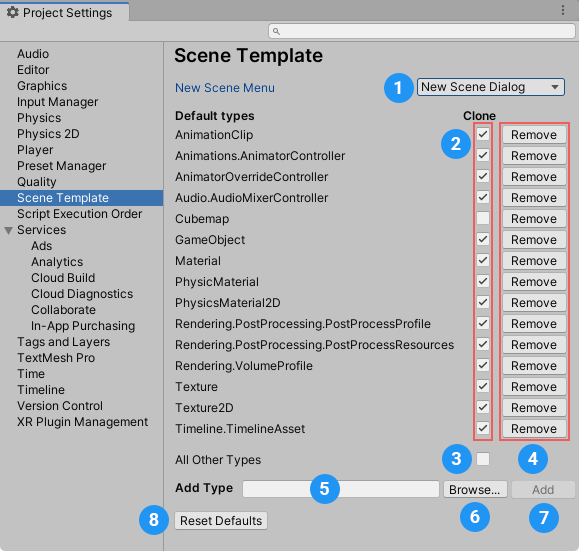
New Scene Menu settings
The New Scene Menu setting (A) controls what happens when you create a new scene from the File menu: (File > New Scene) or using the Ctrl+N (macOS: Cmd+N) shortcut.
| Option | Description |
|---|---|
| New Scene Dialog | Opens the New Scene dialog. |
| Built-in Scene | Creates a new scene without opening the New Scene dialog. The new scene is a copy of the Project’s Basic template. |
Default Types settings
The Default Types settings control whether Unity clones specific types of asset by default when it creates a new scene from a scene template.
To make Unity clone a specific type of asset by default, enable the Clone option (B) for that asset type in the list.
To make Unity reference a specific type of asset by default, disable the Clone option (B) for that asset type in the list.
To set the default clone/reference behavior for asset types that don’t appear in the list, enable/disable the Clone option for All Other Types (C).
To remove an asset type from the list, click the Remove button (D).
To add an asset type to the list, do the following:
- Select Add Type (E).
- Enter a specific asset type or select a type from the list.
To revert to Unity’s default asset type list and settings, click the Reset Defaults button (F).