Create cookies in the Built-In Render Pipeline
Important: The Built-In Render Pipeline is deprecated and will be made obsolete in a future release.
It remains supported, including bug fixes and maintenance, through the full Unity 6.7 LTS lifecycle.
For more information on migration, refer to Migrating from the Built-In Render Pipeline to the Universal Render Pipeline and Render pipeline feature comparison.
The most convenient way to create a cookie for use with the Built-in Render Pipeline is to create a grayscale texture, import that texture to Unity, and then let Unity convert the texture’s brightness to alpha.
Note that in the Built-in Render Pipeline, cookies only use data from the alpha channel. This means that you can define a shape for a cookie, but not a color.

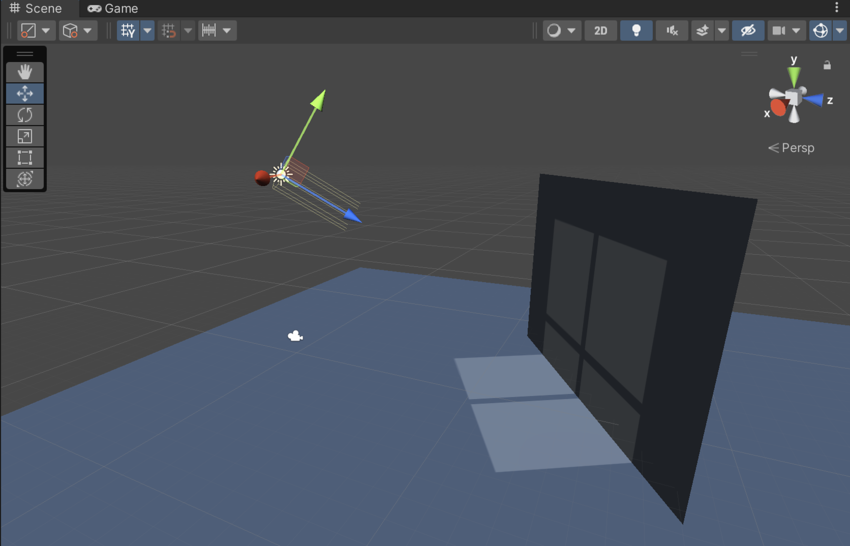
To do this:
- Create a grayscale texture in the image editor of your choice. If you are creating a cookie to use with a Point Light, lay your texture out as a cubemap. If you are creating a cookie to use with a Spot Light or Directional Light, lay your texture out as a regular 2D texture.
- Place the texture in your Project’s Asset folder to import the texture into Unity.
- In your Project view, select the Texture Asset that represents the texture. Unity displays the Texture import settings in the Inspector.
- In the Inspector, set the following values:
- Set Texture Type to Cookie
- Set Light Type to match the Type of the Light that you are creating the cookie for
- Set Alpha Source to From Gray Scale
- At the bottom of the Inspector, click Apply. Unity applies the updated import settings to the Texture Asset.
Note that the pixels of a cookie does not need to be completely transparent or opaque, but can also incorporate any values in between. You can use in-between values to simulate dust or dirt in the path of the light, or to simulate caustic effects such as those produced by the ridges in a car’s headlight.
For more information on configuring the import settings for cookies in the Built-in Render Pipeline, see Texture Type: Cookie.
Limitations
In the Built-In Render Pipeline, VertexLit shaders can’t display Cookies or Shadows.
Shadows are disabled for directional lights with cookies when forward rendering is used. It’s possible to write custom shaders to enable shadows in this case; see documentation on writing surface shaders for further details.