Create a 3D texture
A 3D texture is a bitmap image that contains information in three dimensions rather than the standard two. 3D textures are commonly used to simulate volumetric effects such as fog or smoke, to approximate a volumetric 3D mesh, or to store animated textures and blend between them.
To create a 3D texture, import a 2D texture with the following properties:
- Flipbook format - a single 2D texture arranged as regular cells.
- Maximum size of 2048 × 2048 × 2048 pixels.
The size of a 3D texture on disk and in memory increases quickly as its resolution increases. For example, a 3D texture with RGBAFloat format, no mipmaps, and a size of 32 × 32 × 32 pixels has a size of 512 KB (32 × 32 × 32 × 16 bytes) in memory. If you increase the resolution to 256 × 256 × 256 pixels, the size in memory becomes 256 MB (256 × 256 × 256 × 16 bytes).
Follow these steps to import:
- Import the texture into your project.
- In the Project window, select the texture asset. Unity displays the texture import settings in the Inspector window.
- In the Inspector window, set Texture Shape to 3D.
- Set Columns and Rows to the appropriate values for your flipbook texture.
- Select Apply.
Unity adds a 3D texture slice for each cell in the texture.
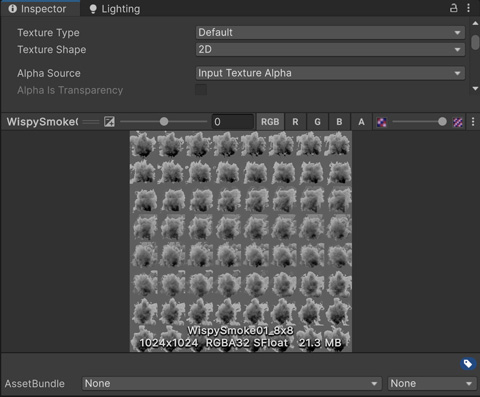
An imported flipbook texture with 8 columns and 8 rows.
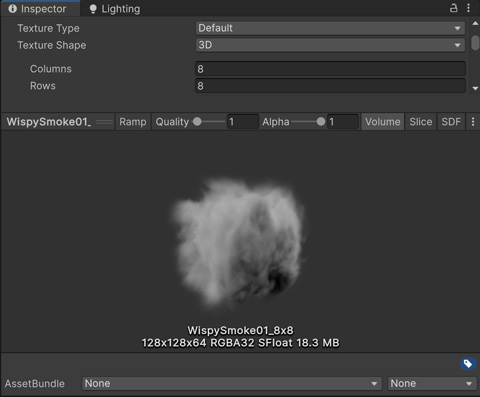
The texture after you set Texture Shape to 3D, Columns to 8, and Rows to 8.
Refer to Importing textures for more information.