Animation States
Animation States are the basic building blocks of an Animation State Machine. Each state contains an animation sequence (or blend tree) that plays when the character is in that state. Select the state in the Animator Controller, to view the properties for the state in the Inspector window.
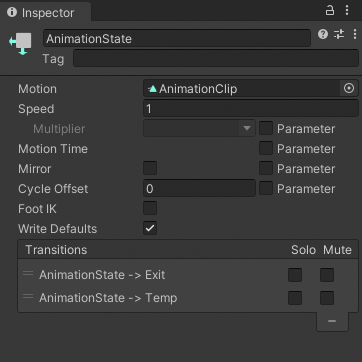
| Property: | Description: |
|---|---|
| Motion | The animation clip or blend tree assigned to this state. |
| Speed | The default speed of the motion for this state. Enable Parameter to modify the speed with a custom value from a script. For example, you can multiply the speed with a custom value to decelerate or accelerate the play speed. |
| Motion Time | The time used to play the motion for this state. Enable Parameter to control the motion time with a custom value from a script. |
| Mirror | This property only applies to states with humanoid animation. Enable to mirror the animation for this state. Enable Parameter to enable or disable mirroring from a script. |
| Cycle Offset | The offset added to the state time of the motion. This offset doesn’t affect the Motion Time. Enable Parameter to specify the Cycle Offset from a script. |
| Foot IK | This property only applies to states with humanoid animation. Enable to respect Foot IK for this state. |
| Write Defaults | Whether the AnimatorStates writes the default values for properties that aren’t animated by its motion. |
| Transitions | The list of transitions originating from this state. |
The default state, displayed in brown, is the state where the state machine starts when it’s first activated. To change the default state, right-click on another state and select Set As Default from the context menu. Use the Solo and Mute checkboxes on each transition to control the behaviour of animation previews. For more information, refer to this page.
To add a new empty state, right-click in the Animator Controller view and select Create State > Empty from the context menu. To create a new state with an animation clip, drag the animation clip into the Animator Controller view.
Any State
Use Any State to add a transition from any state to a specific state. Any State is a special state that represents all states. Adding a transition from Any State is an efficient way of adding the same transition from all states.
For example, your game has a timer and you want to transition to a time expired animation when the timer reaches zero. You can add a transition from Any State to the timer expired state. When the timer reaches zero, regardless of the current state, your state machine transitions to the time expired state.
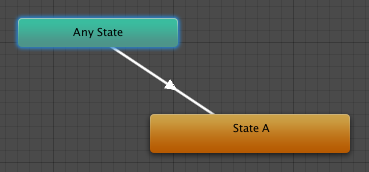
Because of its special purpose, you can’t place Any State at the end of a transition. You can’t have an animation or transition end with Any State. You also can’t set Any State as the default state.
Using presets for transitions of Animation State nodes
You can save and apply presets for Animation state nodes. However, the transitionsThe blend from one state to another in a state machine, such as transitioning a character from a walk to a jog animation. Transitions define how long the blend between states should take, and the conditions that activate the blend. More info
See in Glossary in the preset are shared among presets and the nodes that you apply the preset to. For example, you apply a preset to two different nodes in the Animator windowThe window where the Animator Controller is visualized and edited. More info
See in Glossary. In the Inspector window, you edit the settings for one of the transitions in the first node. Your change also appears in the other node and in the preset.