Animator window
Use the Animator window to create, view, and modify Animator Controller assets.
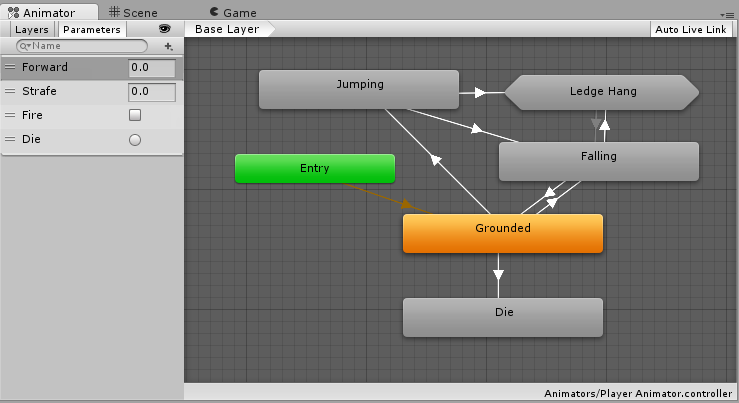
The Animator window displays the state machine from the most recently selected .controller asset, regardless of which scene is loaded.
The Animator window contains:
- Animation LayersAn Animation Layer contains an Animation State Machine that controls animations of a model or part of it. An example of this is if you have a full-body layer for walking or jumping and a higher layer for upper-body motions such as throwing an object or shooting. The higher layers take precedence for the body parts they control. More info
See in Glossary - Animation ParametersUsed to communicate between scripting and the Animator Controller. Some parameters can be set in scripting and used by the controller, while other parameters are based on Custom Curves in Animation Clips and can be sampled using the scripting API. More info
See in Glossary - The Animator Controller view where you create, arrange, and connect states for the Animator ControllerControls animation through Animation Layers with Animation State Machines and Animation Blend Trees, controlled by Animation Parameters. The same Animator Controller can be referenced by multiple models with Animator components. More info
See in Glossary.
You can right-click (macOS: Ctrl__+click) on the grid to create a new state node. Use the middle mouse button or press Alt__ (macOS: Option) and drag to pan the Animator Controller view. Click to select and edit a state node. Click and drag a state node to rearrange your state machine.
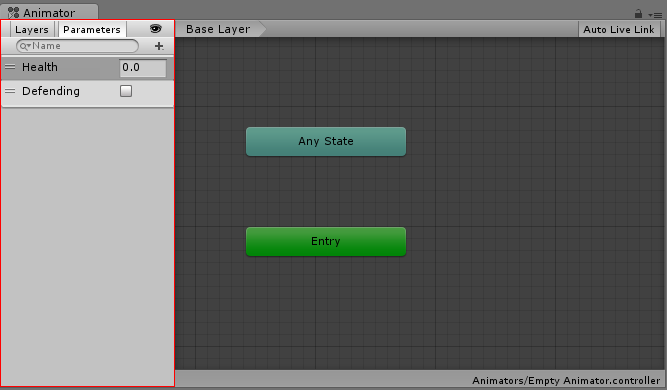
Use the Parameters view to create, view, and edit Animator Controller Parameters. These are variables you define that act as inputs for the state machine. To add a parameter, select the Plus icon, then select the parameter type from the context menu. To delete a parameter, select the parameter in the list and press Delete (macOS: Ctrl__+click and select Delete__).
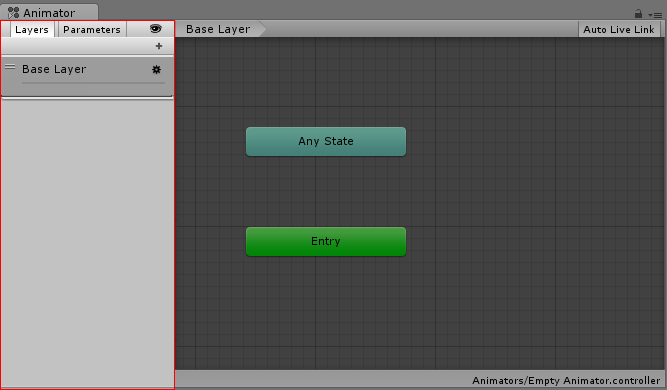
Use the Layers view to create, view, and edit layersLayers in Unity can be used to selectively opt groups of GameObjects in or out of certain processes or calculations. This includes camera rendering, lighting, physics collisions, or custom calculations in your own code. More info
See in Glossary for your Animator Controller. You can control each layer with a different state machine. For example, you can create a base layer that controls the full body animation of your character and a second layer that controls the upper-body animation.
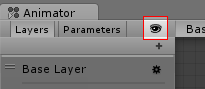
Enable or disable the Eye icon to display or hide the side pane. Hide the side pane to have more room to edit your state machine.
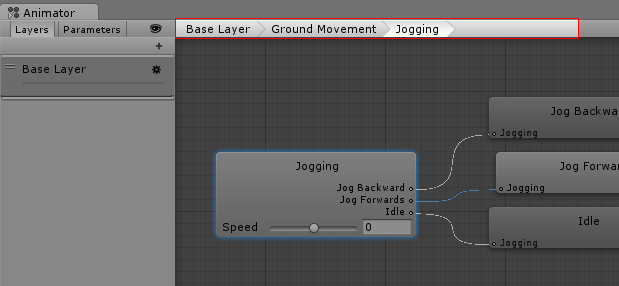
States can contain sub-states and blend trees. You can nest these structures repeatedly. When you view a sub-state or blend tree within another state, the breadcrumb list displays the nested hierarchy. Select an item in the breadcrumb list to display the state, sub-state, or blend tree.
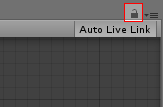
Select the Lock icon to focus the Animator window on the selected Animator Controller asset. The Animator window doesn’t change focus when you select a different Animator Controller asset. If you disable the Lock icon, the Animator window changes focus when you select a different Animator Controller asset.