Set a GameObject to use a Light Probe Proxy Volume in the Built-In Render Pipeline
Important: The Built-In Render Pipeline is deprecated and will be made obsolete in a future release.
It remains supported, including bug fixes and maintenance, through the full Unity 6.7 LTS lifecycle.
For more information on migration, refer to Migrating from the Built-In Render Pipeline to the Universal Render Pipeline and Render pipeline feature comparison.
Most of the Renderer components in Unity contain Light Probes. There are three options for Light Probes:
Off: the Renderer doesn’t use any interpolated Light Probes.
Blend Probes (default value): the Renderer uses one interpolated Light Probe.
Use Proxy Volume: the Renderer uses a 3D grid of interpolated Light Probes.
When you set the Light ProbesLight probes store information about how light passes through space in your scene. A collection of light probes arranged within a given space can improve lighting on moving objects and static LOD scenery within that space. More info
See in Glossary property in the Mesh Renderer component to Use Proxy Volume, the GameObject must have a Light Probe Proxy VolumeA component that allows you to use more lighting information for large dynamic GameObjects that cannot use baked lightmaps (for example, large Particle Systems or skinned Meshes). More info
See in Glossary (LPPV) component attached. You can add a LPPV component on the same GameObject, or you can use (borrow) a LPPV component from another GameObject using the Proxy Volume Override property. If Unity cannot find a LPPV component in the current GameObject or in the Proxy Volume Override GameObject, a warning message is displayed at the bottom of the Renderer.
Example
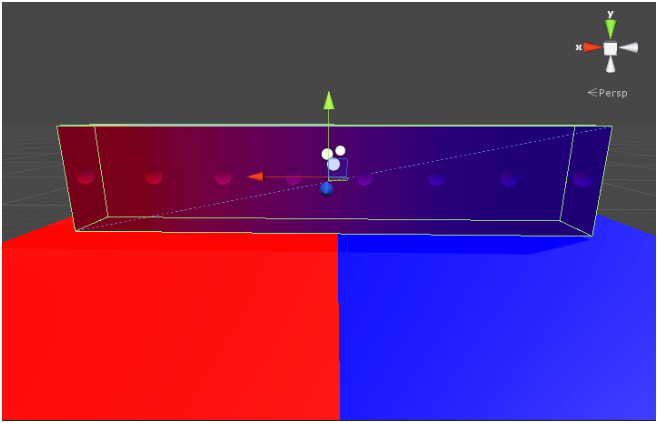
In the Scene above, there are two planes on the floor using Materials that emit a lot of light. Note that:
The ambient light changes across the geometry when using a LPPV component. Use one interpolated Light Probe to create a constant color on each side of the geometry.
The geometry doesn’t use static lightmaps, and the spheres represent interpolated Light Probes. They are part of the Gizmo Renderer.