Create a new Animation Clip
To create a new Animation ClipAnimation data that can be used for animated characters or simple animations. It is a simple “unit” piece of motion, such as (one specific instance of) “Idle”, “Walk” or “Run”. More info
See in Glossary, do the following:
- Select a GameObject in your Scene.
- Go to Window > Animation > Animation to open the Animation Window,
If the GameObject is not assigned an animation clip, the Create button displays in the centre of the Animation Window.
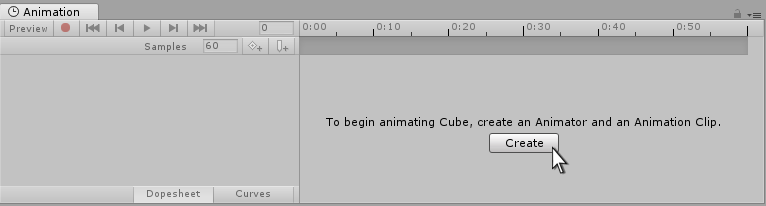
Click the Create button. Unity prompts you to save your new empty Animation Clip in your AssetsAny media or data that can be used in your game or project. An asset may come from a file created outside of Unity, such as a 3D Model, an audio file or an image. You can also create some asset types in Unity, such as an Animator Controller, an Audio Mixer or a Render Texture. More info
See in Glossary folder. When you save this new empty Animation Clip, Unity does the following:
- Creates a new Animator Controller Asset.
- Adds the new clip into the Animator Controller as the default state.
- Adds an Animator Component to the selected GameObject.
- Assigns the new Animator Controller to the Animator Component.
The required elements of the animation system are set up. You can begin animating the GameObject.
Create another Animation Clip
If the selected GameObject already has one or more Animation Clips assigned and you open the Animation window, the Create button is not displayed. Instead, one of the animation clips assigned to the selected GameObject is displayed.
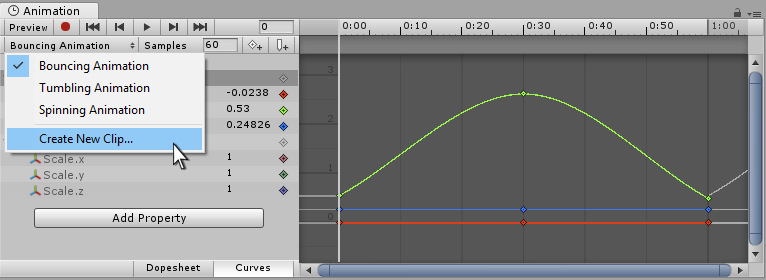
To switch between Animation Clips, use the menu in the top-left of the Animation window, under the playback controls.
To create a new Animation Clip on a GameObject that has existing animations, select Create New Clip from this menu. Unity prompts you to save your new empty Animation Clip.
How it fits together
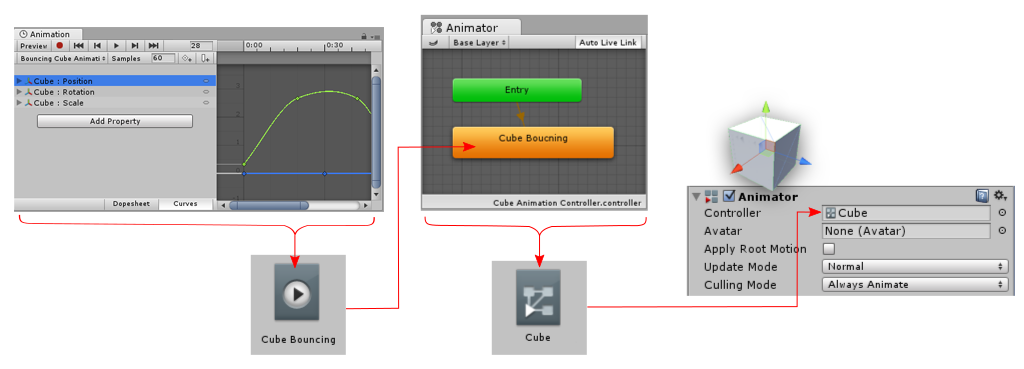
The above steps automatically set up the components and assets needed to animate a GameObject. It is useful to understand how these components, clips, and assets connect together:
- A GameObject must have an Animator component
- The Animator component must have an Animator ControllerControls animation through Animation Layers with Animation State Machines and Animation Blend Trees, controlled by Animation Parameters. The same Animator Controller can be referenced by multiple models with Animator components. More info
See in Glossary Asset assigned - The Animator Controller asset must have one or more Animation Clips assigned
The diagram below shows how Unity assigns these components and assets, starting from a new Animation Clip.
After you create a new Animation Clip, the follow happens:
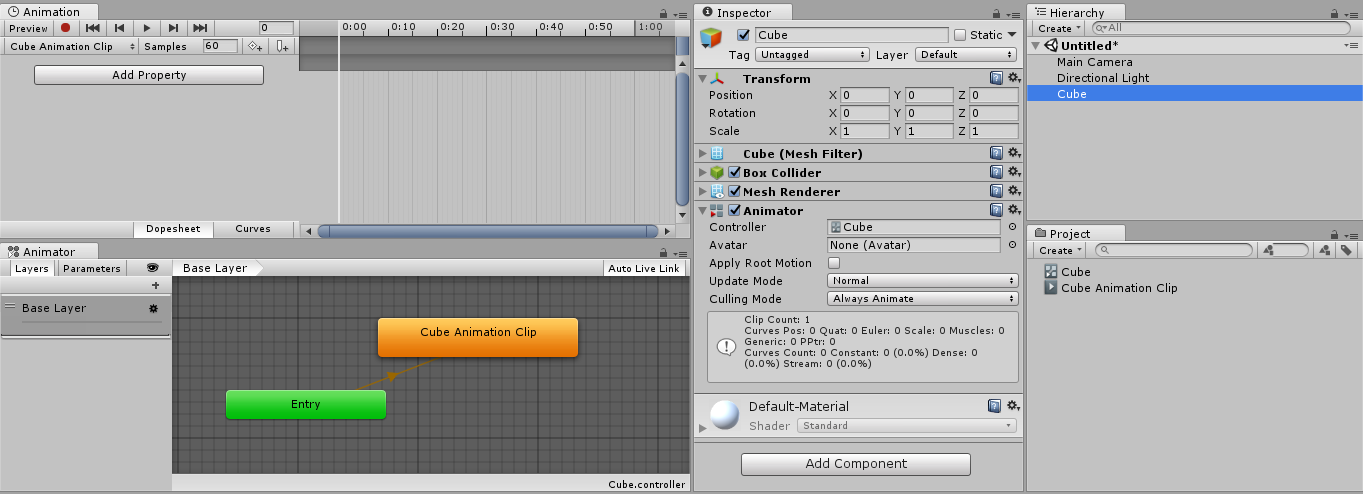
- The Animation Window displays a timeline with a white playback line. The
Cube Animation Clipclip is selected in the clip menu. - In the Inspector window, the Cube GameObject has an Animator Component. The Controller field is assigned the
CubeAnimator Controller Asset. - The Project Window has two new Assets: the
CubeAnimator Controller asset and theCube Animation Clipanimation clip asset. - The Animator Window displays the contents of the
CubeAnimator Controller asset. TheCube Animation Clipis set as the default state, as indicated by the orange color.