Style UI in-scene
Style an element in the UI Staging Mode using the Style Sheets (Window > UI Toolkit > Style Sheets) or the Inspector window.
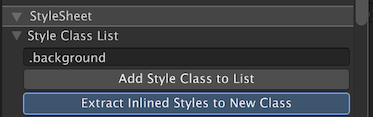
You can style elements using inline styles or USS selectors. Inline styles are best for single-use or experimental cases, while style sheets are generally easier to manage and more efficient at scale. You can also extract inline styles to a USS class.
Set inline styles on elements
Set inline styles in the Inlined Styles section of the Inspector window for the selected element.
Style fields that appear in bold with a solid line on the left of the field label represent overridden style properties. Overridden properties always take precedence over the same property set in a style sheet or by default. To remove an override, right-click the style field and select Unset.
Note: You can’t use inline styles for pseudo-classes or read-only elements.
Manage a style sheet
To add a style sheet, use the + dropdown menu and select one of the following options:
- Create New USS: This opens a Save File dialog to create a new style sheet in your project.
- Add Existing USS: This opens the Open File dialog to add an existing style sheet to the UI Document. You can also drag a USS file directly from the Project window into the Style Sheets window.
To remove a style sheet from the active UI Document, right-click the style sheet and select Remove USS.
To make a style sheet active, right-click a style sheet and select Set as Active USS. The active style sheet’s name appears in bold.
When you edit subdocuments, the style sheets that belong to parent documents appear dimmed and cannot be edited.
Note: You can add comments in a USS file with a text editor the same way as you do with a CSS file. However, if you edit the USS file in the Style Sheet window, the comments are removed when you save the USS file from the Style Sheet window.
Create USS selectors
You can create USS selectors in the Style Sheets window, or create a class selector from an element’s Inspector window. A new selector is always added to the active style sheet.
To create a new selector in the Style Sheets window:
- In the Style Sheets window, select Add new selector….
- Enter the selector with the correct syntax. For example, a class selector starts with
.. - Press Enter.
- In the Style Sheets window, select the newly created selector.
- In the selector’s Inspector window, set the desired styles for the selector.
To create a new class selector in an element’s Inspector window:
In the Hierarchy window, select the element.
In the Inspector window, enter the class selector in Style Class List.
-
Select Add Style Class to List. A yellow-style class label appears in Style Class List.
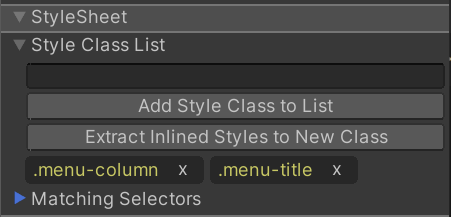
Style Sheets section of Inspector If the yellow-style class label appears faded, the selector doesn’t exist in the attached style sheets. Double-click it to create a new class selector, or double-click an existing label to open the selector’s Inspector window.
Manipulate USS selectors
To copy, paste, duplicate, rename, or delete one or more USS selectors:
- In the Style Sheets window, select the selector.
- Right-click the selector and select the desired action.
Tip: You can copy and paste a USS selector between the Style Sheets window and a text editor.
Match USS style class to elements
You can match USS classes to elements. For example, given the following selectors in the Style Sheets window:
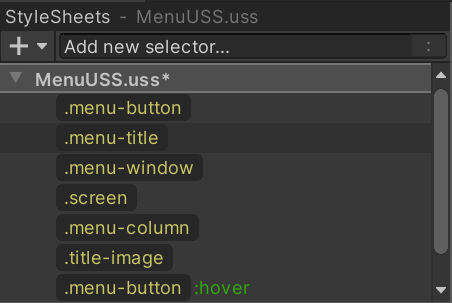
To match USS style class to elements, do any of the following:
- Drag a style class label, such as
.menu-title, onto the element in either the Hierarchy or the Viewport. - Enter the name of the selector in Style Class List in the element’s Inspector window, then select Add Style Class to List:
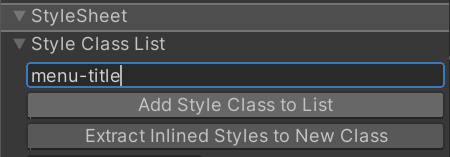
Extract inline styles to a USS class
Use inline styles only for experimenting with a small number of elements. As you build a more complex UI, it’s easier to manage styles using style sheets. You can extract inline styles to a style sheet.
- Select the element with inline styles.
- In the Inspector window, enter the name of the selector in Style Class List.
- Select Extract to USS Class.