Manage the Inspector window
This page describes some options for controlling the Inspector window. For information about setting properties for GameObjects, scripts, and assets, refer to Manage components and their values.
Open an Inspector window
To open an Inspector window, do one of the following:
- To open the Inspector as a new window, from the main menu, select Window > General > Inspector.
- To add an Inspector tab to any window, from the window’s More Items menu (⋮), select Add Tab > Inspector.
You can open as many Inspector windows as you want, and reposition, dock, and resize them.
The Inspector window shows the properties of the item you select in the Hierarchy window, Scene view, or Project window. For more information, refer to Inspect items. To lock the window on a specific item, or open an Inspector dedicated to that item, refer to Focus an Inspector window.
Debug an Inspector window
Use Debug mode to display the private properties of each component in an Inspector window, and hide any custom inspector code elements.
To enable Inspector debug mode:
- In the Inspector window, select the More menu (⋮).
- Select Debug.
When the Inspector window is in debug mode, the debug banner appears with the debug mode icon  .
.
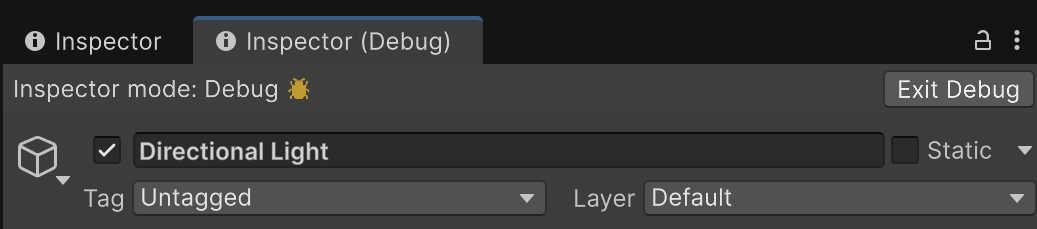 .
.
Select Exit Debug to leave Inspector debug mode.